Overview
The Recently viewed section shows the products a customer has looked at most recently, newest first. It helps shoppers get back to items they were considering, which can help them decide to buy. On a product page, the product being viewed is left out. The list is saved in the customer’s own browser, so each customer sees their own history, with no app or account needed. The section stays hidden until the customer has viewed at least one product. You can add it to the product page, the home page, collection pages or the cart page. The section has two parts: a Section heading with the title and carousel arrows, and the Product card.
How to use
- Go to Online Store → Themes → Customize.
- Open the page where you want the section, for example Products → Default product.
- Click Add section → Recently viewed, or select an existing one.
- Choose the Color scheme and Maximum products to show.
- Under Layout, set the columns for desktop, tablet and mobile.
- Under Carousel, choose the dots, counter, progress bar, loop and auto-rotate options.
- Expand the section to edit the Section heading and Product card.
- Set the Section width and Padding, then click Save.
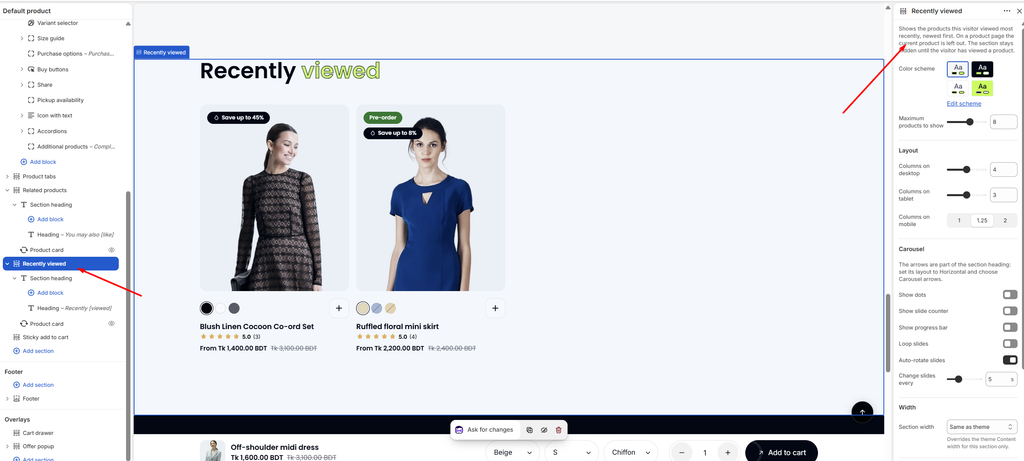
Settings
| Settings | Description |
|---|---|
| Color Scheme | Select a predefined color scheme for the section. |
| Maximum Products to Show | Set the most products shown (2–12). Fewer appear if the customer has viewed fewer products. |
| Columns on Desktop | Set how many products are visible at once on desktop (2–6). |
| Columns on Tablet | Set how many products are visible at once on tablet (2–4). |
| Columns on Mobile | Set how many products are visible at once on mobile: 1, 1.25 or 2. 1.25 shows part of the next product, so customers can see there is more to swipe. |
| Show Dots | Show navigation dots below the carousel. |
| Show Slide Counter | Show the current position, for example 1 / 6. |
| Show Progress Bar | Show a bar that fills as customers move through the products. |
| Loop Slides | Go back to the first product after the last one. |
| Auto-rotate Slides | Move through the products automatically. |
| Change Slides Every | Appears when Auto-rotate slides is on. Set how long each slide shows before moving on (3–10 seconds). |
| Section Width | Set how wide the section is: Same as theme, Full width, Wide, Standard, Narrow or Custom. This overrides the theme Content width for this section only. |
| Custom Section Width | Appears when Section width is Custom. Set an exact width (600–2000 px). |
| Padding | Choose Desktop or Mobile under Devices, then adjust the Top and Bottom spacing of the section for that device. |
Carousel arrows: The arrows are part of the Section heading. Select it, set its layout to Horizontal, and choose Carousel arrows. See the Section heading article.
Product card: The cards follow Theme settings → Product cards. See the Product Card article.
Note: If the section looks empty in the editor, open a few products on your storefront first. The list is stored per browser, so clearing browser data or using a private window starts it over.