How Filtering Works
Overview
Collection filters let customers narrow down products on collection and search pages, for example by Availability, Price, Product type, Color and Size. Filters help customers find what they want faster, which leads to more sales, especially in large catalogs.
Filtering has two parts:
- Which filters appear is set in Shopify’s free Search & Discovery app.
- How filters look (sidebar or drawer, colors) is set in the theme’s Filters block.
Faith shows each filter in the clearest way:
| Settings | Description |
|---|---|
| Color Filters | Shown as color swatches, using the same colors as your product swatches. A filter is treated as color when its name matches Swatch option names in Theme settings → Swatches, or when it uses Shopify’s swatch display. |
| Size Filters | Shown as buttons, for example S, M, L, XL. A filter is treated as size when its name matches Single option name in Theme settings → Swatches. |
| Price Filter | Shown as a slider with minimum and maximum price fields. |
| Other Filters | Shown as checkboxes with the number of products, for example Coat (6). |
| Active Filters | Shown above the products as removable chips, with a Clear all link. |
Step 1: Set Up Filters in Search & Discovery
Overview
Shopify’s Search & Discovery app controls which filters appear and in what order. Filters can be based on availability, price, product type, vendor, tags, variant options (such as Color and Size), and product or variant metafields.
How to use
- Go to the Shopify App Store and install Search & Discovery (free, by Shopify).
- In Shopify admin, open Apps → Search & Discovery → Filters.
- Click Add filter, and choose a Source, for example Availability, Price, Product type, or the Color and Size options.
- Optionally, change the Label (for example Colour instead of Color), group values, and choose how values are sorted.
- Click Save, then repeat for each filter you want.
- Drag the filters in the list into the order they should appear.
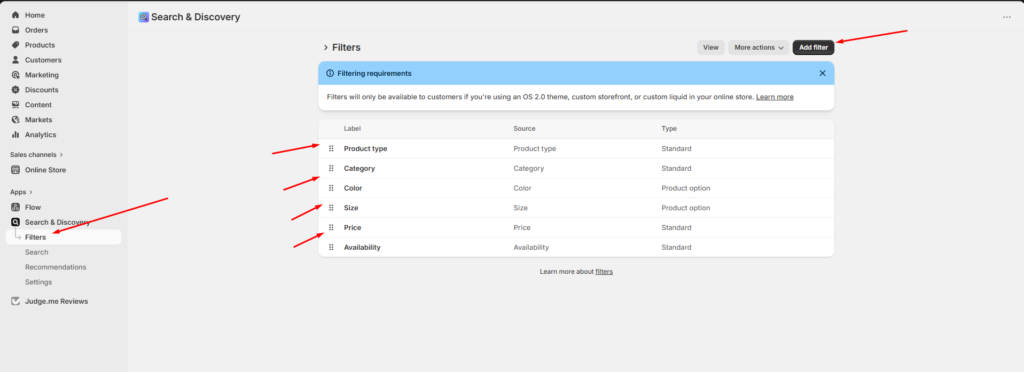
Settings
| Settings | Description |
|---|---|
| Availability | Lets customers show only products in stock, or out of stock. |
| Price | A price range with a slider. |
| Product Type and Vendor | Filter by type, for example Coat, Dress, Tops, or by brand. |
| Variant Options | Filter by Color, Size, Material and other options, from your product variants. |
| Tags | Filter by product tags. Tags starting with __badge (used for theme badges) are hidden from filters. |
| Metafields | Filter by product or variant metafields, for example Fabric or Fit. The metafield must have a definition and use a supported type. |
| Category Metafields | Filter by Shopify’s standard product attributes, such as color or fabric, set through the product category. |
Tip: Add 4–6 useful filters. Too many filters make the sidebar long and harder to use. Put the most-used filters (Availability, Color, Size, Price) first.
Step 2: Turn On Filters in the Theme
Overview
The Filters block in the Collection products section shows the filters on collection pages. Choose a sidebar that is always visible, or a drawer that opens from a Filter button. On mobile, filters always open in a drawer.
How to use
- Go to Online Store → Themes → Customize.
- From the page selector at the top, choose Collections → Default collection.
- Expand Collection products and select Filters.
- Turn on Show filters.
- Choose the Filter layout on desktop: Sidebar or Drawer.
- Optionally, turn off Inherit color scheme and choose a different color scheme for the filters.
- Click Save, then test the filters on a collection page.
Settings
| Settings | Description |
|---|---|
| Show Filters | Show filters on the collection page. |
| Filter Layout on Desktop | Appears when Show filters is on. Choose Sidebar (always visible beside the products) or Drawer (opens from a Filter button, giving products the full width). On mobile, filters always open in a drawer. |
| Inherit Color Scheme | Use the section’s colors. Turn this off to give the filters their own color scheme. |
| Color Scheme | Appears when Inherit color scheme is off. Select the filters’ color scheme. |
| Show Sort | Collection products section. Show the Sort by menu next to the filters. |
Search page: Filters also appear on the search results page. Set them up the same way in the search template.
Step 3: Make Color Filters Show the Right Colors
Overview
Color filters use the same colors as your product swatches. If a color filter shows a grey circle, Faith doesn’t know that color yet.
How to use
- Go to Theme settings → Swatches.
- Check that Swatch option names includes the name of your color filter, for example Color.
- Add any custom color names to the Color list, for example Sand: #D8C3A5.
- Check that Single option name includes your size filter name, for example Size, so sizes show as buttons.
- Click Save, and check the collection page.
Settings
| Settings | Description |
|---|---|
| Swatch Option Names | Filters with these names show as color swatches. |
| Color List | Custom color names and values, used by both product swatches and color filters. |
| Single Option Name | Filters with this name show as size buttons. |
| Swatch Size and Shape | Also used for color filter swatches. |
Tip: Keep color names consistent across products, for example always Navy, never Navy Blue on some products. Each spelling shows as a separate filter value.
How Customers Use Filters
Overview
Filters update the products without reloading the whole page. Customers can combine several filters, for example In stock + Black + Size M.
Settings
| Settings | Description |
|---|---|
| Open Groups | The first two filter groups, and any group with a selected value, start open. Customers click a group heading to open or close it. |
| Product Counts | Each value shows how many products match, for example Fashion (1). |
| Unavailable Values | Values with no matching products are greyed out and can’t be selected. |
| Active Filter Chips | Selected filters show as chips above the products. Click × on a chip to remove it, or Clear all to remove every filter. |
| Shareable URLs | Filters are added to the page URL, so customers can bookmark or share a filtered view. |