Overview
The Article card block shows one blog post as a clickable card. It includes the post image, plus inner blocks for the tag and date (Article meta), the Article title, a short Article excerpt and a Read more link. Choose any article for each card, or leave it empty to show the current article on article pages. You can place the image on top of the text or beside it, and style the card with a color scheme, border, shadow and hover effects. Add it to any section or block that accepts theme blocks, such as a Group inside a Custom section.
How to use
- Go to Online Store → Themes → Customize.
- Select a section or block that accepts blocks, for example a Group inside a Custom section.
- Click Add block → Article card.
- Select an Article.
- Choose the Layout and Alignment.
- Under Cards, set the color scheme, aspect ratio, padding, corner radius, border and shadow.
- Under Hover, choose the hover effects. Set the Width, Scroll animation and Padding.
- Expand the card to edit or reorder its inner blocks, or click Add block to add a Heading, Text or Button.
- Click Save.
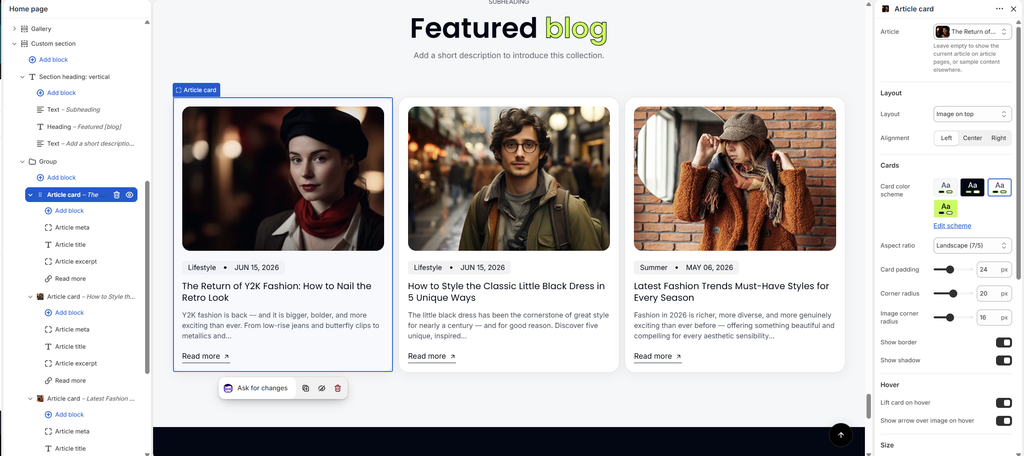
Settings
| Settings | Description |
|---|---|
| Article | Select the blog post shown in the card. Leave it empty to show the current article on article pages, or sample content elsewhere. |
| Layout | Choose Image on top or Image beside text. |
| Image Position | Appears when Layout is Image beside text. Place the image on the Left or Right. On mobile, the image moves above the text. |
| Image Width | Appears when Layout is Image beside text. Set how much of the card the image takes up (25–65%). |
| Alignment | Align the card text Left, Center or Right. |
| Card Color Scheme | Select a predefined color scheme for the card. |
| Aspect Ratio | Choose the image shape: Landscape (7/5), Landscape (16/9), Landscape (4/3), Square (1/1), Portrait (4/5) or Auto. |
| Card Padding | Adjust the space inside the card (0–60 px). Set it to 0 for a borderless look, with the image touching the card edges. |
| Corner Radius | Customize the rounded corners of the card (0–40 px). |
| Image Corner Radius | Customize the rounded corners of the image (0–40 px). |
| Show Border | Add a border around the card. |
| Show Shadow | Add a soft shadow under the card. |
| Lift Card on Hover | Raise the card slightly when customers hover over it. |
| Show Arrow Over Image on Hover | Show an arrow icon over the image on hover, to show that the card is clickable. |
| Width | Set the card width on desktop: Fit, Fill or Custom. |
| Custom Width | Appears when Width is Custom. Set the width as a percentage of the row (5–100%). |
| Width Mobile | Set the card width on mobile: Fit, Fill or Custom. Custom shows its own Custom width slider. |
| Scroll Animation | Choose how the card appears as customers scroll: None or Rise up. |
| Animation Delay | Appears when Scroll animation is Rise up. Delay the animation (0–800 ms). Give each card a slightly longer delay for a staggered effect. |
| Padding | Choose Desktop or Mobile under Devices, then adjust the Top and Bottom spacing of the block for that device (0–100 px). |
| Enable Preload Image | Load the image first when the card is visible as soon as the page opens. This helps page speed (LCP). Turn it on only for cards near the top of the page. |
Tip: To place cards side by side, put them in a Group with Layout direction Horizontal, and set each card’s Width to Fill. Use the same Aspect ratio on every card, so the row lines up.
Article Meta Block
Overview
The Article meta block shows the article’s tag, publish date and author, for example Lifestyle • JUN 15, 2026. It can appear as a pill or as plain text.
How to use
- Expand the Article card and select Article meta.
- Choose which details to show: tag, date and author.
- Choose the Date format and Style.
- Set the Typography and Padding.
- Click Save.
Settings
| Settings | Description |
|---|---|
| Show Tag | Show the article’s first tag, for example Lifestyle. |
| Show Date | Show the publish date. |
| Date Format | Appears when Show date is on. Choose Short (SEP 12, 2026), Long (September 12, 2026), Day first (12/09/2026) or Month first (09/12/2026). |
| Show Author | Show the author’s name. |
| Style | Show the details in a Pill (with a background) or as Plain text. |
| Preset | Choose the text style: Default, Paragraph, Subheading, Heading 6 or Custom. |
| Font Size | Appears when Preset is Custom. Set the text size on desktop (10–30 px). |
| Font Size on Mobile | Appears when Preset is Custom. Set the text size on mobile (10–30 px). |
| Font Weight | Appears when Preset is Custom. Choose Light, Regular, Medium, Semibold or Bold. |
| Line Height | Appears when Preset is Custom. Adjust the space between lines (80–200%). |
| Letter Spacing | Appears when Preset is Custom. Adjust the space between letters (-5 to 10%). |
| Padding | Choose Desktop or Mobile under Devices, then adjust the Top and Bottom spacing of the block for that device (0–100 px). |
Article Title Block
Overview
The Article title block shows the article’s title. You can set the heading level for SEO, limit the number of lines, and choose the text style.
How to use
- Expand the Article card and select Article title.
- Choose the Level and Maximum lines.
- Set the Title typography and Padding.
- Click Save.
Settings
| Settings | Description |
|---|---|
| Level | Choose the heading tag for SEO and accessibility: H2, H3, H4 or Paragraph. This does not change how it looks. |
| Maximum Lines | Limit the title to a number of lines (0–4). Longer titles end with an ellipsis (…). Set it to 0 to show the full title. |
| Title Typography | Choose the title style: Default, Paragraph, Subheading, Heading 1–6 or Custom. |
| Font Size | Appears when Title typography is Custom. Set the title size on desktop (10–80 px). |
| Font Size on Mobile | Appears when Title typography is Custom. Set the title size on mobile (10–80 px). |
| Font Weight | Appears when Title typography is Custom. Choose Light, Regular, Medium, Semibold or Bold. |
| Line Height | Appears when Title typography is Custom. Adjust the space between lines (80–200%). |
| Letter Spacing | Appears when Title typography is Custom. Adjust the space between letters (-5 to 10%). |
| Padding | Choose Desktop or Mobile under Devices, then adjust the Top and Bottom spacing of the block for that device (0–100 px). |
Tip: Set Maximum lines to 2 on cards placed side by side, so all the titles take the same space and the cards line up.
Article Excerpt Block
Overview
The Article excerpt block shows a short preview of the article. It uses the article’s Excerpt from Shopify admin → Content → Blog posts, or the start of the article content if no excerpt is set.
How to use
- Expand the Article card and select Article excerpt.
- Set the Maximum words and Maximum lines.
- Set the Text typography and Padding.
- Click Save.
Settings
| Settings | Description |
|---|---|
| Maximum Words | Set the maximum number of words shown (8–60). |
| Maximum Lines | Limit the excerpt to a number of lines (0–6). Longer text ends with an ellipsis (…). Set it to 0 to show it all. |
| Text Typography | Choose the text style: Default, Paragraph, Subheading, Heading 5, Heading 6 or Custom. |
| Font Size | Appears when Text typography is Custom. Set the text size on desktop (10–40 px). |
| Font Size on Mobile | Appears when Text typography is Custom. Set the text size on mobile (10–40 px). |
| Font Weight | Appears when Text typography is Custom. Choose Light, Regular, Medium, Semibold or Bold. |
| Line Height | Appears when Text typography is Custom. Adjust the space between lines (80–200%). |
| Letter Spacing | Appears when Text typography is Custom. Adjust the space between letters (-5 to 10%). |
| Padding | Choose Desktop or Mobile under Devices, then adjust the Top and Bottom spacing of the block for that device (0–100 px). |
Read More Block
Overview
The Read more block adds a link or button that opens the full article.
How to use
- Expand the Article card and select Read more.
- Enter the Label, then choose the Style and whether to show the arrow.
- Adjust the Padding.
- Click Save.
Settings
| Settings | Description |
|---|---|
| Label | Enter the link text, for example Read more or Read the story. |
| Style | Choose Link (underlined text), Primary or Secondary button. Button styles are set in Theme settings → Buttons. |
| Show Arrow | Show an arrow after the label. |
| Padding | Choose Desktop or Mobile under Devices, then adjust the Top and Bottom spacing of the block for that device (0–100 px). |
Blocks: You can also add Heading, Text and Button blocks inside an Article card. See their articles for settings.