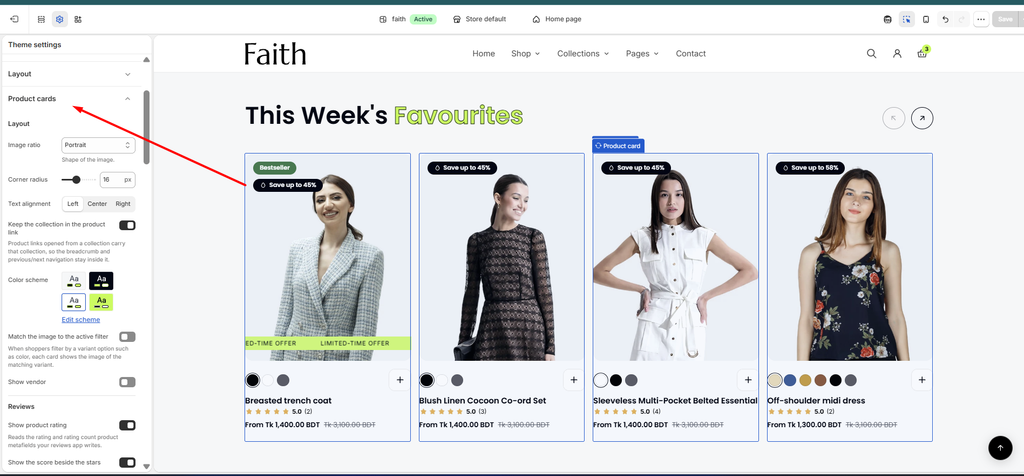
Product cards are the product tiles shown across the store: in collections, search results, Featured collection, Featured collection pills, Spotlight products, related products and more. Each card shows the product image, title and price, and can also show:
a second image or video on hover
star ratings
color swatches
a quick add (+) button and a quick view
badges
a scrolling promotional tagline or an offer countdown
All cards follow Theme settings → Product cards, so one change updates every card in the store. To change the cards in just one section, use that section’s Product card block (see the end of this article).
How to use
Go to Online Store → Themes → Customize.
Click the Theme settings icon (the gear) in the left sidebar and open Product cards.
Under Layout, set the Image ratio, Corner radius, Text alignment and Color scheme.
Under Reviews, turn on Show product rating if you use a reviews app, and choose the star colors.
Set up Quick view, Variants, Media (hover image) and Quick add.
Optionally, turn on the Promotional tagline, Cutline or Offer countdown. These read product metafields.
Click Save.
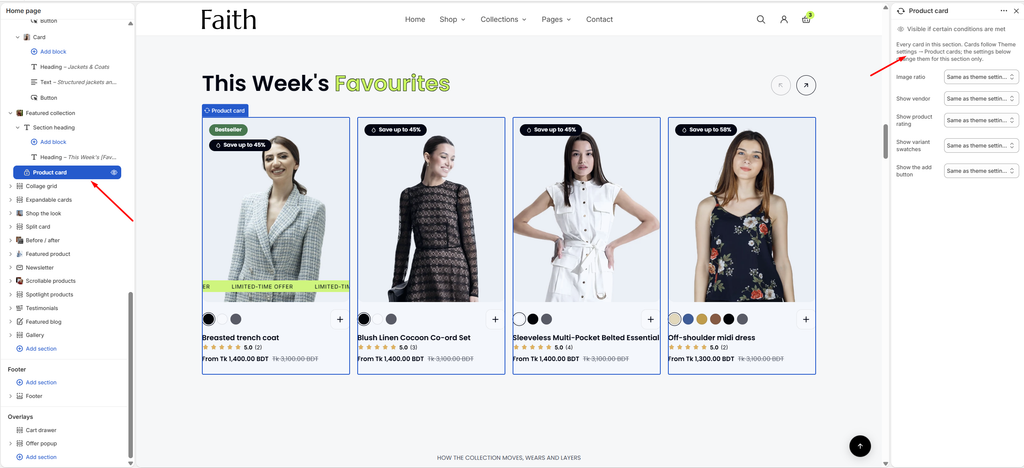
To override the cards in one section, open that section in the left sidebar, select its Product card block, and change only what you need.
Settings — Layout
Settings
Description
Image Ratio
Choose the shape of the product images: Portrait, Portrait (5:4), Portrait (4:3), Portrait (2:3), Square, Landscape (3:2), Landscape (16:9) or Original.
Corner Radius
Customize the rounded corners of the card image (0–40 px).
Text Alignment
Align the card text Left, Center or Right.
Keep the Collection in the Product Link
When a product is opened from a collection, keep that collection in the link, so the breadcrumb and previous/next navigation stay inside it.
Color Scheme
Select a color scheme for the cards.
Match the Image to the Active Filter
When shoppers filter by a variant option such as color, each card shows the image of the matching variant.
Show Vendor
Show the product’s vendor (brand) on the card.
Settings — Reviews
Settings
Description
Show Product Rating
Show star ratings on the cards. It reads the rating and rating count that your reviews app saves to the product.
Show the Score Beside the Stars
Appears when ratings are on. Show the average score, for example 5.0, next to the stars.
Show the Review Count Only
Appears when ratings are on. Show only the number of reviews, for example (3).
Star Color
Appears when ratings are on. Choose the color of the filled stars. Leave it empty to use the theme’s accent color.
Empty Star Color
Appears when ratings are on. Choose the color of the unfilled part of the rating. Leave it empty for a faint tint of the text color.
Text Color
Appears when ratings are on. Choose the color of the score and review count. Leave it empty to follow the surrounding text color.
Settings — Quick View
Settings
Description
Enable Quick View
Add a quick view button that opens the product’s details in a panel, without leaving the page.
Button Display
Choose when the quick view button shows: On hover, Always, On hover, always on mobile or On hover, hidden on mobile.
Color Scheme
Select the color scheme for the quick view panel.
Quick View Width
Set the width of the quick view panel (720–1280 px).
Image Column Width
Set the width of the image column in the panel (280–640 px).
Space Between Columns
Adjust the gap between the image and the details (16–96 px).
Inner Padding
Adjust the spacing inside the panel (16–64 px).
Corner Radius
Customize the rounded corners of the panel (0–40 px).
Tip: What the quick view shows (its blocks and their settings) is edited on the Products › quickview template in the theme editor.
Settings — Promotional Tagline
Settings
Description
Show Promotional Tagline
Scroll a short promotional message, such as LIMITED-TIME OFFER, across the bottom of the card image. It reads the theme.tagline product metafield. A product with a tagline shows it instead of the offer countdown.
Scroll Speed
Choose how fast the tagline moves: Slow, Medium, Fast or Very fast.
Color Scheme
Select the color scheme of the tagline strip.
Settings — Variants
Settings
Description
Show Sibling Products
Off by default, so cards show the product’s own variant swatches. Turn it on if you sell each colorway as a separate product. It reads the theme.sibling_products metafield, or theme.siblings when the colorways are grouped as a collection.
Show Variant Swatches
Show the color swatches on the cards. Customers can click a swatch to change the card image.
Settings — Cutline
Settings
Description
Show Cutline
Show a short line of text above the product title. It reads the theme.cutline product metafield.
Cutline Color
Choose the color of the cutline text.
Settings — Media
Settings
Description
Show Second Image on Hover
Show the product’s second image when a customer hovers over the card. Products with only one image keep the featured image.
Play a Second Video on Hover
Appears when the second image on hover is on. When the product’s second media is a video, play it on hover instead of a still image. Nothing loads until the customer hovers, so page speed is not affected.
Settings — Quick Add
Settings
Description
Show the Add Button
Show a button that adds the product to the cart straight from the card. If an option, such as size, still needs choosing, the button opens quick view instead.
Button Style
Appears when the add button is on. Choose Plus, Cart icon or Add to cart text.
Settings — Size Panel
The size panel opens over the picture on hover, so customers can pick a size quickly. Which option it shows is set in Theme settings → Swatches → Single variation option.
Settings
Description
Values to Show
Set how many option values (for example sizes) the panel shows (2–10).
Show the Chosen Value Beside the Label
Show the selected value next to the option name, for example Size: M.
Show the Vendor
Show the vendor as Brand: … opposite the option label.
Settings — Offer Countdown
Settings
Description
Show an Offer Countdown
Show a strip across the bottom of the picture that counts down to a deadline. Only products with a deadline metafield show it, and a product with a promotional tagline shows the tagline instead.
Deadline Metafield
Enter the namespace and key of a product metafield of type Date or Date and time, for example custom.offer_ends_at. Create it in Settings → Custom data → Products, then set a deadline on each product. Cards with no deadline, or one that has passed, show no countdown.
Text Before the Clock
Add text shown before the countdown, for example Offer ends in.
Text After the Clock
Add text shown after the countdown.
Count Days as Well as Hours
Show days in the countdown, not just hours, minutes and seconds.
Scroll the Strip
Scroll the countdown strip, so a long message stays readable on a narrow card.
Scroll Speed
Appears when Scroll the strip is on. Set how fast the strip moves (10–100%).
Color Scheme
Select the color scheme of the countdown strip.
Settings — List View Card
Settings
Description
Thumbnails Beside the Picture
Set how many small thumbnails show down the side of the card in the collection page’s list view (0–6). Set it to 0 to hide them.
Product Card Block (Section Override)
Overview
Most product sections, such as Featured collection, Featured collection pills and Spotlight products, have a Product card block inside them. It changes the cards in that section only, so you can, for example, hide ratings in one carousel while keeping them everywhere else. Anything left on Same as theme settings follows Theme settings → Product cards.
How to use
Go to Online Store → Themes → Customize.
Expand the section, for example Featured collection, and select Product card.
Leave a setting on Same as theme settings to follow the theme, or choose Show, Hide or another ratio to override it in this section.
Click Save.
Settings
Settings
Description
Image Ratio
Set the shape of the product images in this section. Options include Same as theme settings, Portrait, Portrait (5:4), Portrait (4:3), Portrait (2:3), Square, Landscape (3:2), Landscape (16:9) and Original.
Show Vendor
Show or hide the vendor on the cards in this section: Same as theme settings, Show or Hide.
Show Product Rating
Show or hide the star rating on the cards in this section: Same as theme settings, Show or Hide. Ratings need a product reviews app.
Show Variant Swatches
Show or hide the color swatches on the cards in this section: Same as theme settings, Show or Hide.
Show the Add Button
Show or hide the quick add button on the cards in this section: Same as theme settings, Show or Hide.