Overview
The Announcement bar is the thin strip at the very top of the store. It shows short messages such as Free shipping on orders over $75, which can rotate automatically. It can also show your social links and a contact number. Each announcement can have a Details button that opens a large panel below the bar, with a heading, text, a button and images or a video. Use it to promote offers, shipping info or new arrivals without taking space on the page.
How to use
- Go to Online Store → Themes → Customize.
- In the left sidebar, under Header, select Announcement bar.
- Click Add block and choose:
- Announcement: a simple line of text with an optional link.
- Announcement details: a line of text with a Details button that opens a panel.
- Choose a Color scheme, and turn Rotate announcements on or off.
- Under Social and contact, turn on Show social links and add a Contact text and Contact link.
- Under Details panel, choose the Panel color scheme and optionally a Background texture.
- Set the Section width and the Top and Bottom padding for Desktop and Mobile.
- Click Save.
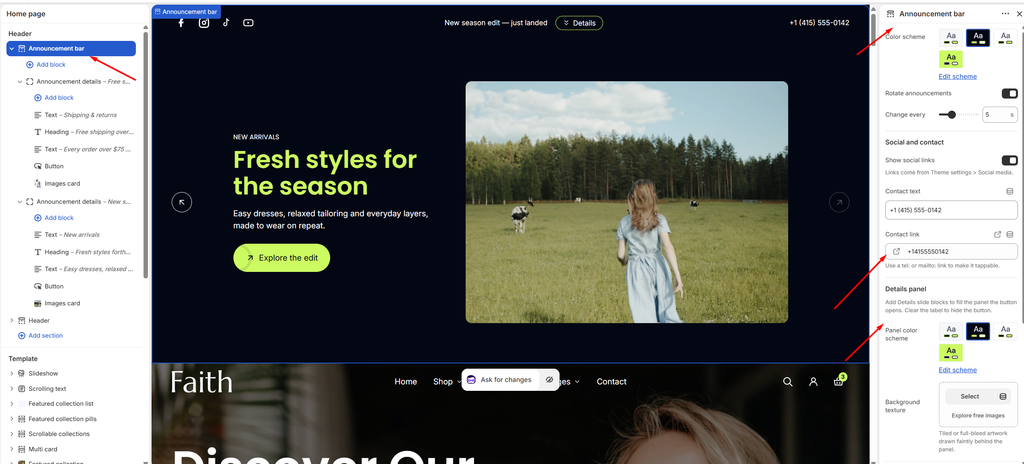
Settings
| Settings | Description |
|---|---|
| Color Scheme | Select a predefined color scheme for the bar. |
| Rotate Announcements | Move to the next announcement automatically when there is more than one. |
| Change Every | Set how long each announcement stays before the next one shows (3–10 seconds). |
| Show Social Links | Show your social media icons on the left side of the bar. Links come from Theme settings → Social media. |
| Contact Text | Add text shown on the right side of the bar, such as a phone number or email. |
| Contact Link | Make the contact text clickable. Use a tel: link (for example tel:+14155550142) for a phone number, or a mailto: link for an email address, so customers can tap to call or email. |
| Panel Color Scheme | Select a color scheme for the panel that opens when a customer clicks Details. |
| Background Texture | Upload an image drawn faintly behind the details panel, either tiled or full-width. |
| Overlay Opacity | Appears when a Background texture is added. Adjust how visible the texture is (0–100%). |
| Section Width | Set how wide the bar content is. Options include Same as theme, Full width, Wide, Standard, Narrow and Custom. This overrides the theme’s content width for this section only. |
| Custom Section Width | Appears when Section Width is set to Custom. Set an exact width (600–2000 px). |
| Padding | Choose Desktop or Mobile under Devices, then adjust the Top and Bottom spacing of the bar for that device. |
Announcement Block
Overview
The Announcement block is a simple line of text in the bar, with an optional link. Use it for short messages that don’t need more detail, such as New season edit — just landed.
How to use
- Go to Online Store → Themes → Customize.
- Under Header, expand Announcement bar.
- Click Add block → Announcement, or select an existing Announcement block.
- Type your message in Text and, optionally, add a Link.
- Adjust the Typography and Color if needed.
- Click Save.
Settings
| Settings | Description |
|---|---|
| Text | Add the message that shows in the bar. Keep it short so it fits on one line on mobile. |
| Link | Make the message clickable, for example to a collection or the shipping policy. |
| Preset | Choose the text style: Default, Paragraph, Subheading or Custom. |
| Font Size | Appears when Preset is Custom. Set the text size on desktop (10–28 px). |
| Font Size on Mobile | Appears when Preset is Custom. Set the text size on mobile (10–24 px). |
| Font Weight | Appears when Preset is Custom. Choose the thickness of the text: 300 (light) to 700 (bold). |
| Line Height | Appears when Preset is Custom. Adjust the space between lines (90–200%). |
| Letter Spacing | Appears when Preset is Custom. Adjust the space between letters (-5% to 20%). |
| Capitalization | Change the capitalization: As typed, UPPER CASE, lower case or Capitalize. |
| Color | Choose the text color: Default, Subtext, Accent or Custom. |
| Custom Color | Appears when Color is Custom. Pick any color for the text. |
Announcement Details Block
Overview
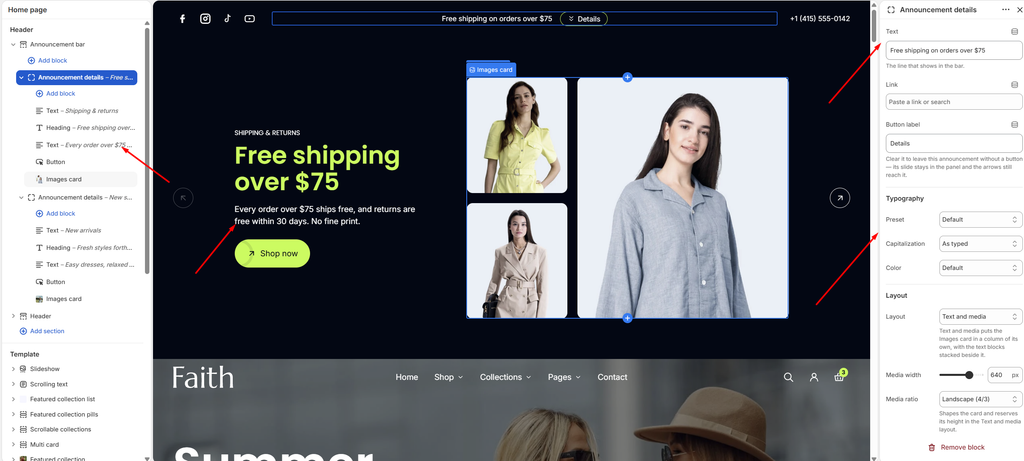
The Announcement details block is an announcement with a Details button. The line of text shows in the bar. When a customer clicks the button, a large panel opens below the bar with more content: a subheading, heading, text, button and an Images card. When there are several Announcement details blocks, customers can move between their panels with the arrows. This makes it ideal for promotions such as Free shipping over $75 or New arrivals.
How to use
- Go to Online Store → Themes → Customize.
- Under Header, expand Announcement bar.
- Click Add block → Announcement details, or select an existing one.
- Type the bar message in Text, add an optional Link, and set the Button label (for example Details).
- Click Add block inside it to add the panel content: Text, Heading, Button and an Images card.
- Under Layout, choose Text and media (images beside the text) or Stacked, then set the Media width and Media ratio.
- Adjust the Typography and Color of the bar text if needed.
- Click Save.
Settings
| Settings | Description |
|---|---|
| Text | Add the message that shows in the bar. |
| Link | Make the message clickable, for example to a collection or the shipping policy. |
| Button Label | Add the text of the button that opens the panel, for example Details. Clear it to show this announcement without a button. Its panel still stays available, and customers can reach it with the arrows. |
| Preset | Choose the style of the bar text: Default, Paragraph, Subheading or Custom. |
| Font Size | Appears when Preset is Custom. Set the text size on desktop (10–28 px). |
| Font Size on Mobile | Appears when Preset is Custom. Set the text size on mobile (10–24 px). |
| Font Weight | Appears when Preset is Custom. Choose the thickness of the text: 300 (light) to 700 (bold). |
| Line Height | Appears when Preset is Custom. Adjust the space between lines (90–200%). |
| Letter Spacing | Appears when Preset is Custom. Adjust the space between letters (-5% to 20%). |
| Capitalization | Change the capitalization: As typed, UPPER CASE, lower case or Capitalize. |
| Color | Choose the bar text color: Default, Subtext, Accent or Custom. |
| Custom Color | Appears when Color is Custom. Pick any color for the text. |
| Layout | Choose how the panel is arranged: Text and media puts the Images card in its own column, with the text blocks stacked beside it. Stacked places everything in one column. |
| Media Width | Appears in the Text and media layout. Set the width of the images column (240–800 px). |
| Media Ratio | Choose the shape of the Images card: Square (1/1), Portrait (4/5), Portrait (3/4), Portrait 9:16, Landscape (4/3) or Landscape (16/9). In the Text and media layout, this also reserves the card’s height. |
Images Card Block
Overview
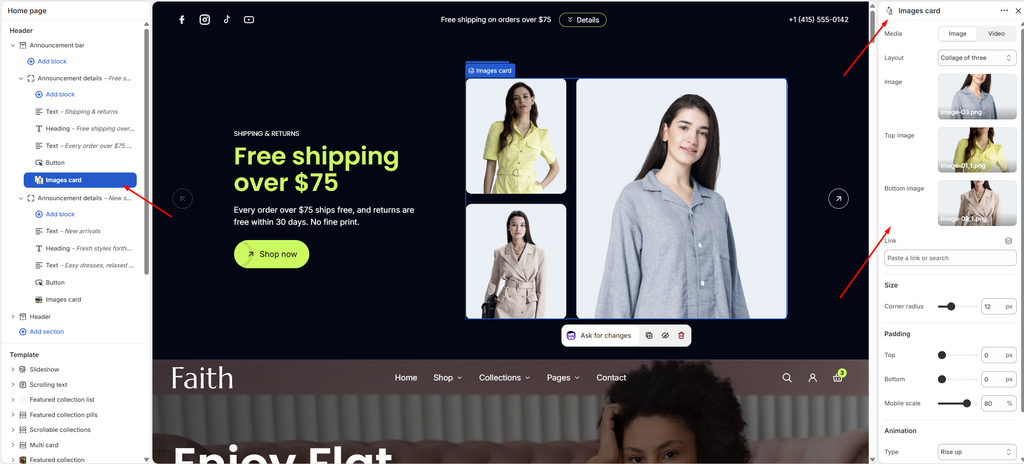
The Images card block adds visuals to an Announcement details panel. It can show a single image, a collage of three images (one large image with two smaller ones beside it), or a video. Use it to show the products or the look behind the offer.
How to use
- Go to Online Store → Themes → Customize.
- Under Header, expand Announcement bar, then expand an Announcement details block.
- Click Add block → Images card, or select the existing Images card.
- Choose the Media: Image or Video.
- For images, choose the Layout: Single image or Collage of three. Then select the Image, and for the collage the Top image and Bottom image. Optionally, add a Link.
- For a video, choose the Source, select the video or paste a URL, and add a Cover image and Alt text.
- Adjust the Corner radius, Padding and Animation.
- Click Save.
Settings
| Settings | Description |
|---|---|
| Media | Choose what the card shows: Image or Video. |
| Layout | Appears when Media is Image. Choose Single image or Collage of three (a large image with two smaller images stacked beside it). |
| Image | Appears when Media is Image. Select the main (large) image. |
| Top Image | Appears in the Collage of three layout. Select the small image shown at the top. |
| Bottom Image | Appears in the Collage of three layout. Select the small image shown at the bottom. |
| Link | Appears when Media is Image. Make the images clickable, for example to a collection. |
| Source | Appears when Media is Video. Choose Uploaded (a video in your Shopify files) or External URL (YouTube or Vimeo). |
| Video | Appears when Media is Video. Select the uploaded video file. |
| Video URL | Appears when Media is Video. Paste a YouTube or Vimeo link. |
| Cover Image | Appears when Media is Video. Choose the image shown before the video plays. |
| Alt Text | Appears when Media is Video. Describe the video for customers who use screen readers. |
| Video Autoplay | Appears when Media is Video. Play the video automatically. Autoplaying videos are muted by default. |
| Video Looping | Appears when Media is Video. Restart the video when it ends. |
| Corner Radius | Customize the rounded corners of the images or video (0–40 px). |
| Padding | Adjust the spacing above and below the card using Top and Bottom controls (0–100 px). |
| Mobile Scale | Shrink the padding on mobile as a percentage of the desktop values (0–100%). |
| Animation Type | Choose how the card appears when the panel opens: None, Fade in, Rise up or Zoom out. |
| Animation Delay | Appears when an animation is chosen. Wait before the animation starts (0–800 ms). |
Tip: Panel content uses the common Heading, Text and Button blocks. See their docs for those settings.