Overview
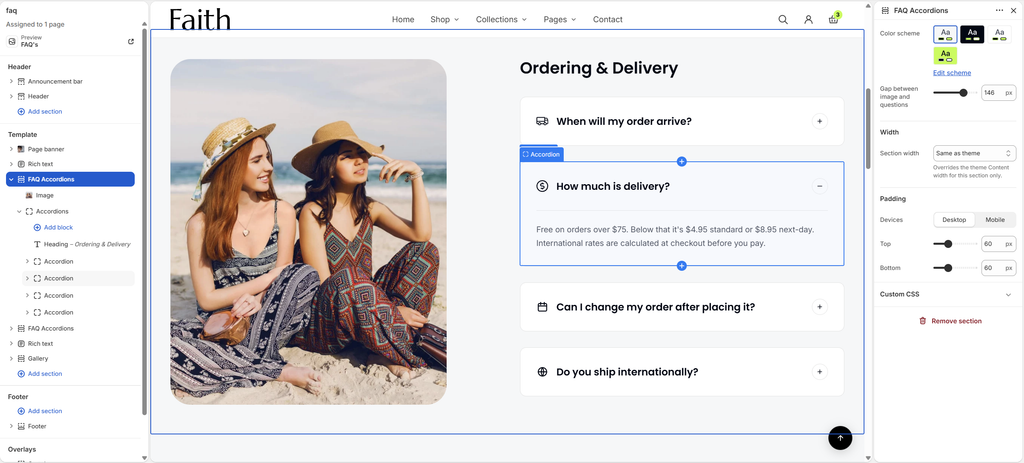
The FAQ Accordions section shows an image next to a list of expandable questions and answers, for example Ordering & Delivery. Customers click a question to reveal its answer, so the page stays short and easy to scan. Each question can have its own icon. Answers can include text, buttons and images. Add the section several times to group questions by topic, such as Shipping, Returns and Payments. The section has two parts: Image and Accordions.
How to use
- Go to Online Store → Themes → Customize and open the FAQ page template.
- Click Add section → FAQ Accordions, or select an existing one.
- Select the Image block, then choose an image and its position.
- Select the Accordions block, edit the Heading, and set the card style.
- Add an Accordion block for each question. Enter the question, then write the answer in the Text block inside it.
- Back on the section, choose the Color scheme and Gap between image and questions.
- Set the Section width and Padding.
- Click Save.
Settings
| Settings | Description |
|---|---|
| Color Scheme | Select a predefined color scheme for the section background. |
| Gap Between Image and Questions | Adjust the space between the image and the questions (0–200 px). |
| Section Width | Set how wide the section is: Same as theme, Full width, Wide, Standard, Narrow or Custom. This overrides the theme Content width for this section only. |
| Custom Section Width | Appears when Section width is Custom. Set an exact width (600–2000 px). |
| Padding | Choose Desktop or Mobile under Devices, then adjust the Top and Bottom spacing of the section for that device. |
Tip: When you stack several FAQ Accordions sections, lower the Top padding of each section after the first one, so the groups read as one page.
Image Block
Overview
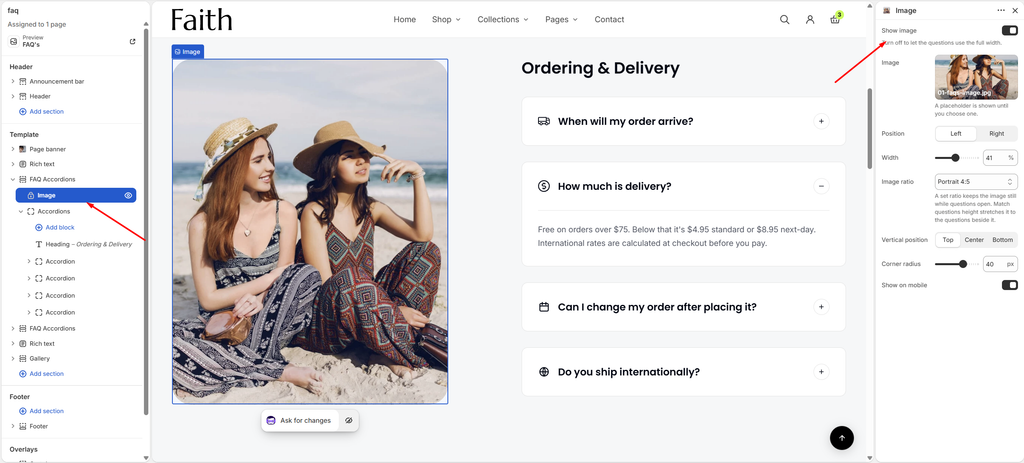
The Image block shows a photo beside the questions. You can place it on either side, set its width and shape, or hide it so the questions use the full width. This block is part of the section and cannot be removed.
How to use
- Expand FAQ Accordions and select Image.
- Make sure Show image is on, then select an Image.
- Choose the Position, Width and Image ratio.
- Set the Vertical position and Corner radius, and choose whether to show the image on mobile.
- Click Save.
Settings
| Settings | Description |
|---|---|
| Show Image | Show the image next to the questions. Turn this off to let the questions use the full width. |
| Image | Appears when Show image is on. Select the image. A placeholder is shown until you choose one. |
| Position | Appears when Show image is on. Place the image to the Left or Right of the questions. |
| Width | Appears when Show image is on. Set how much of the row the image takes up (25–60%). |
| Image Ratio | Appears when Show image is on. Choose the image shape: Match questions height, Original, Square, Portrait 4:5, Portrait 3:4, Landscape 4:3, Landscape 3:2 or Wide 16:9. A set ratio keeps the image still while questions open. Match questions height stretches the image to the height of the questions beside it. |
| Vertical Position | Appears when Show image is on and Image ratio is not Match questions height. Align the image to the Top, Center or Bottom of the questions. |
| Corner Radius | Appears when Show image is on. Customize the rounded corners of the image (0–60 px). |
| Show on Mobile | Appears when Show image is on. Show the image on mobile. Turn this off so customers reach the questions sooner on phones. |
Accordions Block
Overview
The Accordions block holds the heading and the list of questions. Add a Heading, then one Accordion for each question. You can also add Text or a Button, for example a Contact us link below the questions. Its settings control the toggle icon, how questions open and the card style. This block is part of the section and cannot be removed.
How to use
- Expand FAQ Accordions and select Accordions.
- Choose the Icon and whether to Open one at a time.
- Under Cards, set the Card color scheme, Gap between questions, Corner radius, Padding and Question size.
- Click Add block to add a Heading, Text, Button or Accordion. Drag the blocks to reorder them.
- Click Save.
Settings
| Settings | Description |
|---|---|
| Icon | Choose the open and close icon shown on each question: Plus and minus or Chevron. |
| Open One at a Time | Close the open question when another one opens. Turn this off to let customers open several answers at once. |
| Card Color Scheme | Select a predefined color scheme for the question cards. |
| Gap Between Questions | Adjust the space between question cards (0–60 px). |
| Corner Radius | Customize the rounded corners of the question cards (0–40 px). |
| Padding | Adjust the space inside each question card (12–60 px). |
| Question Size | Set the font size of the questions (14–32 px). |
Blocks: Heading, Text and Button are common blocks. See their articles for settings.
Accordion Block
Overview
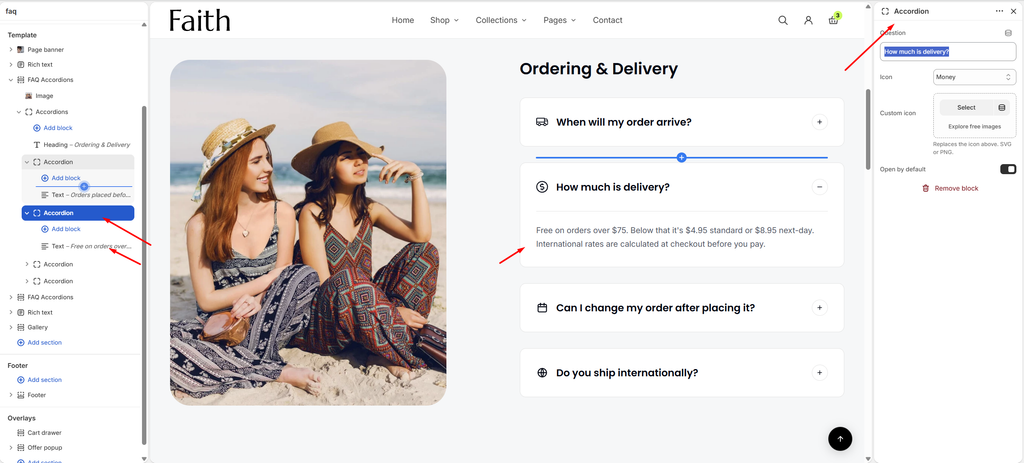
An Accordion block is one question. Its answer goes in the blocks inside it: Text, Button or Image. Each question can show an icon from the list or your own custom icon, and can start open.
How to use
- Expand FAQ Accordions → Accordions, then select an Accordion, or click Add block → Accordion.
- Enter the Question.
- Choose an Icon, or upload a Custom icon.
- Turn on Open by default if this answer should show when the page loads.
- Expand the Accordion and edit the Text block to write the answer. Click Add block to add a Button or Image to the answer.
- Click Save.
Settings
| Settings | Description |
|---|---|
| Question | Enter the question, for example How much is delivery? |
| Icon | Show an icon before the question: None, Location, Address book, Phone, Open envelope, Email, Clock, Calendar, Chat, Question, Delivery, Truck, Globe, Return, Credit card, Money, Shield, Lock, Gift, Heart, Tag, Percent, Leaf, Box or Star. |
| Custom Icon | Upload your own icon. It replaces the icon selected above. Use SVG or PNG. |
| Open by Default | Show this answer when the page loads. If Open one at a time is on, turn this on for only one question. |
Tip: Keep answers short, two or three sentences. Use a Button inside the answer to link to a longer page, such as your Shipping or Returns policy.