Overview
The Related products section shows a carousel of products related to the one the customer is viewing, for example You may also like. Products come from Shopify’s automatic related product recommendations, so it works without any app. To choose the products yourself, use Shopify’s free Search & Discovery app. Add the section to the cart page too, where it recommends products for the first item in the cart. On the storefront, the section stays hidden when there are no recommendations. In the editor, a note explains why. The section has two parts: a Section heading with the title and carousel arrows, and the Product card.
How to use
- Go to Online Store → Themes → Customize.
- From the page selector at the top, choose Products → Default product.
- Click Add section → Related products, or select an existing one.
- Choose the Color scheme and Maximum products to show.
- Under Layout, set the columns for desktop, tablet and mobile.
- Under Carousel, choose the dots, counter, progress bar, loop and auto-rotate options.
- Expand the section to edit the Section heading and Product card.
- Set the Section width and Padding, then click Save.
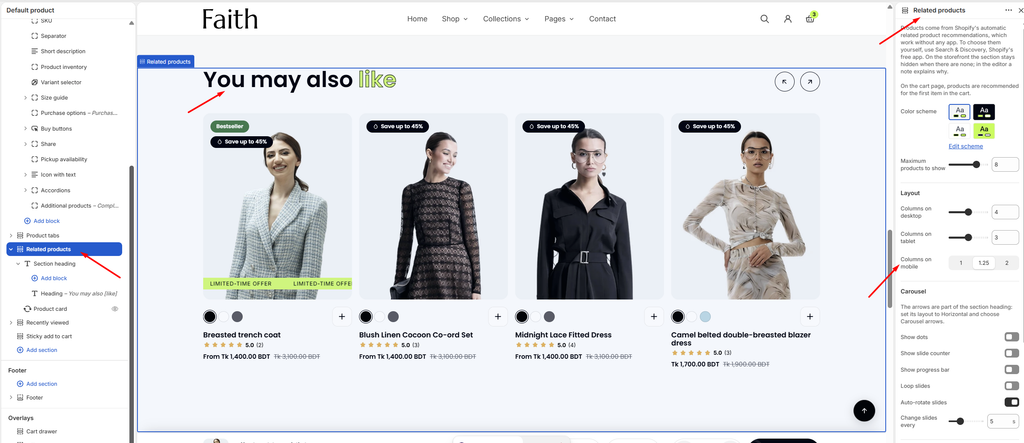
Settings
| Settings | Description |
|---|---|
| Color Scheme | Select a predefined color scheme for the section. |
| Maximum Products to Show | Set the most products shown (2–10). Fewer may appear if Shopify has fewer recommendations. |
| Columns on Desktop | Set how many products are visible at once on desktop (2–6). |
| Columns on Tablet | Set how many products are visible at once on tablet (2–4). |
| Columns on Mobile | Set how many products are visible at once on mobile: 1, 1.25 or 2. 1.25 shows part of the next product, so customers can see there is more to swipe. |
| Show Dots | Show navigation dots below the carousel. |
| Show Slide Counter | Show the current position, for example 1 / 8. |
| Show Progress Bar | Show a bar that fills as customers move through the products. |
| Loop Slides | Go back to the first product after the last one. |
| Auto-rotate Slides | Move through the products automatically. |
| Change Slides Every | Appears when Auto-rotate slides is on. Set how long each slide shows before moving on (3–10 seconds). |
| Section Width | Set how wide the section is: Same as theme, Full width, Wide, Standard, Narrow or Custom. This overrides the theme Content width for this section only. |
| Custom Section Width | Appears when Section width is Custom. Set an exact width (600–2000 px). |
| Padding | Choose Desktop or Mobile under Devices, then adjust the Top and Bottom spacing of the section for that device. |
Carousel arrows: The arrows are part of the Section heading. Select it, set its layout to Horizontal, and choose Carousel arrows. See the Section heading article.
Product card: The cards follow Theme settings → Product cards. See the Product Card article.
Choosing related products yourself: Install Search & Discovery from the Shopify App Store. Open Search & Discovery → Product recommendations, choose a product, and add the Related products you want to show. Products you add appear first, followed by Shopify’s automatic recommendations.
Tip: Turn off Auto-rotate slides if customers need time to read the cards. Moving content can be distracting and harder to use for some shoppers.