Overview
The Subheading block adds a short label or tagline above a heading, for example NEW ARRIVALS or ADD A TAGLINE on a slide. It is a ready-made version of the Text block, with the Preset already set to Subheading, so it takes its style from Theme settings → Typography → Subheadings. You can add it anywhere a Text block is allowed, such as slides, groups, Rich text and Section heading.
How to use
- Go to Online Store → Themes → Customize.
- Open the page and expand the section where you want the tagline, for example Slideshow → Slide → Group.
- Click Add block → Subheading, or select an existing Subheading block.
- Type your tagline in the Text field. Keep it short, one line works best.
- To change how all subheadings look (font, size, capitals, background or border), go to Theme settings → Typography → Subheadings.
- Optionally, choose a Color, set the Width and Padding, and pick an entrance Animation.
- Drag the block above the Heading in the left sidebar so it sits on top.
- Click Save.
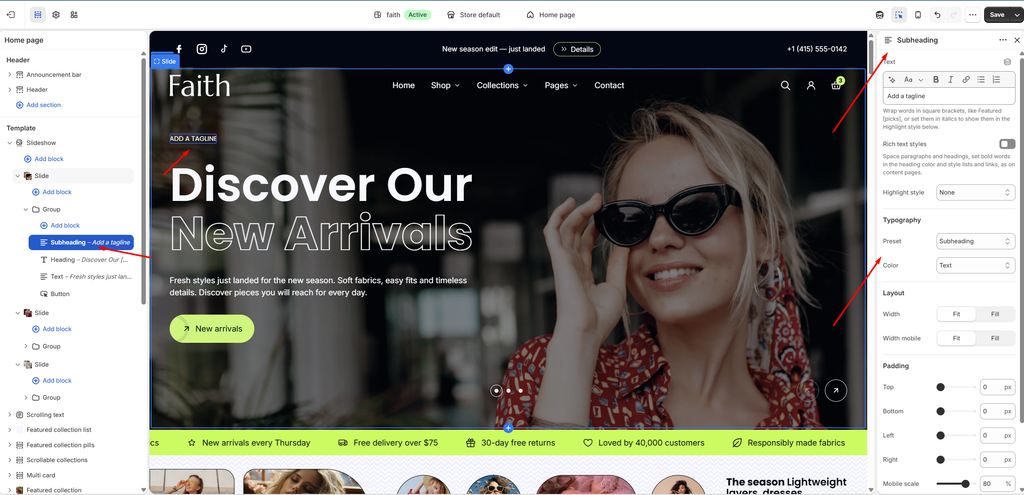
Settings
| Settings | Description |
|---|---|
| Text | Add the tagline text. Wrap words in square brackets, like New [season], or set them in italics to apply the Highlight style to them. |
| Rich Text Styles | Turn this on for longer content with several paragraphs, lists or links. For a short tagline, leave it off. |
| Highlight Style | Choose how the highlighted words look. Options include None, Outline, Outline only, Underline and Marker. |
| Preset | Set to Subheading by default, which uses the style from Theme settings → Typography → Subheadings. Switch to Custom to set the font size, font, weight, line height and letter spacing just for this block. |
| Color | Choose the text color: Text or Subtext (from the color scheme), Gradient, or Custom. |
| Custom Color | Appears when Color is Custom. Pick any color for the text. |
| Gradient Color | Appears when Color is Gradient. Set a gradient to fill the text. |
| Width | Set the block width on desktop: Fit (only as wide as the text) or Fill (the full available width). |
| Alignment | Appears when Width is Fill. Align the text Left, Center or Right on desktop. |
| Width Mobile | Set the block width on mobile: Fit or Fill. |
| Alignment Mobile | Appears when Width mobile is Fill. Align the text Left, Center or Right on mobile. |
| Padding | Adjust the spacing around the tagline using Top, Bottom, Left and Right controls (0–100 px). |
| Mobile Scale | Shrink the padding on mobile as a percentage of the desktop values (0–100%). For example, 80% turns 20 px of padding into 16 px on phones. |
| Animation Type | Choose how the tagline appears: None, Fade in, Rise up, Word by word or Split text: line by line. |
| Animation Delay | Appears when an animation is chosen. Wait before the animation starts (0–800 ms). |
Tip: The background panel and border around subheadings, and their corner radius, are set in Theme settings → Typography → Subheading appearance.