Overview
The Testimonials section shows customer reviews in a sliding carousel, for example Customer Reviews. Each review card shows a star rating, the review text, and the customer’s name, details and photo. The card in the middle is in focus, and the cards on either side peek in. Cards can be pill-shaped or rounded, with an optional large quote mark. Showing real reviews builds trust and helps new visitors decide to buy.
How to use
- Go to Online Store → Themes → Customize.
- Click Add section → Testimonials, or select an existing one.
- Edit the Section heading to change the title and intro text, for example Customer [Reviews].
- Click Add block → Testimonial for each review. In each one, write the review in its Text block, then set the Star rating and the customer’s Name, Details and Photo.
- Under Cards, choose the Card color scheme, Card width, Card shape and Star color, and turn the quote mark on or off.
- Under Carousel, turn dots, counter, progress bar, looping and auto-rotation on or off.
- Optionally, add a Pattern image behind the section.
- Set the Section width and Padding.
- Click Save.
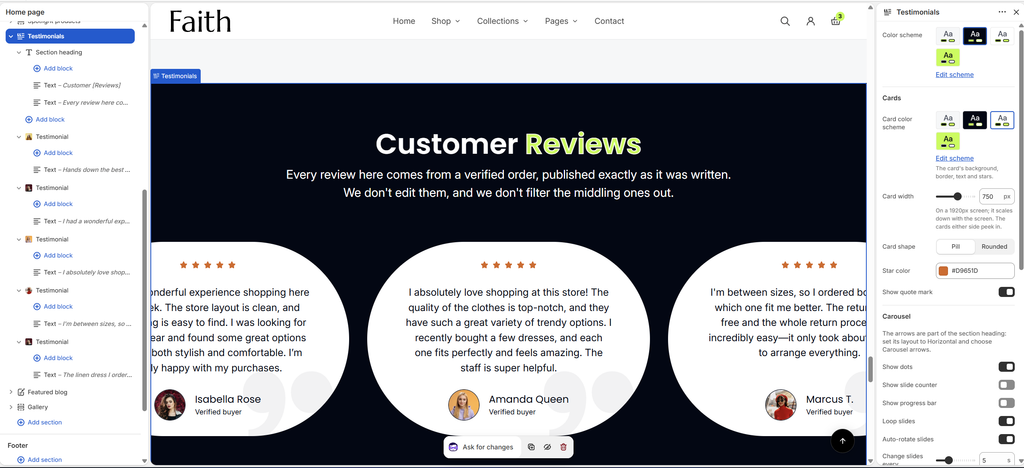
Settings
| Settings | Description |
|---|---|
| Color Scheme | Select a predefined color scheme for the section background and heading. |
| Card Color Scheme | Select a color scheme for the cards’ background, border, text and stars. |
| Card Width | Set the card width on a 1920 px screen (480–960 px). It scales down on smaller screens, and the cards on either side peek in. |
| Card Shape | Choose the card shape: Pill (fully rounded ends) or Rounded (rounded corners). |
| Card Corner Radius | Appears when Card shape is Rounded. Customize the rounded corners (0–80 px). |
| Star Color | Choose the color of the rating stars. |
| Show Quote Mark | Show a large quote mark in the background of each card. |
| Show Dots | Show navigation dots under the cards. |
| Show Slide Counter | Show the current position, for example 2 / 5. |
| Show Progress Bar | Show a bar that fills as customers move through the reviews. |
| Loop Slides | Go back to the first review after the last one. |
| Auto-rotate Slides | Move to the next review automatically. |
| Change Slides Every | Appears when Auto-rotate slides is on. Set how long each review stays (3–10 seconds). |
| Pause on Hover | Appears when Auto-rotate slides is on. Stop auto-rotation while the customer’s mouse is over the reviews. |
| Pattern Image | Upload a small picture to repeat faintly over the section, like a texture. |
| Size | Appears when a Pattern image is added. Set the size of each repeated tile (16–300 px). |
| Opacity | Appears when a Pattern image is added. Adjust how visible the pattern is (5–100%). |
| Section Width | Set how wide the section is. Options include Same as theme, Full width, Wide, Standard, Narrow and Custom. This overrides the theme’s content width for this section only. |
| Custom Section Width | Appears when Section Width is set to Custom. Set an exact width (600–2000 px). |
| Padding | Choose Desktop or Mobile under Devices, then adjust the Top and Bottom spacing of the section for that device. |
Tip: The carousel arrows are part of the Section heading. Select it, set Layout to Horizontal, and under Show choose Carousel arrows.
Testimonial Block
Overview
The Testimonial block is one review card. The review itself is written in the Text block inside it. The Testimonial block’s own settings hold the star rating and the author’s name, details and photo.
How to use
- Expand Testimonials and click Add block → Testimonial, or select an existing one.
- Expand it and select its Text block to write the review.
- Back on the Testimonial block, set the Star rating (0 hides the stars).
- Enter the author’s Name and Details, for example Verified buyer.
- Upload a Photo of the customer.
- Click Save.
Settings
| Settings | Description |
|---|---|
| Star Rating | Set the number of stars shown on the card (0–5). Set it to 0 to hide the stars. |
| Name | Enter the customer’s name, for example Alisa Olivia. |
| Details | Add a short line under the name, such as a role, a place or the product they bought, for example Verified buyer. |
| Photo | Upload a small photo of the customer. It shows in a circle next to the name. |
Tip: Keep the reviews about the same length so the cards look even. Only publish genuine reviews from real customers, with their permission. Heading and Text are the common blocks, and the Section heading settings are covered in the Section Heading article.