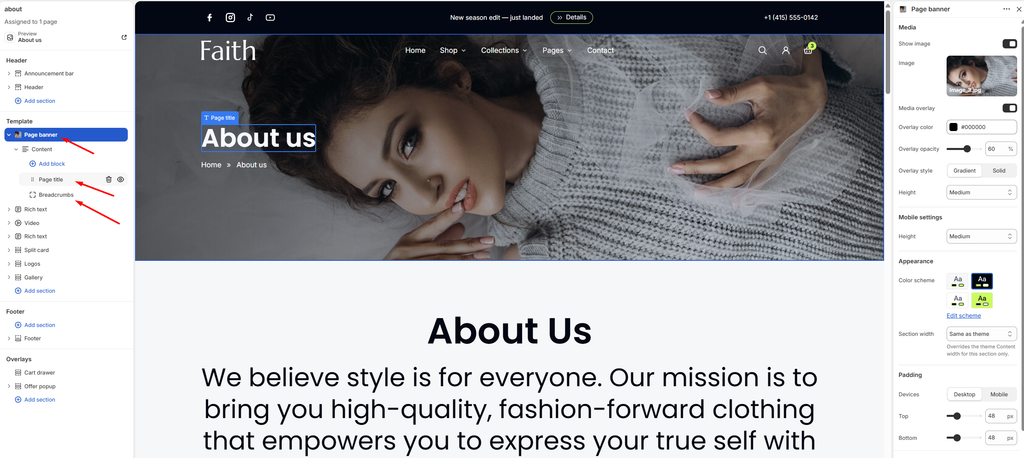
Page Banner Section
Overview
The Page banner section is the large header at the top of pages such as FAQ, About and Contact. It shows the page title and breadcrumbs over a background image, with an optional color overlay that keeps the text easy to read. You can set the height separately for desktop and mobile, and add a heading, text or button inside the banner.
How to use
- Go to Online Store → Themes → Customize.
- Open the page where you want the banner, for example your FAQ page.
- In the left sidebar, click Add section and choose Page banner, or select an existing Page banner section.
- Under Media, turn on Show image and click Select to upload or choose a background image.
- Turn on Media overlay, then set the Overlay color, Overlay opacity and Overlay style.
- Choose the banner Height for desktop, and under Mobile settings choose the Height for mobile.
- Under Appearance, pick a Color scheme and the Section width.
- Adjust the Top and Bottom padding for Desktop and Mobile.
- Click Save.
Settings
| Settings | Description |
|---|---|
| Show Image | Turn the background image on or off. When it is off, the banner shows the color scheme’s background. |
| Image | Upload or select the background image for the banner. |
| Media Overlay | Add a color layer over the image so the title and breadcrumbs stay readable. |
| Overlay Color | Choose the color of the overlay. |
| Overlay Opacity | Adjust how strong the overlay is (0–100%). |
| Overlay Style | Choose how the overlay is applied: Gradient (fades across the image) or Solid (an even layer). |
| Height | Set the banner height on desktop. Options include Small, Medium, Large, Adapt to image and Custom. |
| Custom Height | Appears when Height is set to Custom. Set an exact desktop height (200–1000 px). |
| Height (Mobile settings) | Set the banner height on mobile. Options include Small, Medium, Large, Adapt to image and Custom. |
| Custom Height (Mobile settings) | Appears when the mobile Height is set to Custom. Set an exact mobile height (150–800 px). |
| Color Scheme | Select a predefined color scheme for the banner text and background. |
| Section Width | Set how wide the section is. Options include Same as theme, Full width, Wide, Standard, Narrow and Custom. This overrides the theme’s content width for this section only. |
| Custom Section Width | Appears when Section Width is set to Custom. Set an exact width for the section (600–2000 px). |
| Padding | Choose Desktop or Mobile under Devices, then adjust the Top and Bottom spacing of the section for that device. |
Content Block
Overview
The Content block holds everything shown on the banner: the Page title, Breadcrumbs, and any Heading, Text or Button you add. Its settings control where this content sits and how wide it can grow. This block is part of every Page banner and cannot be removed.
How to use
- Go to Online Store → Themes → Customize.
- Open the page that has the Page banner section.
- In the left sidebar, expand Page banner and select the Content block.
- Click Add block under Content to add a Page title, Breadcrumbs, Heading, Text or Button.
- Choose the Alignment for desktop and mobile, and the vertical Position.
- Adjust the Vertical gap and the Maximum width.
- Click Save.
Settings
| Settings | Description |
|---|---|
| Alignment | Align the banner content on desktop: Left, Center or Right. |
| Alignment Mobile | Align the banner content on mobile: Left, Center or Right. |
| Position | Place the content at the Top, Center or Bottom of the banner. |
| Vertical Gap | Adjust the spacing between the title, breadcrumbs and other content (0–60 px). |
| Maximum Width | Set how wide the content area can grow before the text wraps (300–1200 px). |
Page Title Block
Overview
The Page title block shows the name of the current page in large type. By default it uses the page’s own title, so one banner works across many pages without editing. You can replace it with a custom heading and control its size.
How to use
- Go to Online Store → Themes → Customize.
- Open the page that has the Page banner section.
- Expand Page banner → Content, then click Add block → Page title, or select the existing Page title block.
- Leave Custom heading blank to show the page’s own title, or type your own heading.
- Choose a Preset for the text size.
- If the preset is Custom, set the Font size for desktop and the Font size on mobile.
- Click Save.
Settings
| Settings | Description |
|---|---|
| Custom Heading | Enter your own heading text. Leave it blank to use the page title. |
| Preset | Choose the heading style. Options include Custom, Heading 1, Heading 2, Heading 3 and Heading 4. The Heading options use the sizes set in Theme settings → Typography. |
| Font Size | Appears when Preset is Custom. Set the title size on desktop (24–120 px). |
| Font Size on Mobile | Appears when Preset is Custom. Set the title size on mobile (20–80 px). |
Breadcrumbs Block
Overview
The Breadcrumbs block shows a navigation trail, for example Home » FAQ’s. It tells customers where they are and gives them a one-click way back to earlier pages. The trail is built automatically from the current page.
How to use
- Go to Online Store → Themes → Customize.
- Open the page that has the Page banner section.
- Expand Page banner → Content, then click Add block → Breadcrumbs, or select the existing Breadcrumbs block.
- On blog post templates, turn on Show article title to add the post name as the last step.
- Click Save.
Settings
| Settings | Description |
|---|---|
| Show Article Title | On a blog post, adds the post title as the last step of the trail. |