Overview
The Map section shows a Google Map of your store, office or showroom, so customers can see where to find you and open directions. Enter an address the way you would type it into Google Maps. You don’t need an API key. You can choose a road or satellite map, set the zoom, switch to black and white to match your design, and set different heights for desktop and mobile. It works well on the Contact page, below the Contact form.
How to use
- Go to Online Store → Themes → Customize and open the page where you want the map, for example Contact.
- Click Add section → Map, or select an existing one.
- In Address, enter your street address, a place name or a ZIP code.
- Optionally, enter a Map description for screen readers.
- Set the Zoom, Map type and Black and white.
- Adjust the Height, Mobile height and Corner radius.
- Choose the Color scheme, Section width and Padding.
- Click Save.
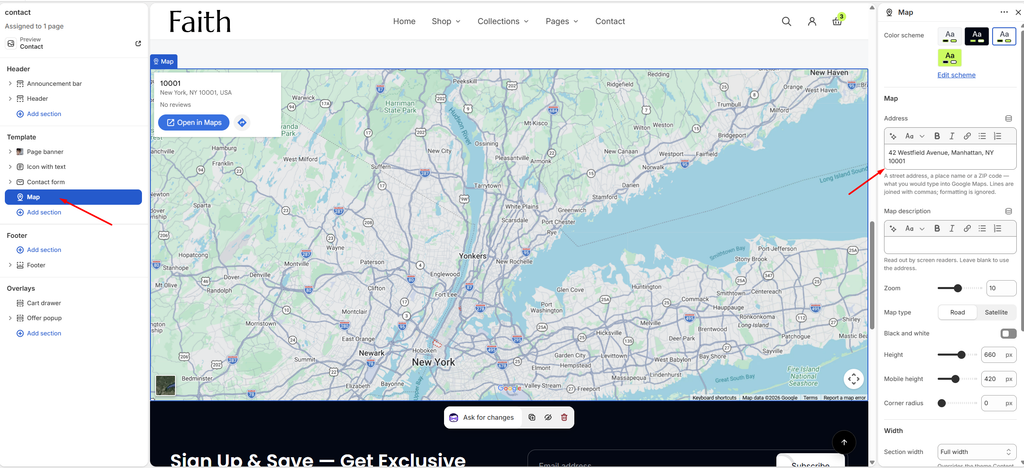
Settings
| Settings | Description |
|---|---|
| Color Scheme | Select a predefined color scheme for the section background. It shows around the map when the section has padding or is not full width. |
| Address | Enter a street address, a place name or a ZIP code, as you would type it into Google Maps. If you use several lines, they are joined with commas. Text formatting is ignored. |
| Map Description | Enter a short description that screen readers read out, for example Map showing our New York showroom. Leave it blank to use the address. |
| Zoom | Set how close the map is zoomed in (1–21). Lower values show a wider area. Use 14–16 to show a street-level view. |
| Map Type | Choose Road for a standard street map or Satellite for aerial imagery. |
| Black and White | Show the map in grayscale, to match a minimal or monochrome design. |
| Height | Set the map height on desktop (240–900 px). |
| Mobile Height | Set the map height on mobile (200–700 px). |
| Corner Radius | Customize the rounded corners of the map (0–60 px). |
| Section Width | Set how wide the section is: Same as theme, Full width, Wide, Standard, Narrow or Custom. This overrides the theme Content width for this section only. |
| Custom Section Width | Appears when Section width is Custom. Set an exact width (600–2000 px). |
| Edge to Edge | Appears when Section width is Full width. Stretch the map to the edges of the screen with no side spacing. |
| Padding | Choose Desktop or Mobile under Devices, then adjust the Top and Bottom spacing of the section for that device. |
Tip: If the map shows the wrong place, add more detail to the address, such as the city and country, or use your business name as it appears on Google Maps.
Tip: For a rounded, card-style map, set Section width to Standard or Wide, add Corner radius, and set the Top and Bottom padding.