Your favicon is the small icon shown in browser tabs, bookmarks, and search results — a simple way to reinforce your brand wherever your site appears.
Before you start
- From your Shopify admin, go to Online Store > Themes.
- Next to the theme you want to edit, click Customize.
- In the left-hand panel, click Theme settings, then select General.
Everything below applies inside this General settings panel.
Uploading your favicon
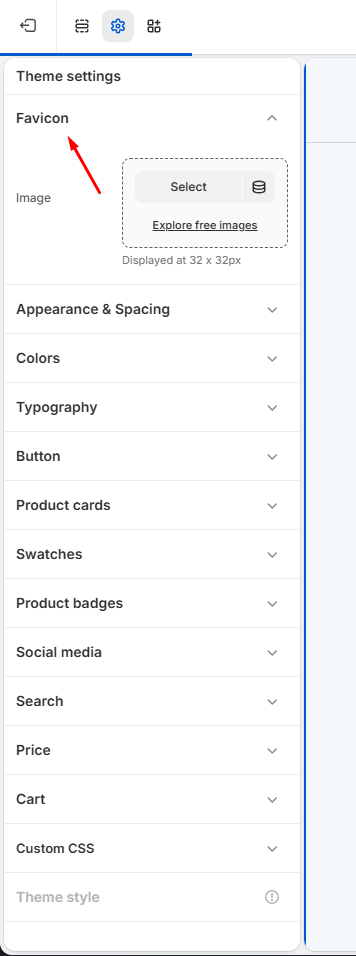
- In the Favicon field, upload your image by clicking the upload area or dragging your file into place. The panel shows your favicon is displayed at 32×32px — match this size in your source file for the sharpest result.
- Click Save in the top-right corner of the editor.
Tip: For best results, use a square image (ideally 32×32 or 16×16 pixels) in PNG, ICO, or SVG format.
Troubleshooting
Favicon not updating in the browser tab? Browsers cache favicons aggressively — try a hard refresh (Ctrl+Shift+R or Cmd+Shift+R) or check in an incognito window.
Image looks blurry or pixelated? Upload a larger source image (at least 32×32px) — the browser will scale it down, but can’t sharpen an undersized original.