Overview
The Featured collection list section shows a row of collection links next to promo images and a short call to action. For example, two promo images (one with a video), then round links to New In, Dresses, Women Collection and Sleepwear, then the caption The season: Lightweight layers, dresses, knitwear and trousers with a Shop all button. It works well near the top of the home page, to send shoppers straight to your main categories. You can add a background image or pattern behind the whole section.
The section has three kinds of blocks:
- Promo image (two)
- Collection (up to 8)
- Caption
The two Promo images and the Caption are part of the section and cannot be removed.
How to use
- Go to Online Store → Themes → Customize.
- Click Add section → Featured collection list, or select an existing one.
- Choose the Color scheme, and whether to show promo images on mobile.
- Under Background, optionally add a Background image and set its style, opacity and overlay.
- Select each Promo image to add an image, a link or a video.
- Click Add block → Collection for each collection (up to 8), and drag them into order.
- Select the Caption to edit its text and button.
- Adjust the Padding, then click Save.
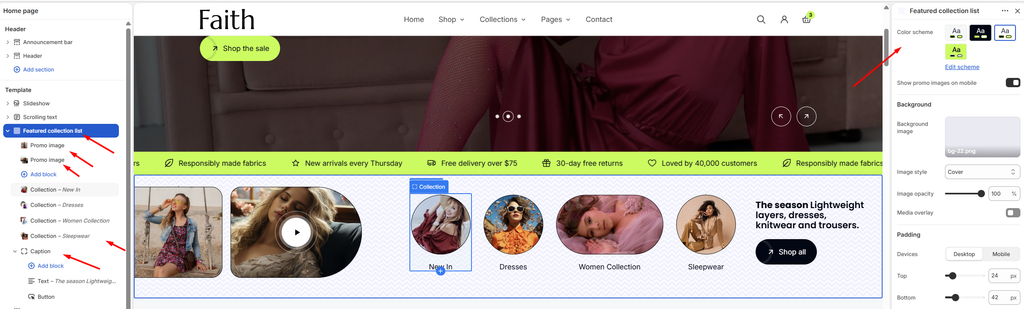
Settings
| Settings | Description |
|---|---|
| Color Scheme | Select a predefined color scheme for the section. |
| Show Promo Images on Mobile | Show the two promo images on mobile. Turn this off to show only the collections and caption on phones. |
| Background Image | Select an image or pattern to show behind the whole section. |
| Image Style | Appears when a background image is selected. Choose Repeating pattern (the image tiles across the section) or Cover (the image fills the section). |
| Pattern Size | Appears when Image style is Repeating pattern. Set the size of each tile (40–600 px). |
| Image Opacity | Appears when a background image is selected. Adjust how visible the background is (5–100%). Lower values give a subtle texture. |
| Media Overlay | Appears when a background image is selected. Add a color layer over the background. |
| Overlay Color | Appears when Media overlay is on. Choose the overlay color. |
| Overlay Opacity | Appears when Media overlay is on. Adjust how strong the overlay is (0–100%). |
| Overlay Style | Appears when Media overlay is on. Choose a Solid layer or a Gradient that fades out. |
| Padding | Choose Desktop or Mobile under Devices, then adjust the Top and Bottom spacing of the section for that device. |
Tip: For a light textured background like the one in the screenshot, use a small seamless pattern image, set Image style to Repeating pattern, and lower the Image opacity.
Promo Image Block
Overview
A Promo image block shows a large image at the start of the row. It can link to a page, or open a video in a popup, with a play button shown on the image. The section has two Promo image blocks, and each can have its own shape. These blocks are part of the section and cannot be removed.
How to use
- Expand Featured collection list and select a Promo image.
- Select an Image, and enter the Image alt text.
- Add a Link, or set up a Video.
- Choose the Shape.
- Click Save.
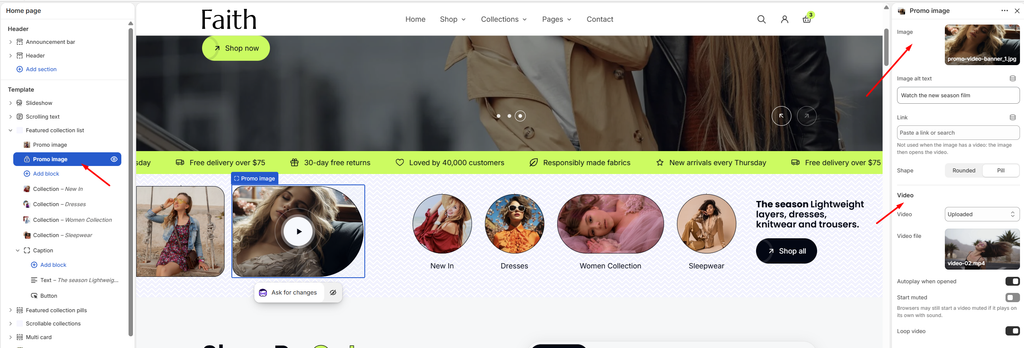
Settings
| Settings | Description |
|---|---|
| Image | Select the promo image. |
| Image Alt Text | Describe the image for screen readers and search engines, for example Watch the new season film. |
| Link | Make the image a link, for example to a sale collection. It isn’t used when the image has a video, because the image then opens the video. |
| Shape | Choose the image shape: Rounded (rounded corners) or Pill (fully rounded on one side). |
| Video | Add a video that opens when customers click the image: None, Uploaded or YouTube or Vimeo. A play button appears on the image. |
| Video File | Appears when Video is Uploaded. Select a video from your files. |
| Video URL | Appears when Video is YouTube or Vimeo. Paste the video link. |
| Autoplay When Opened | Appears when a video is added. Start the video as soon as the popup opens. |
| Start Muted | Appears when a video is added. Start the video without sound. Browsers may still start a video muted if it plays on its own with sound. |
| Loop Video | Appears when a video is added. Play the video on repeat. |
Tip: Use the image as the video’s cover. Pick a strong frame from the video, so customers know what they’ll see when they click play.
Collection Block
Overview
A Collection block is one round or wide collection link in the row, with the collection image and title, for example New In. The image and title come from the collection automatically, but you can replace them for this block only. You can add up to 8 Collection blocks.
How to use
- Expand Featured collection list and select a Collection, or click Add block → Collection.
- Select a Collection.
- Optionally, upload a different Image or enter a different Title.
- Choose the Shape.
- Click Save. Drag the blocks to reorder them.
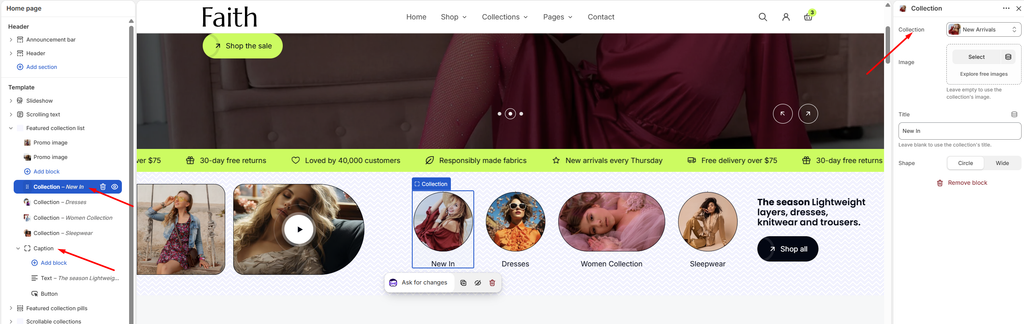
Settings
| Settings | Description |
|---|---|
| Collection | Select the collection the link opens. |
| Image | Select an image for this link. Leave it empty to use the collection’s image. |
| Title | Enter a custom title, for example New In. Leave it blank to use the collection’s title. |
| Shape | Choose the image shape: Circle or Wide (a wider oval). Mix shapes for a more playful row, like the screenshot. |
Tip: Use images with the subject in the center, at least 400 × 400 px, so they crop well into a circle.
Caption Block
Overview
The Caption block sits at the end of the row and holds a short message with a call to action, for example The season: Lightweight layers, dresses, knitwear and trousers with a Shop all button. It contains Text and Button blocks, and you can also add a Heading. This block is part of the section and cannot be removed.
How to use
- Expand Featured collection list and select Caption.
- Adjust the Space between text and actions.
- Expand Caption to edit the Text and Button, or click Add block to add a Heading.
- Click Save.
Settings
| Settings | Description |
|---|---|
| Space Between Text and Actions | Adjust the space between the text and the button (0–48 px). |
Blocks: Heading, Text and Button are common blocks. See their articles for settings.