Overview
Dynamic checkout buttons (also called accelerated checkout) let customers skip the cart and pay in one step, with a payment method they already use, for example Buy it now, Shop Pay, PayPal, Apple Pay or Google Pay. Shopify shows each customer the best button for their device and browser, so the buttons can differ from one shopper to another. Returning customers can check out in seconds, which can raise conversions, especially on mobile.
In Faith, dynamic checkout buttons can appear in four places, and you can turn each one on or off:
| Settings | Description |
|---|---|
| Product Page | The Accelerated checkout block inside Buy buttons, under Add to cart. |
| Featured Product and Quick View | The same block inside Buy buttons in the Featured product section and the quickview template. |
| Cart Drawer | Theme settings → Cart → Show accelerated checkout in cart drawer. |
| Cart Page | The Accelerated checkout block inside the Checkout button block on the cart page. |
Enable or Disable on the Product Page
Overview
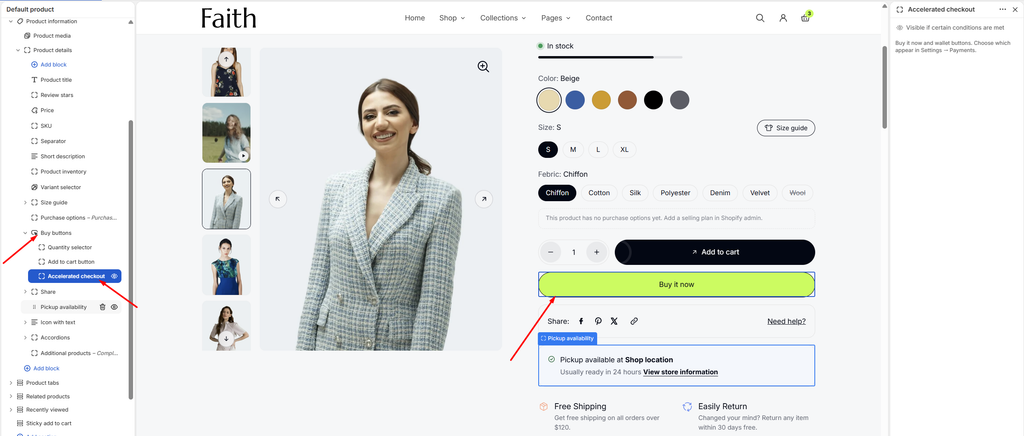
On the product page, the dynamic checkout buttons are the Accelerated checkout block inside Buy buttons. It is part of Buy buttons and can’t be deleted, but you can hide and show it with the eye icon.
How to use
- Go to Online Store → Themes → Customize.
- From the page selector at the top, choose Products → Default product.
- Expand Product information → Product details → Buy buttons.
- Hover over Accelerated checkout and click the eye icon:
- Eye open: the buttons show under Add to cart.
- Eye crossed out: the buttons are hidden.
- Click Save.
- Repeat for any other product templates you use, for example preorder or siblings.
Settings
| Settings | Description |
|---|---|
| Accelerated Checkout | Shows Buy it now and wallet buttons. It has no settings of its own. Choose which buttons appear in Settings → Payments. |
| Featured Product | To change it in the Featured product section on the home page, select the section, expand Buy buttons, and use the eye icon on Accelerated checkout. |
| Quick View | To change it in the Quick view popup, open Products → quickview, expand Buy buttons, and use the eye icon on Accelerated checkout. It is hidden there by default. |
Tip: Each product template has its own setting. Check every template you use, so the buttons behave the same on all products.
Enable or Disable in the Cart
Overview
In the cart, dynamic checkout buttons show under the main Check out button. The cart drawer and the cart page are set up separately.
How to use
Cart drawer
- In the theme editor, click Theme settings (the gear icon), then open Cart.
- Under Additional settings, turn Show accelerated checkout in cart drawer on or off.
- Click Save.
Cart page
- In the theme editor, choose Cart from the page selector at the top.
- Expand the cart section, the summary card, then Checkout button.
- Hover over Accelerated checkout and click the eye icon to show or hide it.
- Click Save.
Settings
| Settings | Description |
|---|---|
| Show Accelerated Checkout in Cart Drawer | Theme settings → Cart. Show Shop Pay, PayPal, Apple Pay and other wallet buttons under the drawer’s checkout button. |
| Accelerated Checkout (Cart Page) | Checkout button block. Shows the wallet buttons under the checkout button on the cart page. Adjust its Padding to set the space around it. |
Choose Which Buttons Appear
Overview
The theme only decides where the buttons show. Which buttons appear is set in Shopify admin, based on the payment methods you have turned on. Shopify then picks the best ones for each customer’s device.
How to use
- Go to Shopify admin → Settings → Payments.
- Turn on the payment methods you want, for example Shop Pay, PayPal, Apple Pay and Google Pay.
- To turn off a wallet everywhere, turn it off here.
- Click Save, then check your product page on desktop and on a phone.
Settings
| Settings | Description |
|---|---|
| Buy It Now | Appears when no wallet is available for the customer. It takes them straight to checkout with the selected product. |
| Wallet Buttons | Shop Pay, PayPal, Apple Pay, Google Pay and others, shown only when turned on in Settings → Payments and supported by the customer’s device and browser. |
| Subscription Products | Shopify doesn’t show dynamic checkout buttons for products that must be bought with a subscription. |
| Theme Editor Preview | The buttons may look different, or not appear, in the theme editor. Check them on your live store. |
When to turn them off: Turn off dynamic checkout buttons if you want every customer to go through the cart, for example to see your free shipping bar, gift wrap, order notes or cart upsells before paying.