Product Siblings
The Product Siblings block lets customers switch between related products, such as different colors, flavors, materials, or styles, while keeping each option as a separate product.
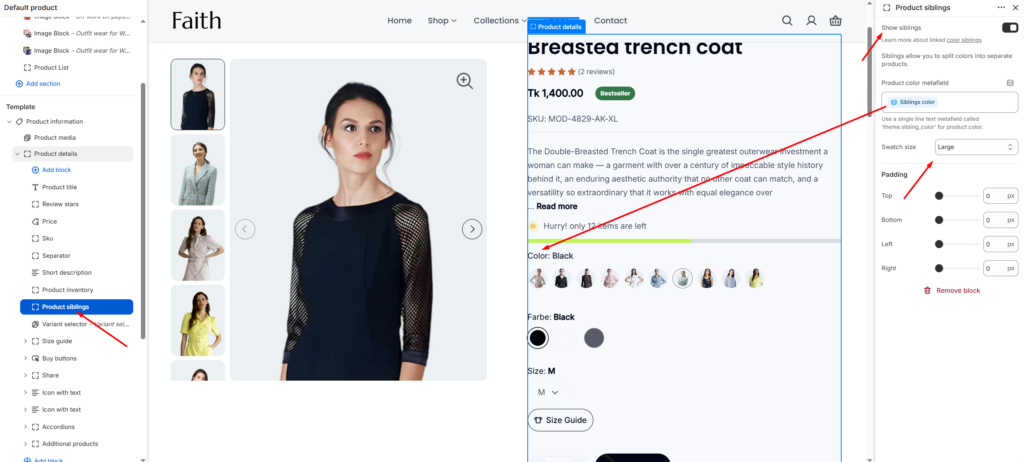
How to Set Up
- Open Online Store → Themes → Customize.
- Navigate to a Product template.
- In the Product Information section, click Add block (or select the existing Product Siblings block).
- Enable Show siblings.
- Select the Product color metafield that stores the current product’s color (for example,
theme.siblings_color). - Choose a Swatch Size (Small, Medium, or Large).
- Adjust the Padding settings if needed.
- Save your changes.
Required Product Metafields
To display product siblings correctly, each product should have the following metafields configured:
| Metafield | Purpose |
|---|---|
Siblings Collection (theme.siblings_collection) | The collection containing all sibling products. |
Siblings Color (theme.siblings_color) | The current product’s color value used for the swatch label and active state. |
Sibling Products (theme.sibling_products) (Optional) | Manually select sibling products instead of using a collection. |
Cutline (theme.cutline) (Optional) | Displays a label above the sibling selector, such as Color, Flavor, or Size. |
How It Works
- The theme loads all products from the configured Siblings Collection (or Sibling Products if selected).
- Each product is displayed as a color swatch or image swatch.
- The current product is automatically highlighted.
- Clicking a sibling takes the customer directly to that product’s page while preserving the shopping experience.
Tip: For the best experience, make sure every sibling product belongs to the same collection and has a unique value in the Siblings Color metafield. This ensures the correct swatch is displayed and highlighted.