Overview
The Social media settings hold your store’s social profile links and control the share buttons. Enter each link once here, and the theme shows the matching icons wherever social icons appear: the Footer (Contact block), the Header, the Announcement bar and the Password page. Only networks with a link show an icon, so leave a field empty to hide that network. Sharing options choose which buttons appear when customers share a product (the Share block) or a blog post.
How to use
- Go to Online Store → Themes → Customize.
- Click Theme settings (the gear icon), then open Social media.
- Paste the full link to each social profile you use, for example
https://instagram.com/yourstore. - Leave the fields empty for networks you don’t use.
- Under Sharing options, turn on the platforms customers can share to.
- Make sure social icons are turned on where you want them, for example Show social icons in the Footer Contact block.
- Click Save.
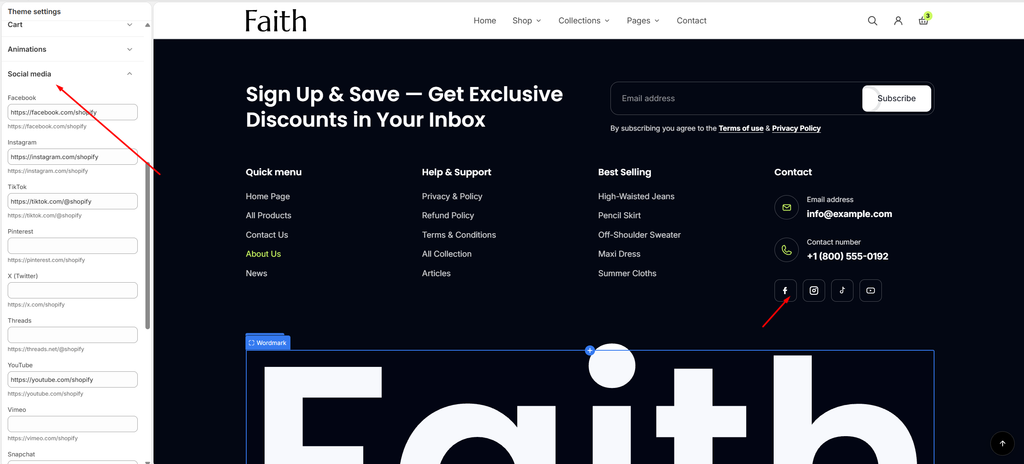
Social Media Settings
| Settings | Description |
|---|---|
| Enter your Facebook page link, for example https://facebook.com/shopify. | |
| Enter your Instagram profile link, for example https://instagram.com/shopify. | |
| TikTok | Enter your TikTok profile link, for example https://tiktok.com/@shopify. |
| Enter your Pinterest profile link, for example https://pinterest.com/shopify. | |
| X (Twitter) | Enter your X profile link, for example https://x.com/shopify. |
| Threads | Enter your Threads profile link, for example https://threads.net/@shopify. |
| YouTube | Enter your YouTube channel link, for example https://youtube.com/shopify. |
| Vimeo | Enter your Vimeo profile link, for example https://vimeo.com/shopify. |
| Snapchat | Enter your Snapchat profile link, for example https://snapchat.com/shopify. |
| Enter your LinkedIn page link, for example https://linkedin.com/company/shopify. | |
| Tumblr | Enter your Tumblr link, for example https://tumblr.com/shopify. |
| Dribbble | Enter your Dribbble profile link, for example https://dribbble.com/shopify. |
| Share on Facebook | Show a Facebook share button on products and blog posts. |
| Pin on Pinterest | Show a Pinterest button, so customers can pin the product or post image. |
| Share on X (Twitter) | Show an X share button. |
| Share on Telegram | Show a Telegram share button. |
| Share on WhatsApp | Show a WhatsApp share button. Popular with mobile shoppers. |
| Share by Email | Show a button that opens an email with the link to the product or post. |
Tip: Always paste the full link, starting with https://. Open your live store and click each icon to check that it goes to the right profile.
Note: Share buttons appear on the product page only when the Share block is added to the product section, and on blog posts through the article footer.