Overview
The Video block adds a video to any section or group that allows it. Use a video uploaded to Shopify, or a YouTube or Vimeo link. You can make it autoplay and loop, and fully style the play button: shape, position, size and colors. You can also set the video’s shape, width, border and scroll animation.
How to use
- Go to Online Store → Themes → Customize.
- Open the page and expand the section or group where you want the video, for example Rich text → Group.
- Click Add block → Video, or select an existing Video block.
- Choose the Source: Uploaded to pick a video from your Shopify files, or External URL to paste a YouTube or Vimeo link.
- For an external video, add a Cover image and Alt text.
- Turn Video autoplay and Video looping on or off.
- Under Play button, choose the Button style and Button position, then adjust its size and colors.
- Under Size, choose the Aspect ratio and Width.
- Add a Border and Corner radius, adjust the Padding, and pick an Animation.
- Click Save.
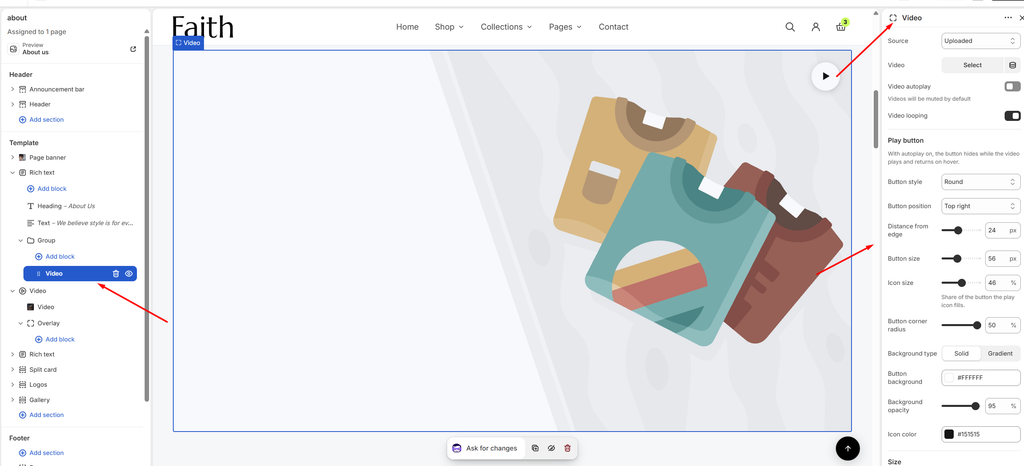
Settings
| Settings | Description |
|---|---|
| Source | Choose where the video comes from: Uploaded (a video in your Shopify files) or External URL (YouTube or Vimeo). |
| Video | Appears when Source is Uploaded. Select the video file. |
| Video URL | Appears when Source is External URL. Paste a YouTube or Vimeo link. |
| Video Autoplay | Play the video automatically. Autoplaying videos are muted by default. |
| Video Looping | Restart the video when it ends. |
| Cover Image | Appears when Source is External URL. Choose the image shown before the video plays. |
| Alt Text | Appears when Source is External URL. Describe the video for customers who use screen readers. |
| Button Style | Choose the play button design: Round (a solid or gradient circle) or Gradient badge (a two-color gradient badge). With autoplay on, the button hides while the video plays and returns on hover. |
| Button Position | Place the play button: Center, Top left, Top right, Bottom left or Bottom right. |
| Distance from Edge | Appears when the button is not centered. Set how far the button sits from the video’s edge (0–60 px). |
| Button Size | Set the size of the play button (32–96 px). |
| Icon Size | Set how much of the button the play icon fills (20–70%). |
| Button Corner Radius | Appears with the Round style. Round the button’s corners (0–50%). 50% makes a perfect circle. |
| Background Type | Appears with the Round style. Fill the button with a Solid color or a Gradient. |
| Button Background | Appears with a Solid background. Choose the button color. |
| Background Opacity | Appears with a Solid background. Adjust how see-through the button is (0–100%). |
| Gradient Color | Appears with a Gradient background. Set the gradient used to fill the button. |
| Icon Color | Appears with the Round style. Choose the color of the play icon. |
| Badge Color 1 / Badge Color 2 | Appear with the Gradient badge style. Choose the two colors of the badge gradient. |
| Aspect Ratio | Choose the video shape: Auto, Square (1/1), Portrait (4/5), Portrait (3/4), Landscape (16/9), Landscape (4/3) or Landscape (21/9). |
| Width | Set the video width on desktop: Fit, Fill (the full available width) or Custom. |
| Custom Width | Appears when Width is Custom. Set the width as a percentage (5–100%). |
| Width Mobile | Set the video width on mobile: Fit, Fill or Custom. Custom shows its own Custom width slider. |
| Border | Add a border around the video: None or Solid. |
| Border Thickness | Appears when Border is Solid. Adjust the border thickness (0–10 px). |
| Border Opacity | Appears when Border is Solid. Adjust how visible the border is (0–100%). |
| Corner Radius | Customize the rounded corners of the video (0–100 px). |
| Padding | Adjust the spacing around the video using Top, Bottom, Left and Right controls (0–100 px). |
| Mobile Scale | Shrink the padding on mobile as a percentage of the desktop values (0–100%). For example, 80% turns 20 px of padding into 16 px on phones. |
| Animation Type | Choose how the video appears as the page scrolls: None, Fade in, Rise up or Zoom out. |
| Animation Delay | Appears when an animation is chosen. Wait before the animation starts (0–800 ms). |