Go to Admin → Online Store → Themes
Click Customize on your active theme
At the top template selector:
- Click the current template dropdown (Example: Default page)
- Select Pages
- Click Create template
A popup will appear where you can create a new page template.
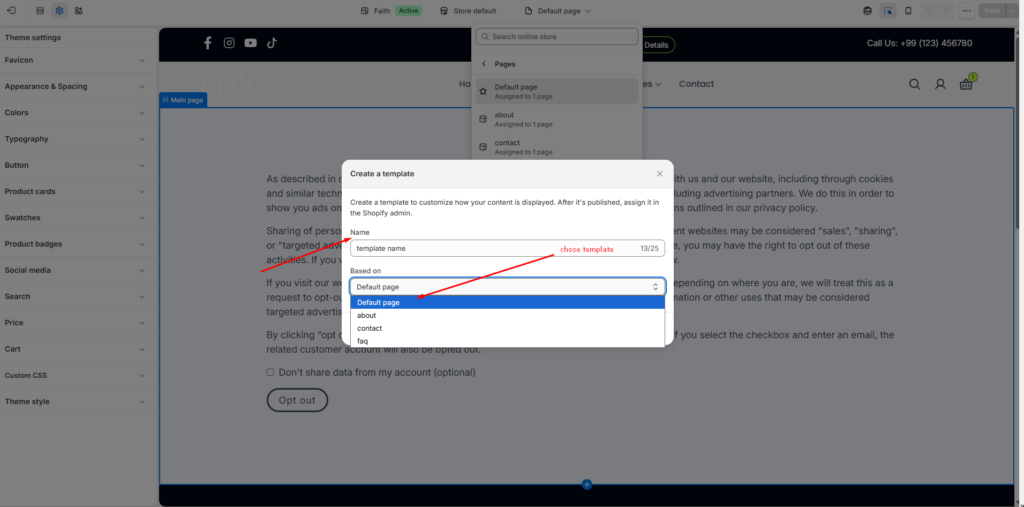
Create Template Settings
| Settings | Description |
|---|---|
| Name | Enter your custom template name. Example: About, FAQ, Landing Page, Custom Page. |
| Based On | Select an existing page template to duplicate the layout from. Example: Default page. |
| Create Template | Create the new template and start customizing it. |
Customize Your New Page Template
After creating the template, you can customize:
- Add sections
- Remove sections
- Change layout
- Add banners
- Add images
- Add text blocks
- Add featured products
- Add custom content
The custom page template allows you to create unique layouts for different pages without affecting your default page design.
Assign Template to a Page
Go to Admin → Online Store → Pages
- Open your selected page
- Find Theme template
- Select your newly created template
- Click Save
Your page will now use the custom template design.