Overview
The Mega menu block turns a top-level item in your main menu, such as Shop or Collections, into a large dropdown panel. The item’s sub-menus become columns of links, for example New Arrivals, Best Sellers and Trending Now. The panel can use one of two layouts:
- Category: menu columns plus a promotion with an image, heading, text and link (for example Winter outerwear).
- Collection: menu columns plus two featured collection cards and a short list of products with quick add.
Add one Mega menu block for each menu item that should open a mega menu. Menu items without a block open a normal dropdown.
How to use
- First, set up the menu links in Content → Menus. Open your main menu and nest the column links under the top-level item. For example: Shop → New Arrivals → Wrap Dress, Flare Jeans…
- Go to Online Store → Themes → Customize.
- Under Header, click Add Mega menu, or select an existing Mega menu block.
- In Menu item, type the exact title of the top-level menu item, for example Shop.
- Choose the Layout: Category or Collection.
- Set the number of Menu columns and, for the Category layout, the Menu width.
- Category layout: add the promotion Heading, Promotion image, Promotion text, Button label and Promotion link, and adjust the typography.
- Collection layout: choose the First collection and Second collection, optionally replace their image, title and text, then pick the Products to list.
- Click Save.
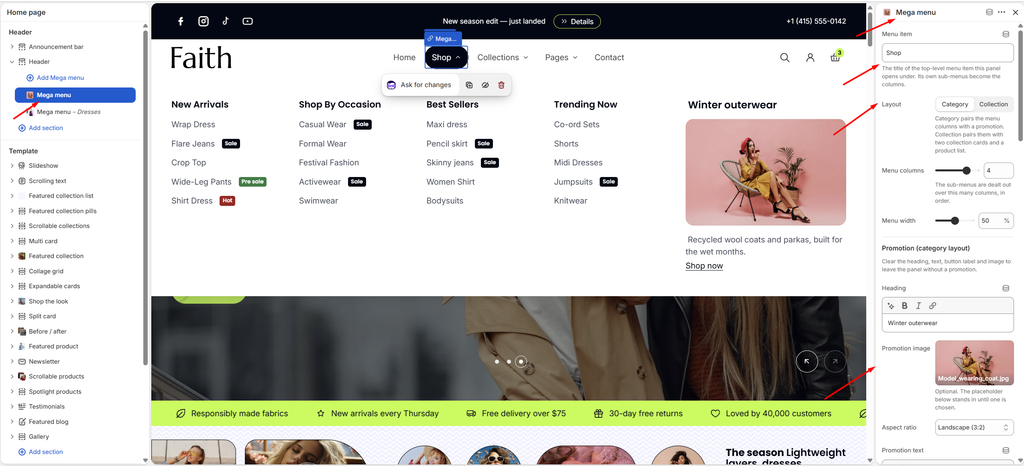
Settings — General
| Settings | Description |
|---|---|
| Menu Item | Enter the title of the top-level menu item this panel opens under, exactly as it appears in your menu (for example Shop). Its sub-menus become the columns. |
| Layout | Category pairs the menu columns with a promotion. Collection pairs them with two collection cards and a product list. |
| Menu Columns | Set how many columns the sub-menus are spread across, in order (1–5). |
| Menu Width | Appears in the Category layout. Set how much of the panel the menu columns take (20–80%). The promotion uses the rest. |
Settings — Promotion (Category layout)
To show the panel without a promotion, clear the heading, text, button label and image.
| Settings | Description |
|---|---|
| Heading | Add the promotion title, for example Winter outerwear. |
| Promotion Image | Upload the promotion image. A placeholder is shown until you choose one. |
| Aspect Ratio | Choose the image shape: Original, Square (1:1), Portrait (4:5) or Landscape (3:2). |
| Promotion Text | Add a short message under the image. |
| Button Label | Add the link text, for example Shop now. |
| Promotion Link | Choose where the promotion goes. Left empty, it links to the menu item this panel opens under. |
| Heading Preset / Text Preset / Button Preset | Choose a text style from your theme’s typography for the promotion heading, text and link, or Custom to set it yourself. |
| Font Size, Font Size on Mobile, Font Weight, Line Height, Letter Spacing | Appear when a preset is Custom. Set the size (10–60 px), weight (Light to Bold), line height (80–200%) and letter spacing (-5% to 10%) for that text. |
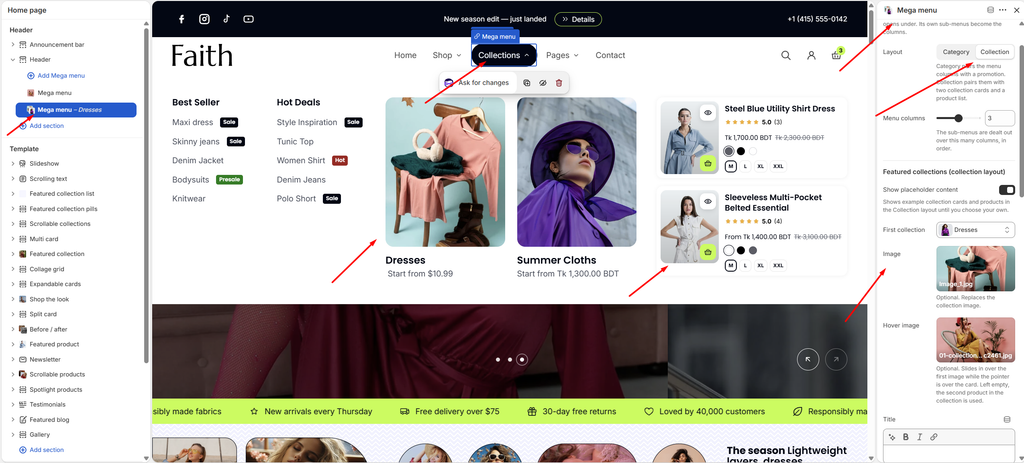
Settings — Featured Collections (Collection layout)
| Settings | Description |
|---|---|
| Show Placeholder Content | Show example collection cards and products until you choose your own. |
| First Collection / Second Collection | Choose the two collections shown as large cards. |
| Image | Optional. Replace the collection’s own image on the card. |
| Hover Image | Appears when Show hover image is on. Optional. Choose an image that slides in when the customer hovers over the card. Left empty, the collection’s second product image is used. |
| Title | Optional. Replace the collection title on the card. |
| Text | Optional. Replace the “Start from” price line under the title. |
| Aspect Ratio | Choose the card image shape: Portrait (4:5), Portrait (3:4), Portrait (2:3), Square (1:1) or Landscape (3:2). |
| Show Hover Image | Slide a second image in over the first when the card is hovered. |
| Title Preset / Text Preset | Choose a text style for the card title and text, or Custom. |
| Font Size, Font Size on Mobile, Font Weight, Line Height, Letter Spacing | Appear when a preset is Custom. Set the size (10–60 px), weight (Light to Bold), line height (80–200%) and letter spacing (-5% to 10%) for that text. |
Settings — Products (Collection layout)
| Settings | Description |
|---|---|
| Products | Choose the products shown as compact cards beside the collection cards. |
| Aspect Ratio | Choose the product image shape: Portrait (4:5), Portrait (3:4) or Square (1:1). |
| Show Color and Size Options | Show the product’s color swatches and sizes on each card. |
| Show Quick Add Button | Show a button that adds the product to the cart without leaving the page. |
Tip: Menu badges. To show a badge such as Sale, Hot or Pre sale next to a menu link, add it in square brackets at the end of the link title in Content → Menus, for example Flare Jeans [Sale]. Sale, New, Hot, Pre sale / Pre-order, Sold out and Best seller use the matching colors from Theme settings → Product badges.