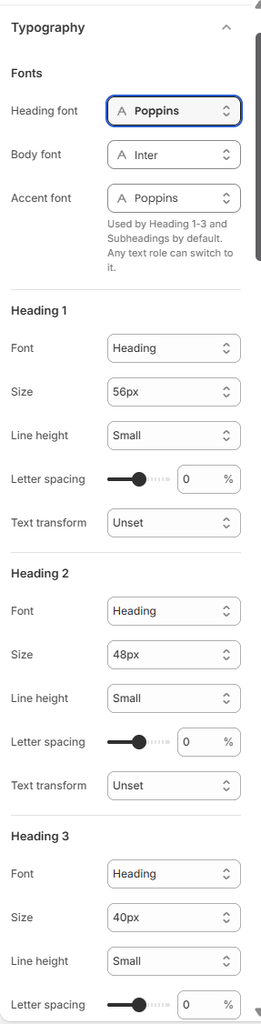
Typography controls the fonts and text styles of the whole store. You choose three fonts (Heading, Body and Accent), then set the size, line height, letter spacing and capitalization for each text role: Heading 1–6, body text, subheadings, product cards, navigation and buttons. Blocks such as Heading and Text use these styles through their Preset setting, so changing a style here updates every block that uses it.
How to use
Go to Online Store → Themes → Customize.
Click the Theme settings icon (the gear) in the left sidebar and open Typography.
Under Fonts, choose your Heading font, Body font and Accent font.
Set the Font, Size, Line height, Letter spacing and Text transform for Heading 1 to Heading 6.
Set the Body text size and spacing.
Adjust the Subheadings style, and add a background or border under Subheading appearance if you want one.
Fine-tune the Product card title, price and badges, then Navigation and Button text.
Click Save.
Fonts
Settings
Description
Heading Font
Choose the font used for headings across the store.
Body Font
Choose the font used for paragraphs, descriptions and most interface text.
Accent Font
Choose a third font for display text. Heading 1–3 and Subheadings can use it, and any text role can switch to it.
Heading 1 – Heading 6
Each heading level (H1 to H6) has its own settings, so you can build a clear size scale from the largest heading to the smallest.
Settings
Description
Font
Choose which font this heading level uses: Body or Heading. Heading 1–3 can also use Accent.
Size
Choose the font size for this heading level (16–80 px).
Line Height
Set the space between lines: Original, Small, Medium, Large or X-Large. Large headings usually look best with Small.
Letter Spacing
Adjust the space between letters (-5% to 5%).
Text Transform
Change the capitalization: Unset, As typed, UPPER CASE, lower case or Capitalize (first letter of each word).
Body
Settings
Description
Size
Choose the size of paragraph text (14–20 px). Subheadings and product card titles scale from this size.
Line Height
Set the space between lines of body text: Original, Small, Medium, Large or X-Large.
Letter Spacing
Adjust the space between letters (-2% to 5%).
Text Transform
Change the capitalization: Unset, As typed, UPPER CASE, lower case or Capitalize.
Subheadings
Subheadings are the small labels shown above headings, for example NEW ARRIVALS.
Settings
Description
Font
Choose the subheading font: Body, Heading or Accent.
Font Weight
Choose the thickness of the text: Inherit (the font’s own weight) or 100 (thin) to 900 (black). Only weights your font includes are shown correctly.
Size
Scale the subheading relative to the body text size (60–160%).
Letter Spacing
Adjust the space between letters (-2% to 10%).
Text Transform
Change the capitalization: Unset, As typed, UPPER CASE, lower case or Capitalize.
Subheading Appearance
Settings
Description
Background
Choose a color to add a padded panel behind the subheading text.
Style
Add a border line around the subheading: None, Solid or Dashed. Padding is added so the line doesn’t touch the text.
Color
Appears when Style is Solid or Dashed. Choose the border color. Leave it empty to use the accent color.
Corner Radius
Round the corners of the background and the border (0–50 px).
Product Card Title
Settings
Description
Font
Choose the font for product names on product cards: Body or Heading.
Font Weight
Choose the thickness of the text: Inherit or 100 to 900.
Size
Scale the product title relative to the body text size (60–160%).
Product Card Price
Settings
Description
Font
Choose the font for prices on product cards: Body or Heading.
Font Weight
Choose the thickness of the text: Inherit or 100 to 900.
Product Card Badges
Settings
Description
Font
Choose the font for badges such as Sale or Bestseller: Body or Heading.
Font Weight
Choose the thickness of the text: Inherit or 100 to 900.
Letter Spacing
Adjust the space between letters (-2% to 10%).
Text Transform
Change the capitalization: Unset, As typed, UPPER CASE, lower case or Capitalize.
Navigation
Settings
Description
Font
Choose the font for the header menu and mobile menu: Body or Heading.
Font Weight
Choose the thickness of the text: Inherit or 100 to 900.
Letter Spacing
Adjust the space between letters (-2% to 10%).
Text Transform
Change the capitalization of menu links: Unset, As typed, UPPER CASE, lower case or Capitalize.
Uppercase First Level
Show the top-level links of the mobile menu in capital letters. Deeper levels keep the Text transform above.
Button
Settings
Description
Font
Choose the font for button labels: Body or Heading.
Text Transform
Change the capitalization of button labels: Unset, As typed, UPPER CASE, lower case or Capitalize.
Tip: Button size, corner radius, border and hover effect are set in Theme settings → Buttons.