Overview
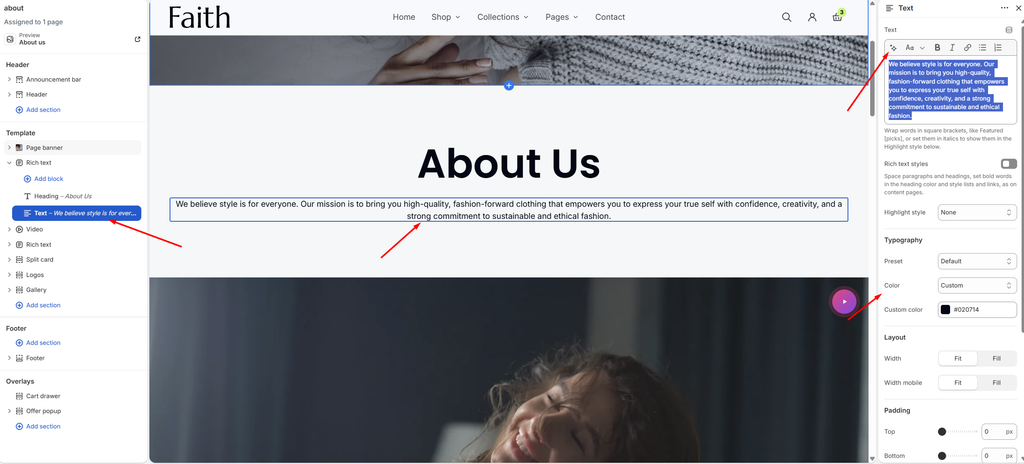
The Text block adds paragraphs of text to any section, such as Rich text, Group, Section heading, a slide or a card. You can format text with bold, italic, links and lists, highlight chosen words, and control the font, size, color, spacing and entrance animation. The same Text block is used across the whole theme, so these settings work the same everywhere.
How to use
- Go to Online Store → Themes → Customize.
- Open the page and select the section where you want the text, for example Rich text.
- Click Add block → Text, or select an existing Text block.
- Type your content in the Text field. Use the toolbar for bold, italic, links and lists.
- To highlight words, wrap them in square brackets, like Our [mission], then pick a Highlight style.
- Turn on Rich text styles if the text is long, with several paragraphs, lists or links.
- Under Typography, pick a Preset, or choose Custom to set the font size, font, weight, line height and letter spacing yourself.
- Choose a Color, then set the Width, Alignment and Padding under Layout.
- Optionally, choose an entrance Animation.
- Click Save.
Settings
| Settings | Description |
|---|---|
| Text | Add the text content. You can use bold, italic, links and lists. Wrap words in square brackets, like Featured [picks], or set them in italics to apply the Highlight style to them. |
| Rich Text Styles | Turn this on for long-form content. It adds space between paragraphs and headings, shows bold words in the heading color, and styles lists and links the way content pages do. |
| Highlight Style | Choose how the highlighted words look. Options include None, Outline, Outline only, Underline and Marker. |
| Preset | Choose a text style from your theme’s typography: Default, Paragraph, Subheading, Heading 1–6, or Custom to set it manually. |
| Font Size | Appears when Preset is Custom. Set the size on desktop (10–110 px). |
| Font Size on Mobile | Appears when Preset is Custom. Set the size on mobile (10–110 px). |
| Font | Appears when Preset is Custom. Choose which theme font to use: Body, Heading or Accent. |
| Font Weight | Appears when Preset is Custom. Choose Light, Regular, Medium, Semibold or Bold. |
| Line Height | Appears when Preset is Custom. Adjust the space between lines of text (80–200%). |
| Letter Spacing | Appears when Preset is Custom. Adjust the space between letters (-5% to 10%). |
| Color | Choose the text color: Text or Subtext (from the color scheme), Gradient, or Custom. |
| Custom Color | Appears when Color is Custom. Pick any color for the text. |
| Gradient Color | Appears when Color is Gradient. Set a gradient to fill the text. |
| Width | Set the text width on desktop: Fit (only as wide as the text) or Fill (the full available width). |
| Alignment | Appears when Width is Fill. Align the text Left, Center or Right on desktop. |
| Width Mobile | Set the text width on mobile: Fit or Fill. |
| Alignment Mobile | Appears when Width mobile is Fill. Align the text Left, Center or Right on mobile. |
| Padding | Adjust the spacing around the text using Top, Bottom, Left and Right controls (0–100 px). |
| Mobile Scale | Shrink the padding on mobile as a percentage of the desktop values (0–100%). For example, 80% turns 20 px of padding into 16 px on phones. |
| Animation Type | Choose how the text appears as the page scrolls: None, Fade in, Rise up, Word by word or Split text: line by line. Split text: line by line reveals large statement text one line at a time. |
| Animation Delay | Appears when an animation is chosen. Wait before the animation starts (0–800 ms). Useful for staggering several blocks. |