Overview
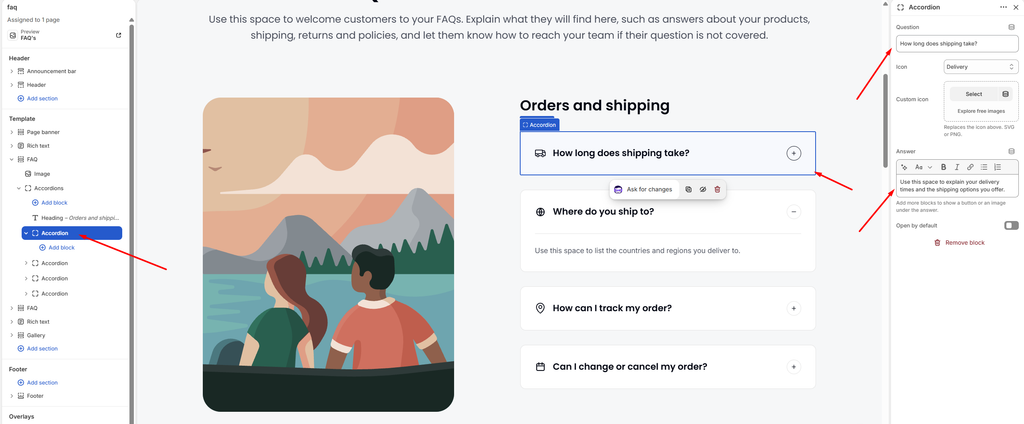
The Accordion block is a single question with its answer. Customers click the question to expand or collapse the answer, which keeps long FAQ pages clean and easy to scan. Add one Accordion block for each question inside the Accordions block.
How to use
- Go to Online Store → Themes → Customize.
- Open the page that has the FAQ section.
- Expand the FAQ section, then expand the Accordions block.
- Click Add block → Accordion, or select an existing Accordion block.
- Type your question in the Question field.
- Add the answer in the Answer field. You can use bold, italic, links and lists.
- Choose an Icon, or upload your own SVG or PNG under Custom icon.
- Turn on Open by default if this question should be expanded when the page loads.
- Click Save.
Settings
| Settings | Description |
|---|---|
| Question | Add the question text shown on the card. |
| Icon | Select an icon to display before the question. Options include None, Location, Address book, Phone, Open envelope, Email, Clock, Calendar, Chat, Question, Delivery, Truck, Globe, Return, Credit card, Money, Shield, Lock, Gift, Heart, Tag, Percent, Leaf, Box and Star. |
| Custom Icon | Upload your own icon (SVG or PNG). It replaces the icon selected above. |
| Answer | Add the answer text shown when the question is opened. You can use bold, italic, links and lists. |
| Open by Default | Show this question already expanded when the page loads. |