Remove the default Shopify branding to create a cleaner, more professional appearance.
Before you start
This edits your theme’s content directly, not a section setting — the change applies globally across your store, including checkout.
Steps
- From your Shopify admin, go to Online Store > Themes.
- Next to the theme you want to edit, click the Actions menu (three dots), then select Edit default theme content.
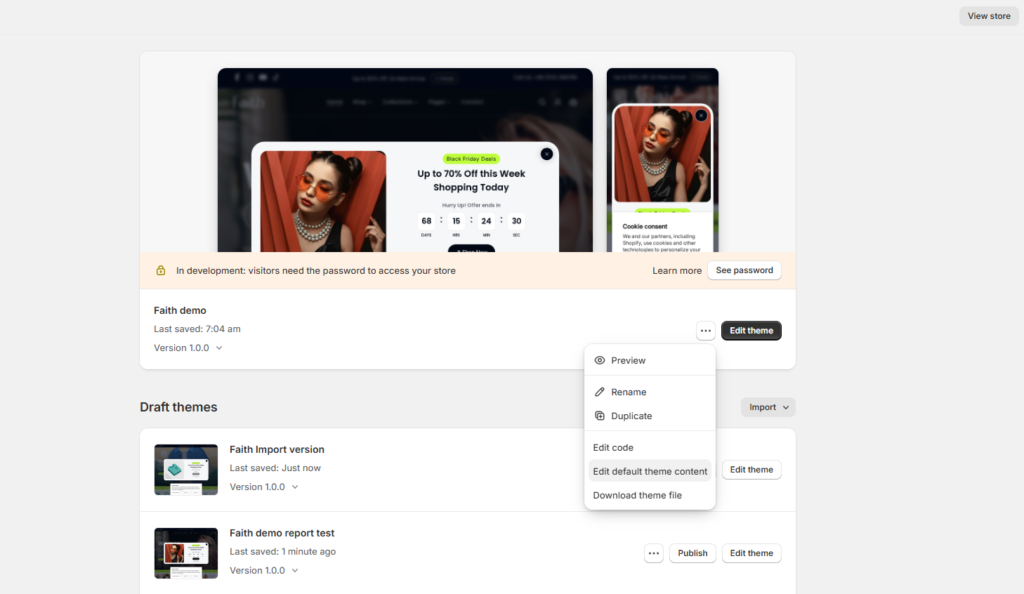
- In the Filter items box, type powered.
- In the Powered by Shopify field, click into it and press the space bar once, entering a single space character. A single space (rather than leaving the field completely empty) prevents Shopify from reverting to its default “Powered by Shopify” text.
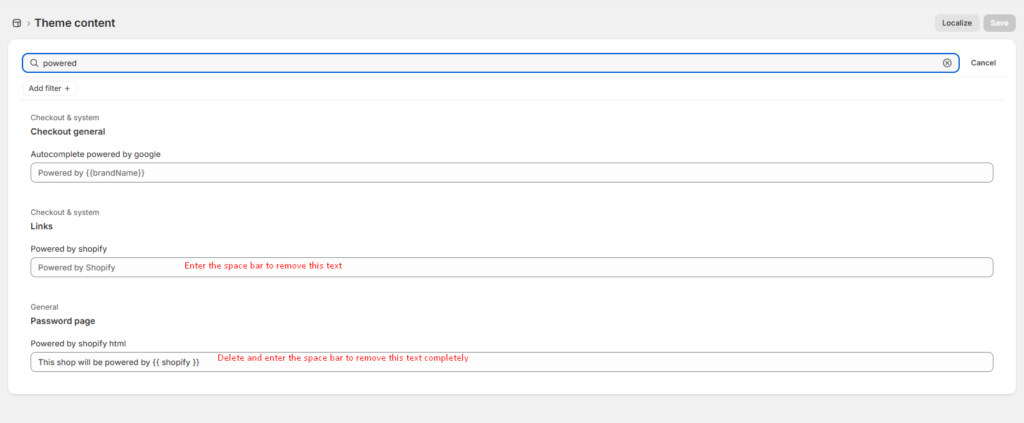
- Repeat step 4 for the Powered by Shopify HTML field — this controls the same message on your store’s password-protected “Opening Soon” page.
- Click Save to apply your changes.
What this removes
- Footer “Powered by Shopify” text on all store pages
- “Powered by Shopify” message on password-protected store pages
- Branding elements that appear during checkout
Result
Your store will display a cleaner, more professional appearance without Shopify’s default branding, allowing your own brand to take center stage.
Troubleshooting
“Powered by Shopify” text still showing? Confirm you edited the theme currently published as your live theme, not a draft or duplicate — Edit default theme content only affects the theme you opened it from.
Text reappeared after re-saving? Check the field wasn’t accidentally left completely empty — a single space is required to prevent Shopify’s default text from returning.