Overview
When a product runs out, you can either stop selling it, or keep selling it so customers can order now and receive it when new stock arrives (a backorder or pre-order). Keeping products on sale means you don’t lose orders while you restock, which matters most for best sellers and made-to-order items.
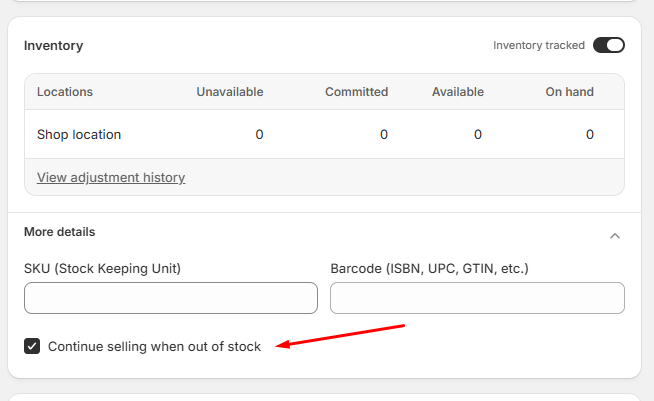
The choice is made per variant in Shopify admin, with the Continue selling when out of stock setting. Faith then shows the right message to customers automatically:
| Settings | Description |
|---|---|
| Continue Selling: On | When stock is 0 or less, the Add to cart button changes to Pre-order. The stock line shows Available on backorder, and a Pre-order badge appears. The cart and order show Pre-order: Yes, so you know which orders to hold until the stock arrives. |
| Continue Selling: Off | When stock is 0, the button shows Sold out and can’t be clicked. A Sold out badge appears, the variant is crossed out in the variant selector, and customers can ask about availability. |
| Back in Stock | As soon as stock goes above 0, the product goes back to Add to cart and In stock on its own. |
These messages appear everywhere the product can be bought: the product page, the Sticky add to cart bar, Quick view, quick add on product cards, and cart recommendations.
Turn On Selling When Out of Stock
Overview
Turn on Continue selling when out of stock for each product or variant you want to keep selling.
How to use
- From your Shopify admin, go to Products, and open the product.
- Under Inventory, make sure Track quantity is on.
- Turn on Continue selling when out of stock.
- For a product with variants, open each variant and turn it on for the variants you want, for example only the best-selling sizes.
- Click Save.
- To change many products at once, select them in Products, click Bulk edit, add the Continue selling when out of stock column, and update them together.
Settings
| Settings | Description |
|---|---|
| Track Quantity | Must be on. Faith uses the stock level to decide when to show Pre-order and Available on backorder. Without tracking, the product always shows In stock. |
| Continue Selling When Out of Stock | Allows orders when stock is 0 or less. The stock level goes below 0, which shows you how many units you owe customers. |
| Per Variant | Each variant has its own setting. One size can be on backorder while another shows Sold out. |
Tip: To mark a product as pre-order before it’s out of stock, for example a new release, add the tag preorder, use the preorder template, or set the custom.preorder metafield. See the Pre-order article.
What Customers See
Overview
Faith makes the stock status clear at every step, so customers know what they’re buying.
Settings
| Settings | Description |
|---|---|
| Product Inventory Block | Shows In stock, Low stock (or Only 3 items left), Available on backorder or Out of stock, with a colored dot and stock bar. Set it up in Product details → Product inventory. |
| Buy Button | Shows Add to cart, Pre-order or Sold out, and updates as customers pick a variant. |
| Badges | Pre-order and Sold out badges show on the product image and product cards. Set their colors in Theme settings → Product badges. |
| Variant Selector | Sold-out variants are crossed out, but customers can still select them to see their status. |
| Collection Filters | The Availability filter lets customers show only in-stock products. Products on backorder count as available. |
When a Product Is Sold Out
Overview
For sold-out variants that can’t be ordered, Faith can show an Ask about availability button, so you don’t lose the customer completely.
How to use
- Go to Online Store → Themes → Customize, and open Products → Default product.
- Expand Product details, and select Buy buttons.
- Turn on Show availability request form.
- Click Save.
Settings
| Settings | Description |
|---|---|
| Show Availability Request Form | On sold-out variants, show an Ask about availability button. Requests reach you by email through the contact form. Customers aren’t notified automatically, so reply yourself, or use a back-in-stock app. |
| Back-in-Stock Apps | For automatic Notify me when available emails, install a back-in-stock app from the Shopify App Store, and add its app block to Product details. |
Change the Wording
Overview
All stock and button text can be changed or translated without touching code.
How to use
- Go to Online Store → Themes.
- Click ⋯ next to Faith, then Edit default theme content.
- Search for the text you want to change, for example backorder, pre-order or sold out.
- Change it, and click Save.
Settings
| Settings | Description |
|---|---|
| Available on Backorder | The stock line for variants sold while out of stock. For example, change it to Ships in 2–3 weeks. |
| Pre-order | The button text for variants sold while out of stock. |
| Pre-order: Yes | The line added to the cart item and order. |
| Out of Stock / Sold Out | The stock line and button text for variants that can’t be ordered. |
Tip: Tell customers when backordered items will ship. Add a Text block below Buy buttons, for example Backordered items ship within 3 weeks. Clear dates reduce cancellations and support questions.