Overview
Setting up siblings takes four steps: create the metafields once, link the products, give each product its color, and show the siblings on the product page and product cards. The next articles cover each step in detail.
How to use
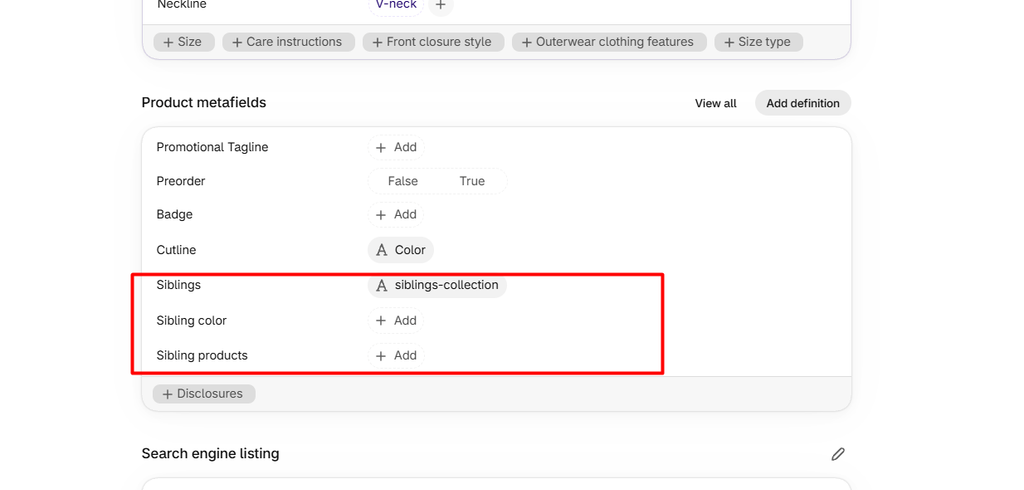
- Create the metafields. In Shopify admin → Settings → Custom data → Products, add the definitions listed in Siblings Metafields. You only do this once.
- Link the products. For each style, choose one method:
- Product list: on each product, select its sibling products in theme.sibling_products.
- Collection: put all colors of the style in one collection, and enter its handle in theme.siblings on each product.
- Set each product’s color. Fill in theme.sibling_color (or use Shopify’s Color category metafield, or a Color option). Without this, the product title and image are used.
- Show siblings on the product page. In Online Store → Themes → Customize, open the product template and add the Sibling products block in Product details, or assign the ready-made siblings template to these products.
- Show siblings on product cards (optional). Turn on Show sibling products in Theme settings → Product cards.
- Check the storefront. Open each product and confirm all colors appear and link correctly.
Settings
| Settings | Description |
|---|---|
| Metafields | Created once in Settings → Custom data → Products. See Siblings Metafields. |
| Linking Method | Product list (theme.sibling_products) or Collection (theme.siblings). See Siblings Collection or Product List. |
| Color | theme.sibling_color, custom.sibling_color, a custom metafield, Shopify’s Color category metafield, or the product’s Color option. |
| Product Page | The Sibling products block, or the siblings product template. See Siblings Product Setup. |
| Product Cards | Theme settings → Product cards → Show sibling products. |
Tip: Set up one style first and check it on the storefront before doing the rest of your catalog.