Overview
Product reviews build trust and help customers decide, which usually leads to more sales. Faith doesn’t collect reviews itself. You install a reviews app, and Faith shows its reviews in four places:
| Settings | Description |
|---|---|
| Review Widget | The app’s full list of reviews and its Write a review form. Shown in the Review tab of Product tabs, or as its own section on the product page. |
| Review Stars | The rating under the product title, for example ★★★★★ 5.0 • 2 reviews. Clicking it scrolls to the review widget. |
| Stars on Product Cards | The rating on product cards in collections, search and sliders. |
| Review Count on the Tab | The number of reviews after the tab title, for example Review (2). |
The stars and counts read Shopify’s standard review metafields, reviews.rating and reviews.rating_count. Most reviews apps write these automatically.
Step 1: Install a Reviews App
Overview
Choose a reviews app from the Shopify App Store. Popular options include Judge.me (with a free plan), Loox, Okendo, Yotpo and Stamped. Shopify’s own Product Reviews app has been discontinued, so use a third-party app.
How to use
- Go to the Shopify App Store and install a reviews app.
- Follow the app’s setup steps, and import any existing reviews.
- In the app’s settings, make sure it syncs ratings to Shopify metafields (sometimes called SEO rich snippets or Shopify product ratings). Without this, Faith’s stars can’t show the rating.
- Turn on the app’s app embed if it asks for one: go to Online Store → Themes → Customize → App embeds, and turn on the reviews app.
Step 2: Add the Review Widget
Overview
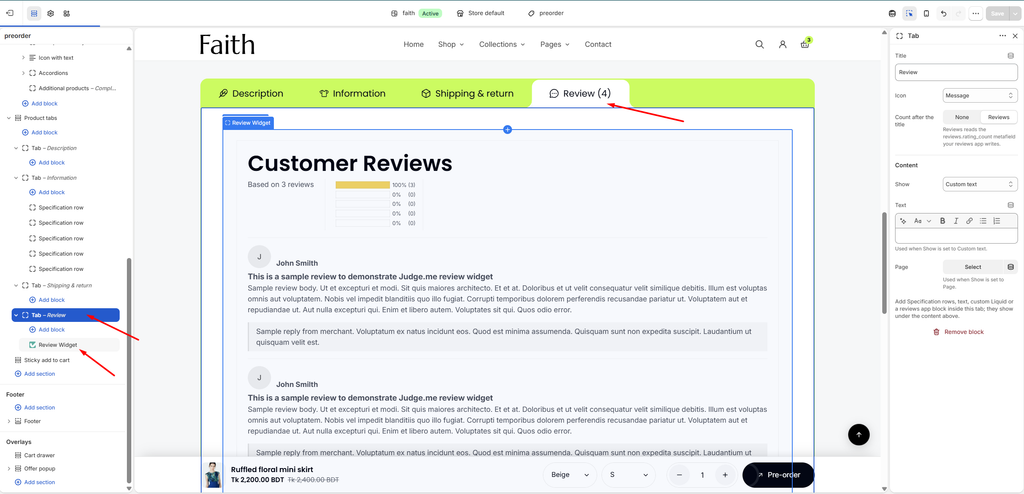
The review widget shows the list of reviews. Add it to the Review tab in Product tabs (as in Faith’s default product page), or as its own section below the product information.
How to use
Option A: In the Review tab
- Go to Online Store → Themes → Customize, and open Products → Default product.
- Expand Product tabs, and select the Tab called Review. If there isn’t one, click Add block → Tab and title it Review.
- Set Show to Blocks only.
- Set Count after the title to Reviews, so the tab shows Review (2).
- Expand the tab, click Add block, open the Apps tab, and choose your app’s review widget, for example Review Widget.
- Click Save.
Option B: As its own section
- In Products → Default product, click Add section.
- Open the Apps tab, and choose your app’s review widget.
- Drag the section below Product information, or below Product tabs.
- Click Save.
Step 3: Show Review Stars on the Product Page
Overview
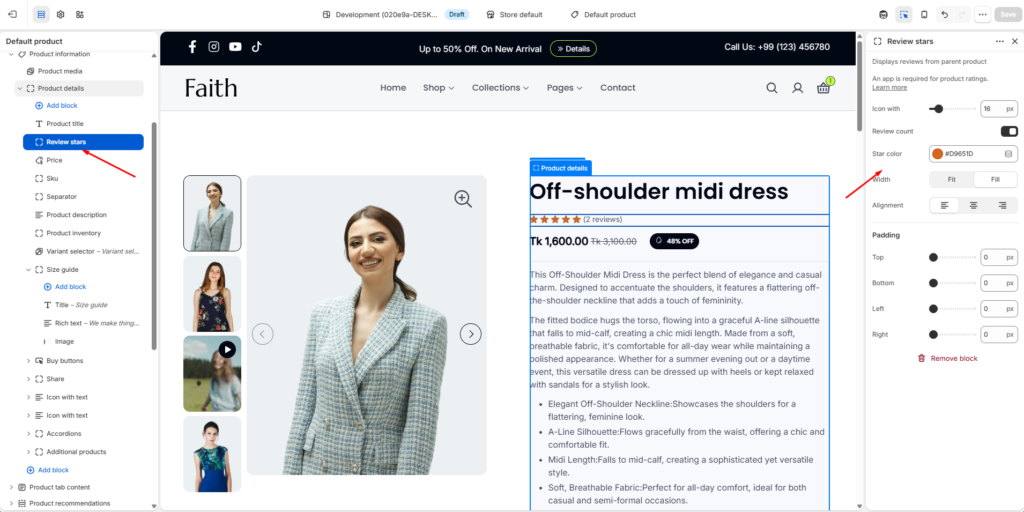
The Review stars block shows the rating under the product title. Clicking the stars scrolls the customer to the review widget.
How to use
- In Products → Default product, expand Product information → Product details.
- Select Review stars, or click Add block → Review stars and drag it below Product title.
- Enter the Reviews section ID of your app’s widget, so the stars link to it.
- Choose whether to Show stars when there are no reviews.
- Click Save.
Settings
| Settings | Description |
|---|---|
| Reviews Section ID | The ID of your reviews app’s widget, with or without #. Common IDs: Judge.me judgeme_product_reviews, Loox looxReviews. You can also use any CSS selector. To find it, open a product on your live store, right-click the review widget, choose Inspect, and copy the id of its outer element. |
| Show Stars When There Are No Reviews | Show empty stars and No reviews on products without reviews. Turn it off to show stars only when a product has reviews. |
| Padding | Choose Desktop or Mobile under Devices, then adjust the Top and Bottom spacing (0–100 px). |
Tip: If clicking the stars doesn’t scroll, check that the Reviews section ID matches the widget’s ID exactly.
Step 4: Show Stars on Product Cards
Overview
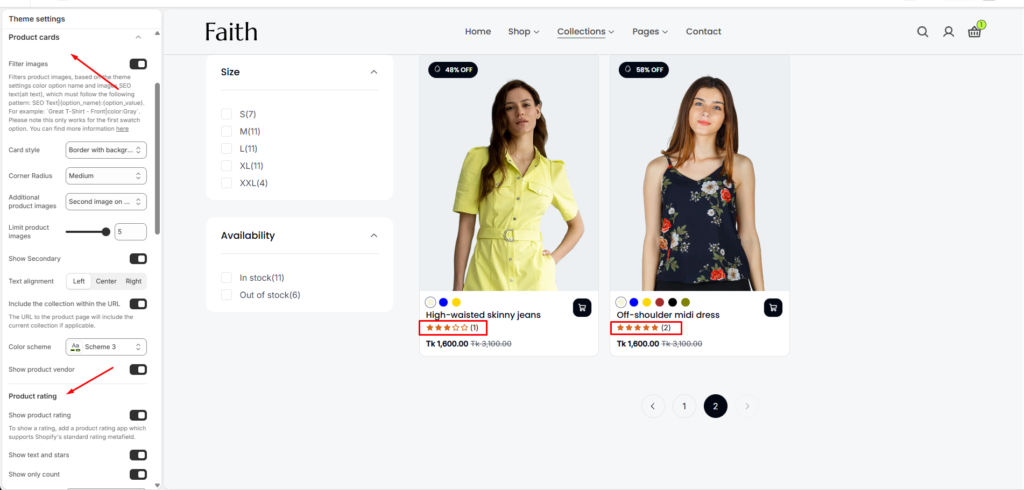
Stars on product cards let customers compare ratings while browsing collections, without opening each product.
How to use
- In the theme editor, click Theme settings (the gear icon), then open Product cards.
- Turn on Show product rating.
- Choose whether to Show the score beside the stars, and set the colors.
- Click Save.
Settings
| Settings | Description |
|---|---|
| Show Product Rating | Show the rating on product cards. It reads the rating and rating count metafields your reviews app writes. Products without reviews don’t show stars. |
| Show the Score Beside the Stars | Show the score and review count next to the stars, for example 5.0 (2). |
| Star Color | Choose the color of the filled stars. Leave it empty to use the theme’s accent color. |
| Empty Star Color | Choose the color of the unfilled part of the rating. Leave it empty for a faint tint of the text color. |
| Text Color | Choose the color of the score and review count. Leave it empty to follow the surrounding text color. |
| Show Rating (Search) | Theme settings → Search. Show the rating in the search suggestions. |
Troubleshooting: If the review widget shows reviews but the stars don’t appear, your app isn’t writing the reviews.rating metafield yet. Turn on metafield sync in the app’s settings, then wait a few minutes. Some apps update ratings only when a new review arrives.