Overview
The Custom section is a blank layout section. You build it yourself from any theme block or app block, such as Image card, Accordions, Heading, Text, Button and Group. Arrange the blocks vertically or side by side, set the gaps, and add a background color or image. The section can hold layouts the other sections don’t offer, for example an image card next to a list of FAQs, as shown in the screenshot.
How to use
- Go to Online Store → Themes → Customize.
- Click Add section → Custom section.
- Click Add block and choose the blocks you need, for example Image card and Accordions. Drag the blocks to reorder them.
- Under Layout, choose the Layout direction, Alignment and gaps.
- Choose the Color scheme, and optionally a Background image.
- Set the Mobile layout gaps, Section width and Padding.
- Click Save.
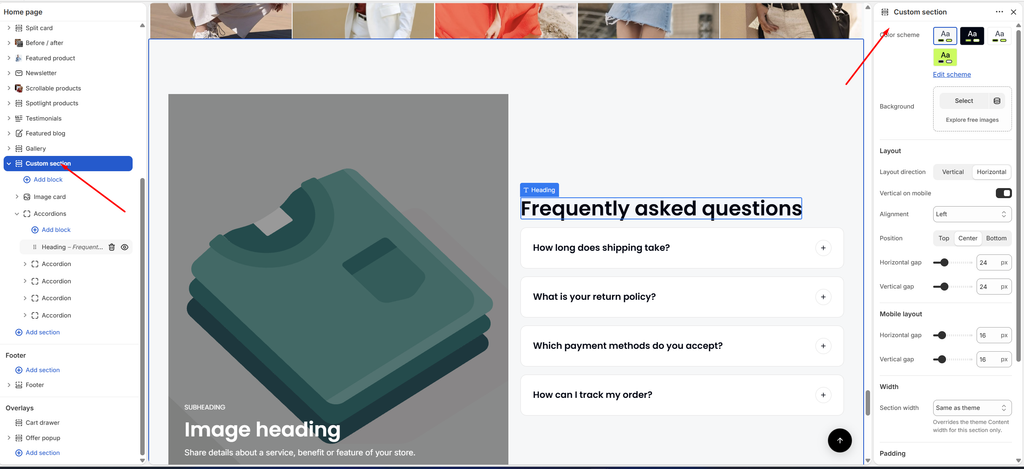
Settings
| Settings | Description |
|---|---|
| Color Scheme | Select a predefined color scheme for the section. |
| Background | Select an image to show behind the whole section. |
| Layout Direction | Arrange the blocks Vertical (one under another) or Horizontal (side by side). |
| Vertical on Mobile | Appears when Layout direction is Horizontal. Stack the blocks vertically on mobile. |
| Alignment | Align the blocks Left, Center or Right. A horizontal layout also offers Space between. |
| Position | Appears when Layout direction is Horizontal. Line up the blocks at the Top, Center or Bottom of the row. |
| Horizontal Gap | Adjust the space between blocks placed side by side (0–100 px). |
| Vertical Gap | Adjust the space between stacked blocks (0–100 px). |
| Horizontal Gap (Mobile layout) | Adjust the space between side-by-side blocks on mobile (0–100 px). |
| Vertical Gap (Mobile layout) | Adjust the space between stacked blocks on mobile (0–100 px). |
| Section Width | Set how wide the section is: Same as theme, Full width, Wide, Standard, Narrow or Custom. This overrides the theme Content width for this section only. |
| Custom Section Width | Appears when Section width is Custom. Set an exact width (600–2000 px). |
| Padding | Choose Desktop or Mobile under Devices, then adjust the Top and Bottom spacing of the section for that device. |
Tip: To put two blocks side by side, set Layout direction to Horizontal, then set each block’s Width to Fill, or to Custom (for example 50%). Use a Group block to stack several blocks inside one column.