Featured Collection Section
Overview
The Featured collection section shows products from one collection as a carousel or a grid, for example This Week’s Favourites. Each product card shows the image, price, rating, color swatches and a quick add (+) button, so customers can shop without leaving the page. You can add carousel arrows to the section heading, and a View all button that links to the full collection.
How to use
- Go to Online Store → Themes → Customize.
- Click Add section → Featured collection, or select an existing one.
- Edit the Section heading to change the title, for example This Week’s [Favourites].
- Choose a Collection and set the Maximum products to show.
- Under Layout, choose Grid or Carousel and set the columns for each device.
- Adjust the Carousel options. To show arrows, select the Section heading, set its Layout to Horizontal, and choose Carousel arrows.
- Optionally, turn on the View all button.
- Set the Section width and Padding.
- Click Save.
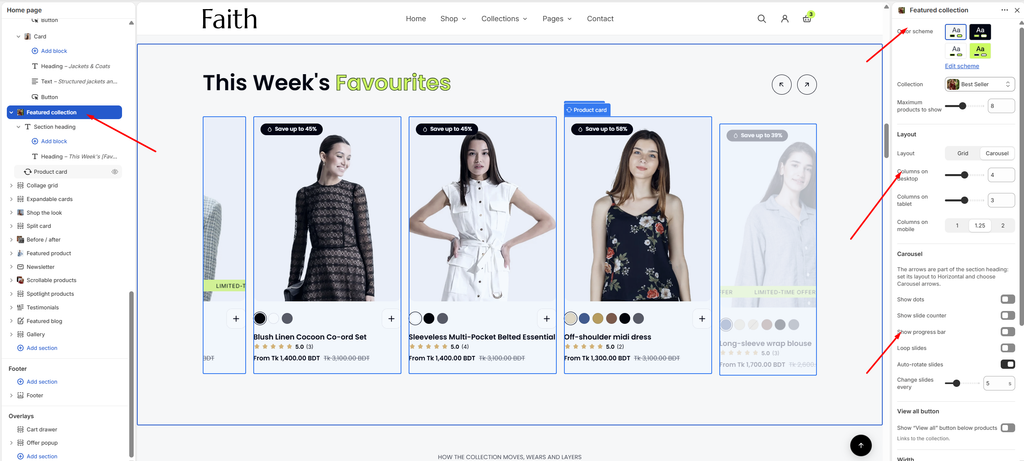
Settings
| Settings | Description |
|---|---|
| Color Scheme | Select a predefined color scheme for the section background and text. |
| Collection | Choose the collection whose products are shown. |
| Maximum Products to Show | Set how many products from the collection to show (2–16). |
| Layout | Show the products as a Grid or a sliding Carousel. |
| Enable Carousel on Mobile | Appears when Layout is Grid. Turn the grid into a swipeable carousel on phones. |
| Columns on Desktop | Set how many products show across on desktop (2–6). |
| Columns on Tablet | Set how many products show across on tablet (2–4). |
| Columns on Mobile | Set how many products show across on mobile: 1, 1.25 or 2. 1.25 shows part of the next card, so customers know they can swipe. |
| Show Dots | Appears when the carousel is used. Show navigation dots under the products. |
| Show Slide Counter | Appears when the carousel is used. Show the current position, for example 2 / 8. |
| Show Progress Bar | Appears when the carousel is used. Show a bar that fills as customers move through the products. |
| Loop Slides | Appears when the carousel is used. Go back to the first product after the last one. |
| Auto-rotate Slides | Appears when the carousel is used. Move through the products automatically. |
| Change Slides Every | Appears when Auto-rotate slides is on. Set how long each slide stays (3–10 seconds). |
| Show “View All” Button Below Products | Add a button under the products that links to the collection. |
| Button Label | Appears when the button is on. Set the button text, for example View all. |
| Button Style | Appears when the button is on. Choose Primary or Secondary. |
| Section Width | Set how wide the section is. Options include Same as theme, Full width, Wide, Standard, Narrow and Custom. This overrides the theme’s content width for this section only. |
| Custom Section Width | Appears when Section Width is set to Custom. Set an exact width (600–2000 px). |
| Padding | Choose Desktop or Mobile under Devices, then adjust the Top and Bottom spacing of the section for that device. |
Tip: The carousel arrows are part of the Section heading. Select it, set Layout to Horizontal, and under Show choose Carousel arrows. See the Section Heading article.
Product card: The Product card block inside this section controls how the cards look here, such as image ratio, vendor, rating, swatches and the add button. See the Product Card article.