Overview
The Scrollable products section pairs a large background image and bold content, such as Fresh Arrivals with a button, with two columns of product cards that scroll continuously. On desktop, one column moves down while the other moves up. On mobile, the columns become two rows moving sideways. Customers can add products to the cart straight from the cards without leaving the page. Use it for new arrivals, seasonal drops or a featured collection.
How to use
- Go to Online Store → Themes → Customize.
- Click Add section → Scrollable products, or select an existing one.
- Choose a Collection and set the Maximum products to show.
- Expand the section and select Content to edit the Heading, Text and Button.
- Under Background, upload a Background image, set the Overlay opacity, and turn the Parallax effect on or off.
- Under Product columns, choose the scroll direction of each column (desktop) and each row (mobile), and set the Speed.
- Under Layout, set the Content position, Height, Card width on mobile, Grid spacing and Corner radius.
- Set the Section width and Padding.
- Click Save.
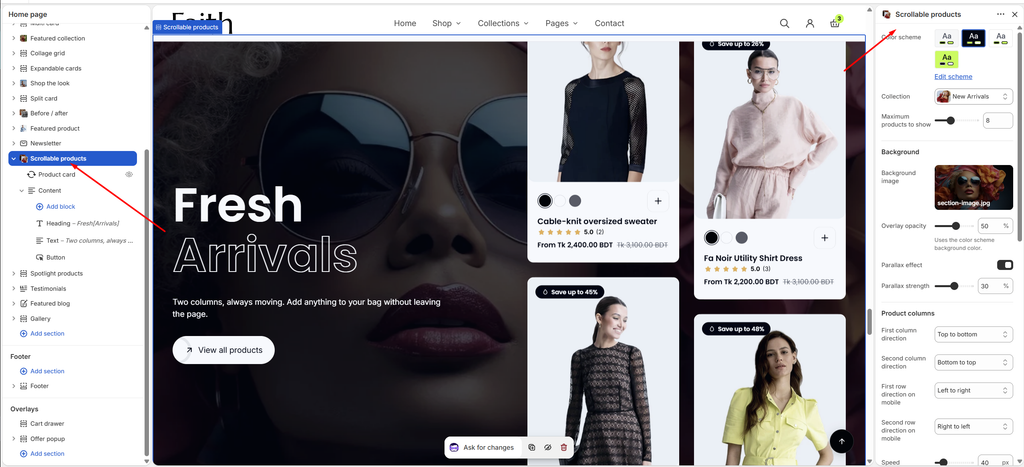
Settings
| Settings | Description |
|---|---|
| Color Scheme | Select a predefined color scheme for the section text and overlay color. |
| Collection | Choose the collection whose products scroll in the columns. |
| Maximum Products to Show | Set how many products from the collection to show (4–16). |
| Background Image | Upload the large image shown behind the content and product columns. |
| Overlay Opacity | Darken the background image so the content stays readable (0–90%). It uses the color scheme’s background color. |
| Parallax Effect | Move the background image slightly slower than the page as customers scroll, for a sense of depth. |
| Parallax Strength | Appears when Parallax effect is on. Set how strong the effect is (10–50%). |
| First Column Direction | Choose which way the first product column moves on desktop: Top to bottom or Bottom to top. |
| Second Column Direction | Choose which way the second product column moves on desktop: Top to bottom or Bottom to top. |
| First Row Direction on Mobile | Choose which way the first product row moves on phones: Left to right or Right to left. |
| Second Row Direction on Mobile | Choose which way the second product row moves on phones: Left to right or Right to left. |
| Speed | Set how fast the products move, in pixels per second (10–200). |
| Pause on Hover | Stop the columns while the customer’s mouse is over them, so they can click a product. |
| Content Position | Place the content on the Left or Right, with the product columns on the other side. |
| Height | Set the section height on desktop (500–1200 px). The product columns scroll inside this height. |
| Card Width on Mobile | Set the width of the product cards on phones (160–320 px). |
| Grid Spacing | Adjust the space between the product cards (8–60 px). |
| Corner Radius | Customize the rounded corners of the product cards (0–32 px). |
| Section Width | Set how wide the section is. Options include Same as theme, Full width, Wide, Standard, Narrow and Custom. This overrides the theme’s content width for this section only. |
| Custom Section Width | Appears when Section Width is set to Custom. Set an exact width (600–2000 px). |
| Padding | Choose Desktop or Mobile under Devices, then adjust the Top and Bottom spacing of the section for that device. |
Tip: Set the two columns to opposite directions, Top to bottom and Bottom to top, for the most striking effect. Customers who have reduced motion turned on in their device settings see the products still.
Content Block
Overview
The Content block holds the text shown over the background image: a Heading, Text and Button, for example Fresh [Arrivals] with a View all products button. Its settings control where the content sits and how wide it can grow. This block is part of the section and cannot be removed.
How to use
- Expand Scrollable products and select Content.
- Edit the Heading, Text and Button inside it, or click Add block to add more.
- Set the Alignment for desktop and mobile, and the vertical Position.
- Adjust the Vertical gap and Maximum width.
- Click Save.
Settings
| Settings | Description |
|---|---|
| Alignment | Align the content on desktop: Left, Center or Right. |
| Alignment Mobile | Align the content on mobile: Left, Center or Right. |
| Position | Place the content at the Top, Center or Bottom of the section. |
| Vertical Gap | Adjust the space between the heading, text and button (0–60 px). |
| Maximum Width | Set how wide the content can grow before the text wraps (300–900 px). |
Product card: The Product card block inside this section controls how the cards look here, such as image ratio, vendor, rating, swatches and the add button. See the Product Card article. Heading, Text and Button are the common blocks.