Overview
Complementary products are items that go well with the product a customer is viewing, for example a belt and bag with a dress, or a case with a phone. Faith shows them in a small carousel on the product page, under a heading such as Complete the look or Pairs well with, so customers can add them to their order. This is one of the simplest ways to raise your average order value.
Complementary products are different from Related products:
| Settings | Description |
|---|---|
| Complementary Products | Products that are bought together with this product, such as accessories or add-ons. You choose them yourself in Search & Discovery. Shown by the Additional products block, near the buy buttons. |
| Related Products | Products similar to this one, such as other dresses. Shopify finds them automatically. Shown by the Related products section, lower on the page. |
Step 1: Choose the Complementary Products
Overview
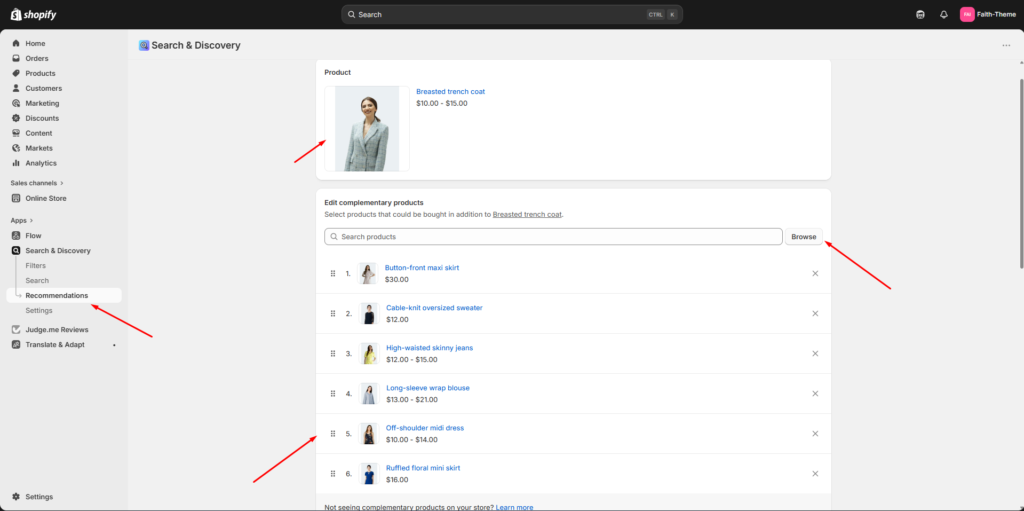
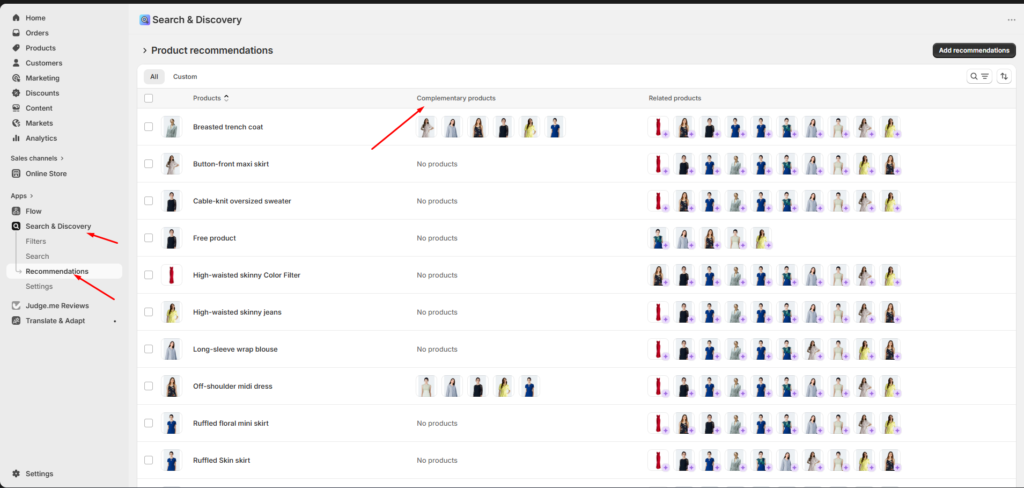
You choose each product’s complementary products in Shopify’s free Search & Discovery app. Shopify doesn’t add them automatically, so products without any don’t show the block.
How to use
- Go to the Shopify App Store and install Search & Discovery (free, by Shopify).
- In Shopify admin, open Apps → Search & Discovery → Product recommendations.
- Search for a product and open it.
- Under Complementary products, click Add products and select the products that go with it.
- Drag them into the order you want, and click Save.
- Repeat for each product.
Tip: Add 3–6 complementary products per product. Choose items at a lower price than the main product, such as accessories, care products or matching pieces. Customers add these more easily.
Step 2: Show Them on the Product Page
Overview
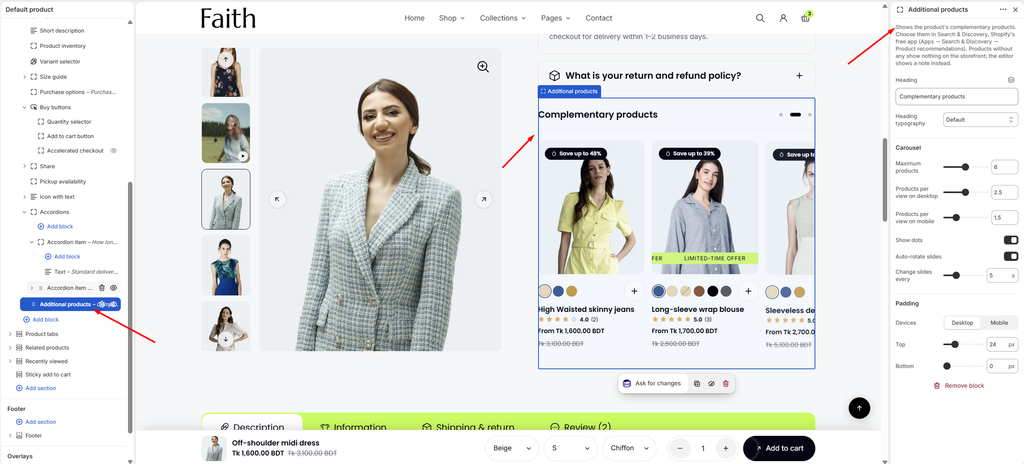
The Additional products block shows the complementary products as a carousel inside Product details. Faith’s default product template already includes it, near the bottom of Product details. If you removed it, add it again. Products without complementary products don’t show the block on your live store. In the editor, a note explains why.
How to use
- Go to Online Store → Themes → Customize.
- From the page selector at the top, choose Products → Default product.
- In the left sidebar, click Change next to the preview product, and pick a product that has complementary products, so you can see the block.
- Expand Product information → Product details.
- If there is no Additional products block, click Add block → Additional products.
- Drag it to where you want it, for example below Buy buttons or below Accordions.
- Enter the Heading, and set the carousel options.
- Click Save.
Settings
| Settings | Description |
|---|---|
| Heading | Enter the heading, for example Complementary products, Complete the look or Pairs well with. |
| Heading Typography | Choose the heading style: Default, Paragraph, Subheading, Heading 1–6 or Custom. |
| Custom Typography | Appears when Heading typography is Custom. Set the Font size (desktop and mobile, 10–80 px), Font weight, Line height and Letter spacing. |
| Maximum Products | Set the most products shown (2–10). |
| Products Per View on Desktop | Set how many products are visible at once on desktop (1–4). Use a value like 2.5 to show part of the next product, so customers know they can scroll. |
| Products Per View on Mobile | Set how many products are visible at once on mobile (1–3). |
| Show Dots | Show navigation dots below the carousel. |
| Auto-rotate Slides | Move through the products automatically. |
| Change Slides Every | Appears when Auto-rotate slides is on. Set how long each slide shows (3–10 seconds). |
| Padding | Choose Desktop or Mobile under Devices, then adjust the Top and Bottom spacing (0–100 px). |
Tip: Place the block right below Buy buttons, so customers see the extra items while they decide to add to cart. Products in the carousel can be added straight from the card when quick add is on in Theme settings → Product cards.
Troubleshooting
Overview
If complementary products don’t appear, check these points.
Settings
| Settings | Description |
|---|---|
| No Products Chosen | The block only shows when the product has complementary products in Search & Discovery. |
| Products Not Available | Complementary products must be Active, available on the Online Store channel, and in stock to appear. |
| Wrong Template | The product must use a template that includes the Additional products block. Check Theme template on the product in Shopify admin. |
| Changes Not Showing Yet | Shopify can take a few minutes to update recommendations after you save them in Search & Discovery. |