Overview
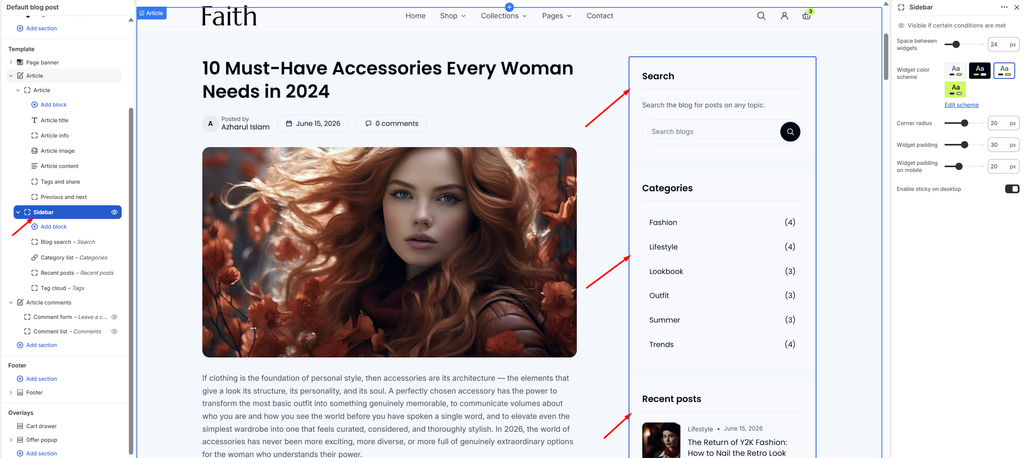
The blog sidebar sits beside the post on every blog post page. It helps readers find more content and keeps them on your store longer. By default it holds four widgets:
- Blog search
- Category list
- Recent posts
- Tag cloud
You can reorder, edit, hide or remove these widgets, and add your own Heading, Text or Custom Liquid blocks, for example a promo, a newsletter message or an app widget.
On screens 990 px and wider, the sidebar shows beside the post. On tablets and phones, it moves below the post, so the article stays easy to read.
How to use
- Go to Online Store → Themes → Customize.
- From the page selector at the top, choose Blog posts → Default blog post.
- Select the Article section.
- Turn on Show sidebar, then choose the Sidebar position, Sidebar width and Gap between columns.
- Click Save.
Settings
| Settings | Description |
|---|---|
| Show Sidebar | Show the sidebar beside the post. Turn it off for a single, centered reading column. |
| Sidebar Position | Appears when Show sidebar is on. Place the sidebar on the Left or Right of the post, on desktop. |
| Sidebar Width | Appears when Show sidebar is on. Set the sidebar width (260–500 px). |
| Gap Between Columns | Appears when Show sidebar is on. Adjust the space between the post and the sidebar (20–200 px). It gets smaller on narrower screens. |
Note: The sidebar is on blog post pages only. The blog page, the list of posts, uses the Blog posts section and has no sidebar.
Style the Sidebar
Overview
The Sidebar block controls how all the widgets look: the spacing between them, their card color, corners and padding, and whether the sidebar stays in view while readers scroll.
How to use
- Expand Article, then select Sidebar.
- Set the Space between widgets, Widget color scheme, Corner radius and padding.
- Turn Enable sticky on desktop on or off.
- Click Save.
Settings
| Settings | Description |
|---|---|
| Space Between Widgets | Adjust the space between widgets (0–100 px). |
| Widget Color Scheme | Select a predefined color scheme for the widget cards. Choose one that contrasts with the page background, so each widget reads as a card. |
| Corner Radius | Customize the rounded corners of the widgets (0–40 px). |
| Widget Padding | Adjust the space inside each widget on desktop (0–60 px). |
| Widget Padding on Mobile | Adjust the space inside each widget on mobile (0–60 px). |
| Enable Sticky on Desktop | Keep the sidebar in view while readers scroll a long post. Works on screens 990 px and wider. Turn it off if the sidebar is taller than the screen. |
Edit the Widgets
Overview
Each widget is a block inside the Sidebar. Click a widget to edit it, drag widgets to reorder them, click the eye icon to hide one, or remove it with Remove block.
How to use
- Expand Article → Sidebar.
- Click a widget to edit its settings.
- Drag widgets up or down to change their order.
- Click Save.
Settings
| Settings | Description |
|---|---|
| Blog Search | |
| Heading | Enter the widget heading, for example Search. |
| Text | Enter a short line under the heading, for example Search the blog for posts on any topic. Leave it empty to hide it. |
| What It Searches | The search box searches blog posts only, not products. |
| Category List | |
| Heading | Enter the widget heading, for example Categories. |
| Menu | Select a menu to list your own links, for example links to blog tags or collections. Leave it empty to list the blog’s tags automatically. |
| Show Post Counts | Show how many posts use each tag, for example Fashion (4). Applies when the list shows the blog’s tags. |
| Recent Posts | |
| Heading | Enter the widget heading, for example Recent posts. |
| Number of Posts | Set how many of the latest posts are listed (1–10). |
| Show Image | Show a small featured image for each post. |
| Show Tag | Show each post’s first tag. |
| Show Date | Show each post’s publish date. |
| Tag Cloud | |
| Heading | Enter the widget heading, for example Tags. |
| Highlight the Post’s Own Tags | Highlight the tags that belong to the post being read. Each tag links to all posts with that tag. |
Tip: The Category list and Tag cloud both use your blog’s tags. Use a small, consistent set of tags, such as Fashion, Lifestyle, Lookbook and Trends, so both widgets stay clean. To control the order or names, build a menu in Online Store → Navigation and select it in Category list → Menu.
Add Your Own Widgets
Overview
You can add Heading, Text and Custom Liquid blocks to the sidebar. Use them to promote a collection, invite readers to your newsletter, or embed an app widget such as an Instagram feed.
How to use
- Expand Article → Sidebar, and click Add block.
- Choose Heading, Text or Custom Liquid.
- Edit the content, and drag the block to where you want it.
- Click Save.
Settings
| Settings | Description |
|---|---|
| Heading and Text | Add a short message with a link, for example New season edit, now in store. Shop the collection →. See the Heading and Text articles for settings. |
| Custom Liquid | Paste code from an app or service, for example a newsletter form or a social feed. See the Custom Liquid article. |
Tip: Keep the sidebar to 3–5 widgets. Put what matters most at the top, for example Blog search and a promo, because readers on long posts rarely scroll the sidebar to the end.