Overview
The Collection card block shows one collection as a clickable card, with its image, its title, and optionally its product count and description. Use several cards side by side to build a custom Shop by category row, as in the screenshot. You can replace the collection’s image and title for this card only, set the image shape and title style, and animate the card on scroll. Add it to any section or block that accepts theme blocks, such as Custom section or Group.
How to use
- Go to Online Store → Themes → Customize.
- Select a section or block that accepts blocks, for example a Group inside a Custom section.
- Click Add block → Collection card.
- Click Select under Collection and choose a collection.
- Optionally, upload a different Image or enter a different Title.
- Choose the Alignment, Image ratio and Title preset, and turn the product count and description on or off.
- Set the Width, Scroll animation and Padding.
- Click Save. Repeat for each collection.
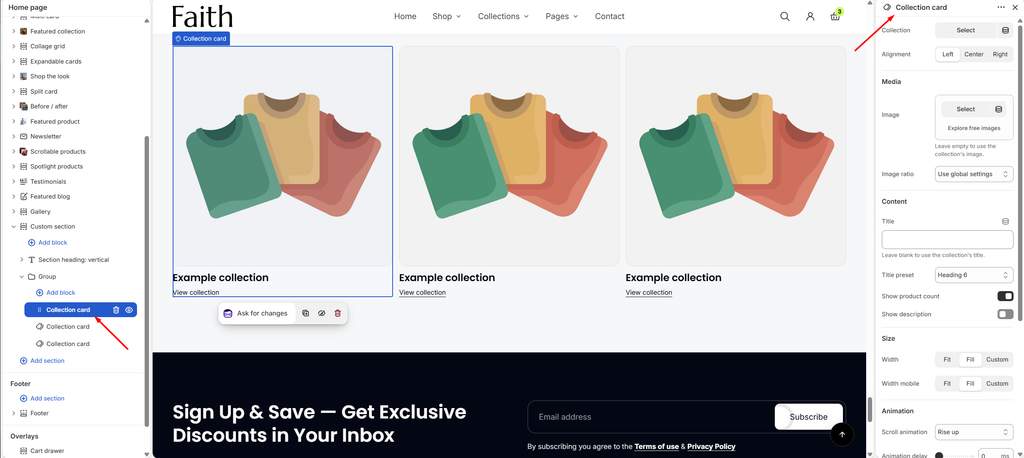
Settings
| Settings | Description |
|---|---|
| Collection | Select the collection the card links to. |
| Alignment | Align the title and text Left, Center or Right. |
| Image | Select an image for this card. Leave it empty to use the collection’s image. |
| Image Ratio | Choose the image shape: Use global settings, Portrait, Portrait (5:4), Portrait (4:3), Portrait (2:3), Square, Landscape (3:2), Landscape (16:9) or Original. Use global settings follows Theme settings → Collection cards. |
| Title | Enter a custom title for this card. Leave it blank to use the collection’s title. |
| Title Preset | Choose the title style: Paragraph, Subheading or Heading 1–6. Styles come from Theme settings → Typography. |
| Show Product Count | Show how many products are in the collection. |
| Show Description | Show the collection description below the title. |
| Width | Set the card width on desktop: Fit, Fill or Custom. |
| Custom Width | Appears when Width is Custom. Set the width as a percentage of the row (5–100%). |
| Width Mobile | Set the card width on mobile: Fit, Fill or Custom. Custom shows its own Custom width slider. |
| Scroll Animation | Choose how the card appears as customers scroll: None, Fade in or Rise up. |
| Animation Delay | Appears when Scroll animation is not None. Delay the animation (0–800 ms). Give each card a slightly longer delay, for example 0, 100 and 200 ms, for a staggered effect. |
| Padding | Choose Desktop or Mobile under Devices, then adjust the Top and Bottom spacing of the block for that device (0–100 px). |
| Enable Preload Image | Load the image first when the card is visible as soon as the page opens. This helps page speed (LCP). Turn it on only for cards near the top of the page. |
Tip: To place cards side by side, put them in a Group with Layout direction Horizontal, and set each card’s Width to Fill. Use the same Image ratio on every card, so the row lines up.
Global style: The card’s corner radius, image alignment, “View collection” link, custom label and image background color are set in Theme settings → Collection cards, and apply to every collection card in the store.