Divider Block
Overview
The Divider block adds a thin line between blocks to separate content, for example between a Heading and a Text block, as in the screenshot. The line uses the Border color of the color scheme, so it always matches your design. You can set its thickness and length, hide it on mobile, and animate it on scroll. Inside a Group with a horizontal layout, the divider becomes a vertical line, so you can use it to separate side-by-side items. Add it to any section or block that accepts theme blocks, such as Rich text, Custom section, Group or Image card.
How to use
- Go to Online Store → Themes → Customize.
- Select a section or block that accepts blocks, for example Rich text.
- Click Add block → Divider.
- Drag the Divider between the blocks you want to separate.
- Set the Thickness and Length, and choose whether to show it on mobile.
- Choose a Scroll animation, and adjust the Padding to set the space above and below the line.
- Click Save.
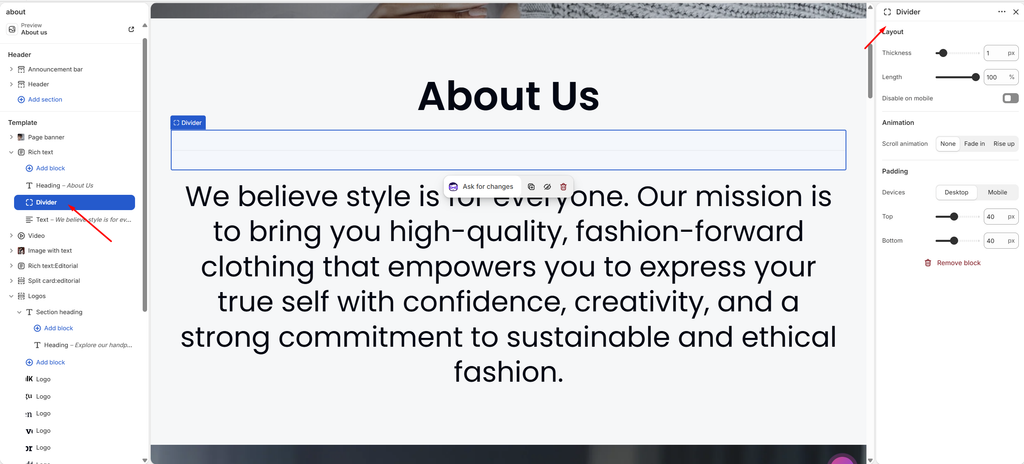
Settings
| Settings | Description |
|---|---|
| Thickness | Set the line thickness (0.5–5 px). |
| Length | Set how long the line is, as a percentage of the available width (5–100%). Use a short line, for example 10–20%, for a decorative accent under a heading. |
| Disable on Mobile | Hide the divider on mobile. |
| Scroll Animation | Choose how the divider appears as customers scroll: None, Fade in or Rise up. |
| Animation Delay | Appears when Scroll animation is not None. Delay the animation (0–800 ms). |
| Padding | Choose Desktop or Mobile under Devices, then adjust the Top and Bottom space around the line for that device (0–100 px). |
Tip: To change the line color, edit the section’s color scheme in Theme settings → Colors and change its Border color. To position a short line, use the parent’s Alignment setting, for example Center in Rich text.