Overview
The Icon box block shows an icon together with a heading and a short text, for example Shipping: Share your shipping options and delivery times. Use it to highlight store benefits such as free delivery, easy returns, secure payment or customer support. Place several Icon boxes side by side to build a feature row. You can choose a library icon or upload your own, and control the icon size, the text styles, the layout and the animation. Add it to any section or block that accepts theme blocks, such as Custom section, Group, Image card or Featured product.
How to use
- Go to Online Store → Themes → Customize.
- Select a section or block that accepts blocks, for example Custom section.
- Click Add block → Icon box.
- Choose an Icon, or upload a Custom icon. Set the Icon color, Width and Height.
- Enter the Heading and Text, then choose the heading Level and the text Size.
- Under Typography, keep Default or choose another style.
- Under Content position, set the Layout direction, Alignment, Position and Gap.
- Choose a Scroll animation, adjust the Padding, and click Save.
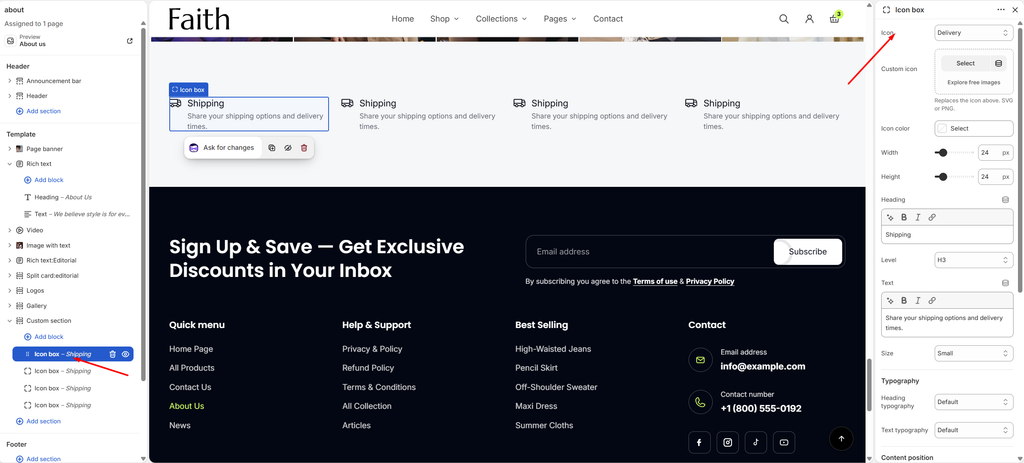
Settings
| Settings | Description |
|---|---|
| Icon | Choose an icon: None, Delivery, Truck, Globe, Return, Credit card, Money, Shield, Lock, Gift, Heart, Tag, Percent, Leaf, Box, Chat, Phone, Calendar, Location, Star, T-shirt, Washing or Ironing. |
| Custom Icon | Upload your own icon. It replaces the icon selected above. Use SVG or PNG. |
| Icon Color | Choose the icon color. Leave it empty to use the text color of the color scheme. |
| Width | Set the icon width (12–96 px). |
| Height | Set the icon height (12–96 px). Keep Width and Height equal for square icons. |
| Heading | Enter the title, for example Shipping. You can use bold, italic and links. |
| Level | Choose the heading tag for SEO and accessibility: H2, H3, H4, H5, H6 or Paragraph. This does not change how it looks. |
| Text | Enter a short description below the heading. You can use bold, italic and links. |
| Size | Set the description text size: Small, Medium or Large. |
| Heading Typography | Choose the heading style: Default, Paragraph, Subheading, Heading 1–6 or Custom. Styles come from Theme settings → Typography. |
| Font Size (Heading) | Appears when Heading typography is Custom. Set the heading size on desktop (10–80 px). |
| Font Size on Mobile (Heading) | Appears when Heading typography is Custom. Set the heading size on mobile (10–80 px). |
| Font Weight (Heading) | Appears when Heading typography is Custom. Choose Light, Regular, Medium, Semibold or Bold. |
| Line Height (Heading) | Appears when Heading typography is Custom. Adjust the space between lines (80–200%). |
| Letter Spacing (Heading) | Appears when Heading typography is Custom. Adjust the space between letters (-5 to 10%). |
| Text Typography | Choose the description style: Default, Paragraph, Subheading, Heading 1–6 or Custom. |
| Font Size (Text) | Appears when Text typography is Custom. Set the text size on desktop (10–80 px). |
| Font Size on Mobile (Text) | Appears when Text typography is Custom. Set the text size on mobile (10–80 px). |
| Font Weight (Text) | Appears when Text typography is Custom. Choose Light, Regular, Medium, Semibold or Bold. |
| Line Height (Text) | Appears when Text typography is Custom. Adjust the space between lines (80–200%). |
| Letter Spacing (Text) | Appears when Text typography is Custom. Adjust the space between letters (-5 to 10%). |
| Layout Direction | Place the icon Horizontal (beside the text) or Vertical (above the text). |
| Alignment | Align the content Left, Center or Right. |
| Position | Align the icon with the Top, Center or Bottom of the text. |
| Gap | Adjust the space between the icon and the text (0–40 px). |
| Scroll Animation | Choose how the block appears as customers scroll: None, Fade in or Rise up. |
| Animation Delay | Appears when Scroll animation is not None. Delay the animation (0–800 ms). Give each Icon box in a row a slightly longer delay, for example 0, 100, 200 and 300 ms, for a staggered effect. |
| Padding | Choose Desktop or Mobile under Devices, then adjust the Top and Bottom spacing of the block for that device. |
Tip: To build a row of four benefits, add a Custom section, set Layout direction to Horizontal and Alignment to Space between, then add four Icon boxes. Keep the headings to one or two words and the text to one short sentence.