Overview
The Image with text section places an image beside a block of content, for example Our Story with a few paragraphs and a button. Use it to tell your brand story, introduce a collection or explain a product benefit. You can put the image on the left or right, control how much width it takes, and give the content its own colored panel. On mobile, the image shows above the text. The content area accepts any theme block, such as Heading, Text, Button, Icon box, Rating, Accordions or Image card, as well as app blocks.
How to use
- Go to Online Store → Themes → Customize.
- Open the page and click Add section → Image with text, or select an existing one.
- Under Image, upload the Image, then set the Aspect ratio, Image width, Desktop image position and Corner radius.
- Click Add block to add content such as a Heading, Text and Button. Drag the blocks to reorder them.
- Under Content, choose the Content color scheme, alignment, gaps, padding and corner radius.
- Choose the Image animation and Content animation.
- Set the section Color scheme, Section width and Padding.
- Click Save.
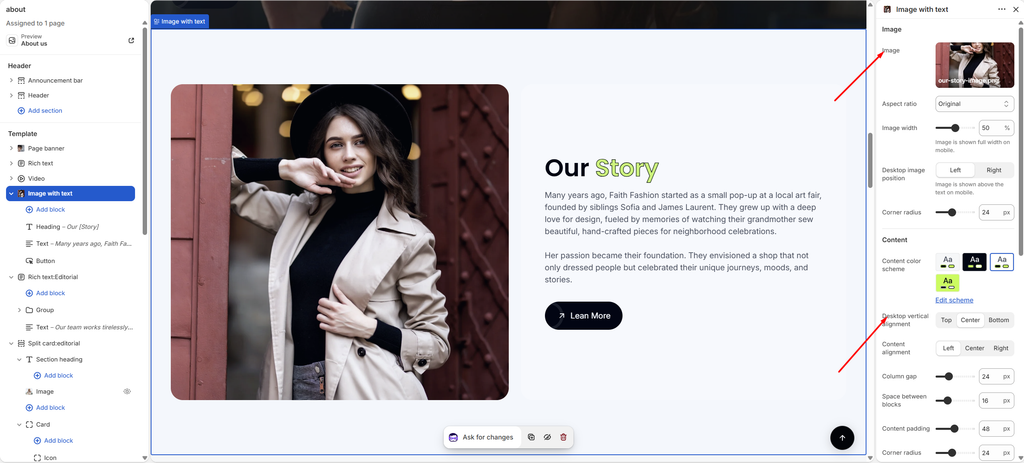
Settings
| Settings | Description |
|---|---|
| Image | Upload or select the image. |
| Aspect Ratio | Choose the image shape: Original, Portrait (4:5), Portrait (3:4), Square (1:1), Landscape (3:2) or Landscape (16:9). |
| Image Width | Set how much of the row the image takes on desktop (25–75%). The image is shown full width on mobile. |
| Desktop Image Position | Place the image on the Left or Right on desktop. On mobile, the image is shown above the text. |
| Corner Radius (Image) | Customize the rounded corners of the image (0–60 px). |
| Content Color Scheme | Select a color scheme for the content panel beside the image. |
| Desktop Vertical Alignment | Line up the content with the Top, Center or Bottom of the image on desktop. |
| Content Alignment | Align the content Left, Center or Right. |
| Column Gap | Adjust the space between the image and the content (0–80 px). |
| Space Between Blocks | Adjust the space between the heading, text, button and other blocks (0–60 px). |
| Content Padding | Adjust the spacing inside the content panel (0–100 px). |
| Corner Radius (Content) | Customize the rounded corners of the content panel (0–60 px). |
| Image Animation | Choose how the image appears as the page scrolls: None, Fade in, Rise up or Zoom out. |
| Content Animation | Choose how the content appears as the page scrolls: None, Fade in or Rise up. |
| Color Scheme | Select a predefined color scheme for the section background. |
| Section Width | Set how wide the section is. Options include Same as theme, Full width, Wide, Standard, Narrow and Custom. This overrides the theme’s content width for this section only. |
| Custom Section Width | Appears when Section Width is set to Custom. Set an exact width (600–2000 px). |
| Padding | Choose Desktop or Mobile under Devices, then adjust the Top and Bottom spacing of the section for that device. |
Tip: For a seamless look, set the Content color scheme to match the section’s Color scheme, so the text sits directly on the background. For a card look, choose a contrasting scheme and add Content padding and Corner radius.
Blocks: Heading, Text, Button, Image, Video, Group and the other theme blocks are covered in their own articles.