Overview
The Image banner section shows a large image or video with content on top, such as a subheading, a heading and a button, for example Talk about your brand with a Shop now button. Use it for campaigns, collection launches or a strong visual break between sections. You can set different images and heights for desktop and mobile, add a parallax or zoom effect, and place the content anywhere on the banner. The section has two parts: Media (the image or video) and Content (the blocks shown over it).
How to use
- Go to Online Store → Themes → Customize.
- Click Add section → Image banner, or select an existing one.
- Select the Media block and choose an Image or Video, plus an optional mobile version. Turn on Media overlay to keep the text readable.
- Select the Content block and edit or add blocks such as Text (subheading), Heading, Spacer and Button. Set the content’s position and width.
- Back on the section, set the Height for desktop and mobile.
- Under Effects, choose a parallax or media animation, and the content animation.
- Choose the Color scheme, Section width and Padding.
- Click Save.
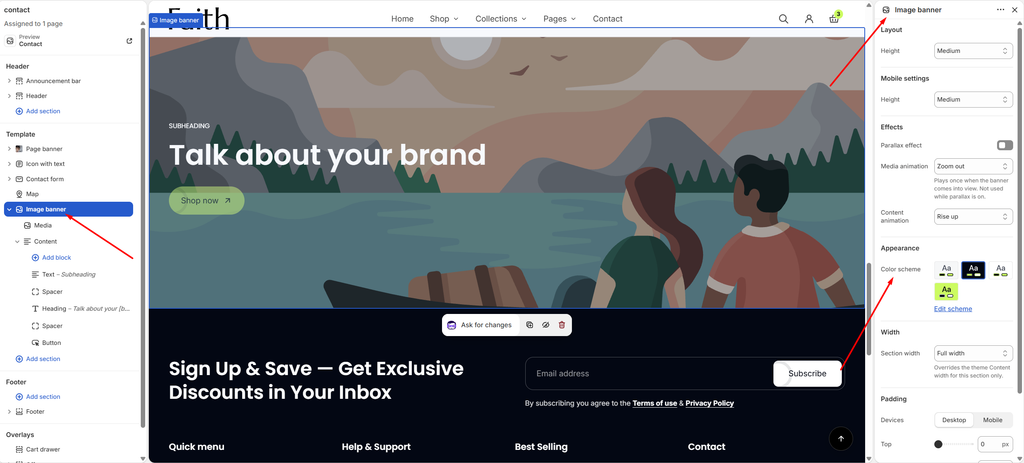
Settings
| Settings | Description |
|---|---|
| Height | Set the banner height on desktop: Small, Medium, Large, Full screen, Adapt to image or Custom. |
| Custom Height | Appears when Height is Custom. Set an exact desktop height (200–1000 px). |
| Height (Mobile settings) | Set the banner height on mobile: Small, Medium, Large, Full screen, Adapt to image or Custom. |
| Custom Height (Mobile settings) | Appears when the mobile Height is Custom. Set an exact mobile height (150–900 px). |
| Parallax Effect | Move the image slightly slower than the page as customers scroll, for a sense of depth. |
| Parallax Strength | Appears when Parallax effect is on. Set how strong the effect is (10–50%). |
| Media Animation | Appears when Parallax effect is off. Choose how the image appears when the banner comes into view: None, Fade in or Zoom out. It plays once. |
| Content Animation | Choose how the content appears: None, Fade in or Rise up. |
| Color Scheme | Select a predefined color scheme for the banner text and background. |
| Section Width | Set how wide the banner is. Options include Same as theme, Full width, Wide, Standard, Narrow and Custom. Full width runs the banner to the edges of the screen. |
| Custom Section Width | Appears when Section Width is set to Custom. Set an exact width (600–2000 px). |
| Corner Radius | Appears when Section width is not Full width. Customize the rounded corners of the banner (0–60 px). |
| Padding | Choose Desktop or Mobile under Devices, then adjust the Top and Bottom spacing of the section for that device. |
Media Block
Overview
The Media block is the banner’s background: an image or a video. Upload a separate version for phones to get a better crop on small screens. An optional overlay darkens the media so the content stays readable. This block is part of the section and cannot be removed.
How to use
- Expand Image banner and select Media.
- Choose the Type: Image or Video.
- Select the Image (or Video), and optionally an Image mobile (or Video mobile) for phones.
- Turn on Media overlay, then set the Overlay color, Overlay opacity and Overlay style.
- Click Save.
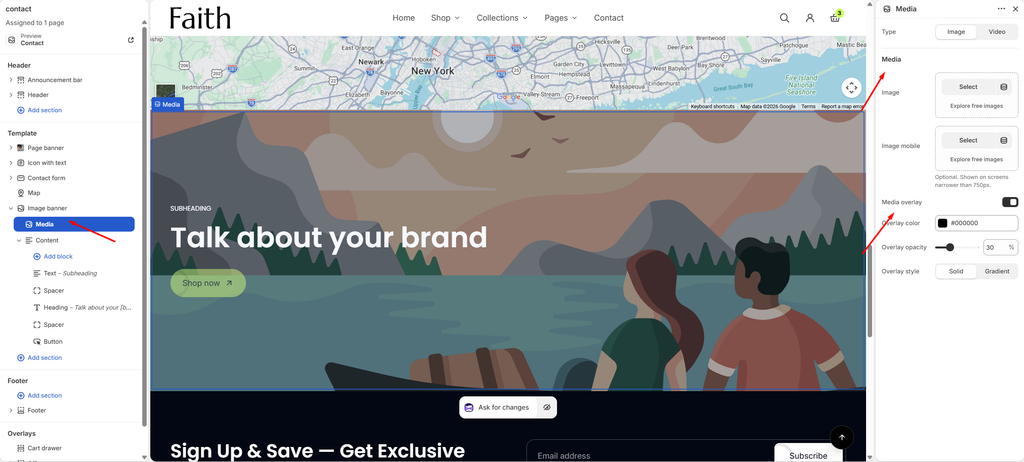
Settings
| Settings | Description |
|---|---|
| Type | Choose the banner background: Image or Video. |
| Image | Appears when Type is Image. Select the banner image. |
| Image Mobile | Appears when Type is Image. Optional. Shown on screens narrower than 750 px. Use a portrait image for a better fit on phones. |
| Video | Appears when Type is Video. Select the banner video. It plays muted and loops. |
| Video Mobile | Appears when Type is Video. Optional. Shown on screens narrower than 750 px. |
| Media Overlay | Add a color layer over the image or video, so the content stays readable. |
| Overlay Color | Appears when Media overlay is on. Choose the overlay color. |
| Overlay Opacity | Appears when Media overlay is on. Adjust how strong the overlay is (0–100%). |
| Overlay Style | Appears when Media overlay is on. Choose a Solid layer or a Gradient that fades out. |
| Gradient Direction | Appears when Overlay style is Gradient. Choose which way it fades: Up, Down, Left or Right. Point it toward the side where your content sits. |
Image size tip: Use desktop images at least 1920 × 1080 px and mobile images around 750 × 1100 px. Keep the main subject away from the side where the content sits.
Content Block
Overview
The Content block holds everything shown over the banner, for example a Text subheading, a Heading, Spacers and a Button. You can add any theme block or app block. Its settings control where the content sits on the banner, how the blocks are arranged and how wide the content can be. This block is part of the section and cannot be removed.
How to use
- Expand Image banner and select Content.
- Click Add block to add a Heading, Text, Button, Spacer or another block. Drag them to reorder.
- Under Position, set the Horizontal position, Vertical position and Vertical position on mobile.
- Under Layout, choose the direction, alignment and gaps.
- Under Size, set the content Width for desktop and mobile.
- Optionally, give the content its own color scheme, border and corner radius, so it shows as a card.
- Adjust the Mobile layout gaps and the Padding.
- Click Save.
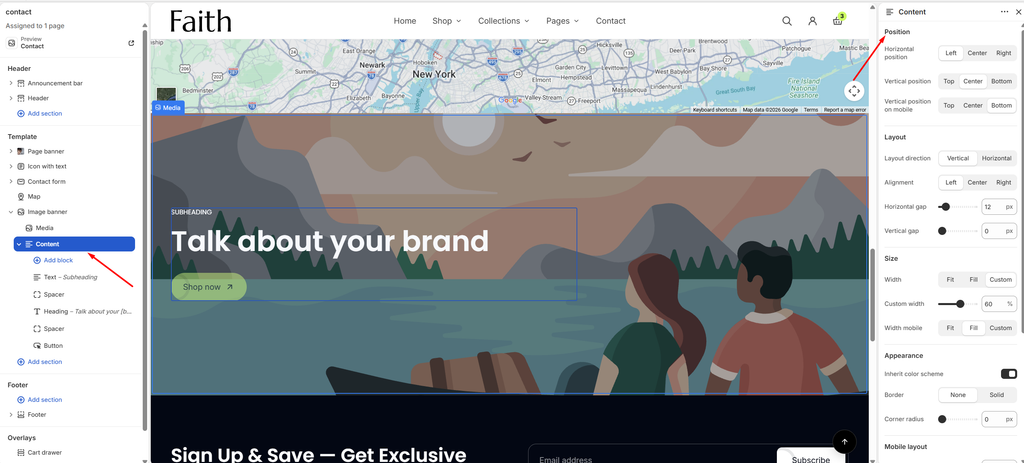
Settings
| Settings | Description |
|---|---|
| Horizontal Position | Place the content on the Left, Center or Right of the banner. |
| Vertical Position | Place the content at the Top, Center or Bottom of the banner on desktop. |
| Vertical Position on Mobile | Place the content at the Top, Center or Bottom of the banner on mobile. |
| Layout Direction | Stack the blocks Vertical (one under another) or Horizontal (side by side). |
| Vertical on Mobile | Appears when Layout direction is Horizontal. Stack the blocks vertically on mobile. |
| Alignment | Align the blocks Left, Center or Right. A horizontal layout also offers Space between. |
| Position | Appears when Layout direction is Horizontal. Line up the blocks at the Top, Center or Bottom of the row. |
| Horizontal Gap | Adjust the space between blocks placed side by side (0–100 px). |
| Vertical Gap | Adjust the space between stacked blocks (0–100 px). |
| Width | Set the content width on desktop: Fit, Fill or Custom. |
| Custom Width | Appears when Width is Custom. Set the width as a percentage of the banner (5–100%). |
| Width Mobile | Set the content width on mobile: Fit, Fill or Custom. Custom shows its own Custom width slider. |
| Inherit Color Scheme | Use the section’s colors. Turn this off to give the content its own color scheme, for example a light card on a dark image. |
| Color Scheme | Appears when Inherit color scheme is off. Select the content’s color scheme. |
| Border | Add a border around the content: None or Solid. |
| Border Thickness | Appears when Border is Solid. Adjust the border thickness (0–10 px). |
| Border Opacity | Appears when Border is Solid. Adjust how visible the border is (0–100%). |
| Corner Radius | Customize the rounded corners of the content (0–100 px). |
| Horizontal Gap (Mobile layout) | Adjust the space between side-by-side blocks on mobile (0–100 px). |
| Vertical Gap (Mobile layout) | Adjust the space between stacked blocks on mobile (0–100 px). |
| Padding | Choose Desktop or Mobile under Devices, then adjust the Top, Bottom, Left and Right spacing inside the content. |
Blocks: Heading, Text, Subheading, Button and Group are the common blocks, and Spacer adds empty space between them. See their articles for settings.