Overview
The Video section shows a large video, often across the full width of the screen, to bring movement and mood to a page. Use an uploaded video or a YouTube or Vimeo link. You can add a heading, text and buttons over the video with the Overlay block, for example a campaign title with a Shop now button. The section has two blocks: Video (the video and its play button) and Overlay (optional text over the video). Neither can be removed.
How to use
- Go to Online Store → Themes → Customize.
- Click Add section → Video, or select an existing Video section.
- Select the Video block and choose an uploaded video or paste a YouTube or Vimeo link. Then set autoplay, looping and the play button.
- Optionally, select the Overlay block and click Add block to add a Heading, Text or Button over the video.
- Back on the section, choose a Color scheme and the Section width, and turn Edge to edge on or off.
- Adjust the Top and Bottom padding for Desktop and Mobile.
- Click Save.
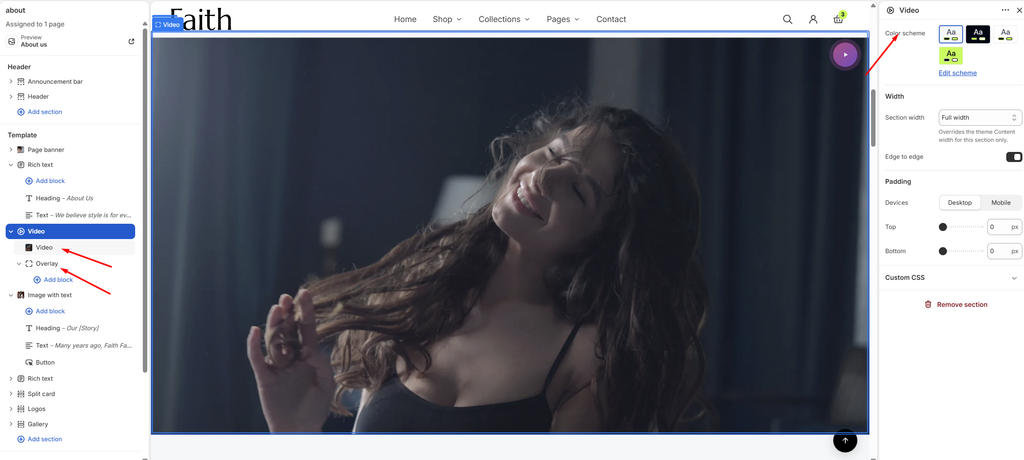
Settings
| Settings | Description |
|---|---|
| Color Scheme | Select a predefined color scheme for the section background. |
| Section Width | Set how wide the section is. Options include Same as theme, Full width, Wide, Standard, Narrow and Custom. This overrides the theme’s content width for this section only. |
| Custom Section Width | Appears when Section Width is set to Custom. Set an exact width (600–2000 px). |
| Edge to Edge | Appears when Section Width is Full width. Run the video right to the edges of the screen, with no side margins. |
| Padding | Choose Desktop or Mobile under Devices, then adjust the Top and Bottom spacing of the section for that device. |
| Custom CSS | Shopify’s built-in field for adding your own CSS to this section only. |
Overlay Block
Overview
The Overlay block shows a heading, text or buttons on top of the video. With no blocks inside it, there’s no overlay and the video shows on its own. A shade behind the text keeps it readable over any video.
How to use
- Expand Video and select Overlay.
- Click Add block to add a Heading, Text or Button.
- Choose the Position, Text color, Maximum width, Vertical gap and Distance from edge.
- Choose how the overlay shows On mobile.
- Under Shade, choose None, Gradient or Solid, and set its color and opacity.
- Click Save.
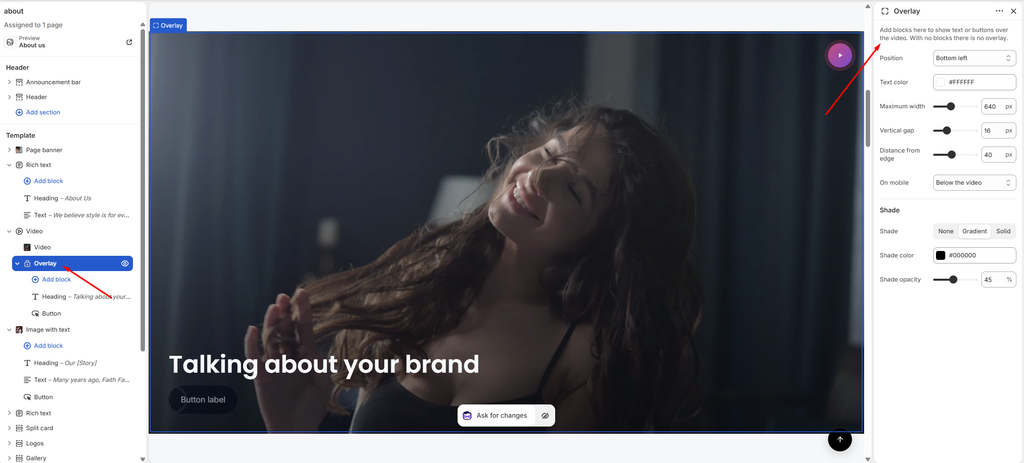
Settings
| Settings | Description |
|---|---|
| Position | Place the overlay content on the video: Top left, Top center, Top right, Middle left, Middle center, Middle right, Bottom left, Bottom center or Bottom right. |
| Text Color | Choose the color of the overlay text. |
| Maximum Width | Set how wide the overlay content can grow before the text wraps (300–1200 px). |
| Vertical Gap | Adjust the space between the heading, text and button (0–60 px). |
| Distance from Edge | Set how far the content sits from the edge of the video (0–100 px). |
| On Mobile | Choose whether the overlay shows Over the video or Below the video on phones. Below keeps the text readable on small screens. |
| Shade | Add a shade behind the text: None, Gradient (fades across the video) or Solid (an even layer). |
| Shade Color | Appears when a shade is chosen. Choose the shade color. |
| Shade Opacity | Appears when a shade is chosen. Adjust how strong the shade is (0–100%). |
Video block: The Video block inside this section works like the common Video block (source, autoplay, looping, play button style, aspect ratio, border and animation). See the Video Block article. Heading, Text and Button are the common blocks.