Overview
The Featured product section shows one product on any page, with the full product page experience: an image and video gallery, price, title, description, reviews, stock level, color and size options, quantity, Add to cart and Buy it now buttons, sharing and pickup availability. Customers can choose a variant and buy without opening the product page. Use it on the home page or a landing page to spotlight a hero product or a new launch.
The section has two parts:
- Product media: the image and video gallery.
- Product details: the column of product blocks.
How to use
- Go to Online Store → Themes → Customize.
- Click Add section → Featured product, or select an existing one.
- Choose the Product.
- Under Layout settings, set the Layout size, the Media position (Left or Right) and the gaps.
- Under Card, choose the Card color scheme, turn the border on or off, and set the corner radius and inner padding.
- Choose the Section color scheme, Section width and Padding.
- Select Product media to set up the gallery.
- Expand Product details to add, remove or reorder blocks such as Price, Variant selector or Buy buttons.
- Click Save.
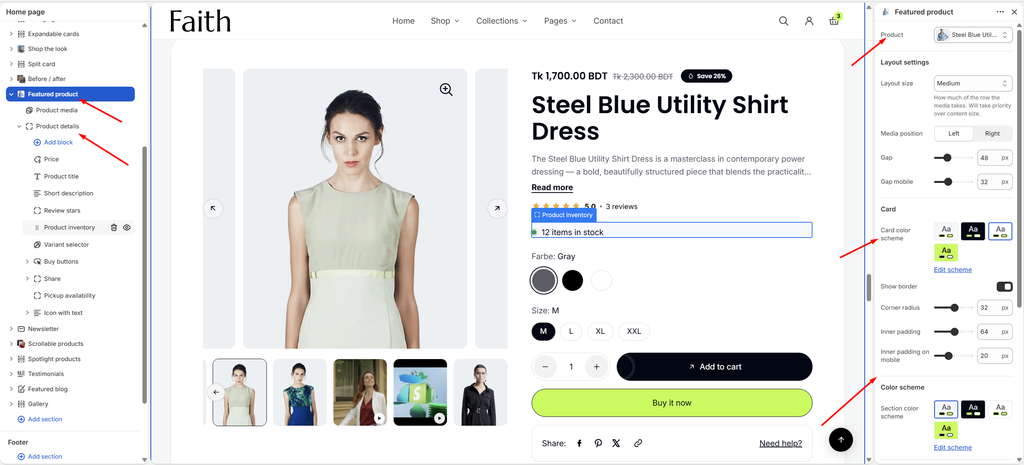
Settings
| Settings | Description |
|---|---|
| Product | Choose the product to feature. |
| Layout Size | Set how much of the row the media gallery takes: Small, Medium or Large. The details column uses the rest. |
| Media Position | Place the gallery on the Left or Right of the details. |
| Gap | Adjust the space between the gallery and the details on desktop (0–160 px). |
| Gap Mobile | Adjust the space between the gallery and the details on mobile (0–100 px). |
| Card Color Scheme | Select a color scheme for the card that holds the product. |
| Show Border | Show a border around the product card. |
| Corner Radius | Customize the rounded corners of the product card (0–60 px). |
| Inner Padding | Adjust the spacing inside the product card on desktop (0–120 px). |
| Inner Padding on Mobile | Adjust the spacing inside the product card on mobile (0–60 px). |
| Section Color Scheme | Select a color scheme for the section background behind the card. |
| Section Width | Set how wide the section is. Options include Same as theme, Full width, Wide, Standard, Narrow and Custom. This overrides the theme’s content width for this section only. |
| Custom Section Width | Appears when Section Width is set to Custom. Set an exact width (600–2000 px). |
| Padding | Choose Desktop or Mobile under Devices, then adjust the Top and Bottom spacing of the section for that device. |
Product Media Block
Overview
The Product media block is the product’s image and video gallery. Show it as a sliding carousel with thumbnails, dots or a counter, or as a grid of images. Customers can zoom into images, and videos play in place. This block is part of the section and cannot be removed.
How to use
- Expand Featured product and select Product media.
- Choose the gallery Type: Carousel or Grid.
- Set the carousel’s navigation and pagination, or the grid’s columns and gap.
- For thumbnails, choose their position and width.
- Under Media, set the Aspect ratio, Corner radius and Zoom.
- Click Save.
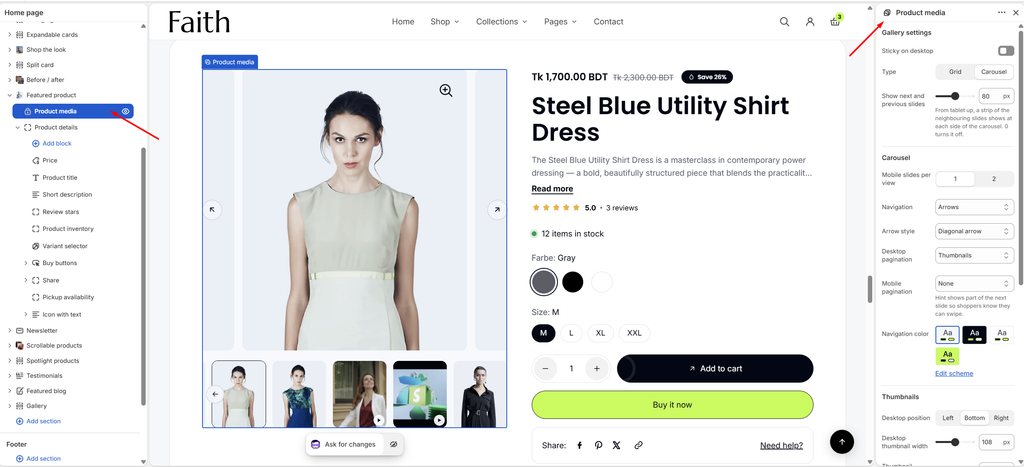
Settings
| Settings | Description |
|---|---|
| Sticky on Desktop | Keep the gallery in view while customers scroll through the product details. |
| Type | Show the media as a Carousel (one image at a time, with navigation) or a Grid (all images at once). |
| Show Next and Previous Slides | Appears with Carousel. From tablet up, show a strip of the neighbouring slides at each side (0–160 px). Set it to 0 to turn it off. |
| Columns | Appears with Grid. Show 1 or 2 images per row. |
| Gap | Appears with Grid. Adjust the space between the images (0–40 px). |
| Full Width First Image | Appears with a 2-column grid. Show the first image across the full width. |
| Mobile Slides per View | Show 1 or 2 images at a time on mobile. |
| Navigation | Show Arrows, Arrows on hover, or None. |
| Arrow Style | Appears when arrows are shown. Choose Diagonal arrow, Left / right arrow or Chevron. |
| Desktop Pagination | Appears with Carousel. Choose Dots, Counter, Thumbnails or None. |
| Mobile Pagination | Choose Dots, Counter, Hint, Thumbnails or None. Hint shows part of the next slide, so customers know they can swipe. |
| Navigation Color | Select a color scheme for the arrows, dots and counter. |
| Desktop Position | Appears when thumbnails are shown on desktop. Place them on the Left, Bottom or Right. |
| Desktop Thumbnail Width | Appears when thumbnails are shown on desktop. Set the thumbnail width (56–160 px). |
| Thumbnail Corner Radius | Customize the rounded corners of the thumbnails (0–40 px). |
| Aspect Ratio | Choose the shape of the media: Portrait (4:5), Portrait (3:4), Portrait (2:3), Square (1:1) or Original. |
| Corner Radius | Customize the rounded corners of the media (0–40 px). |
| Zoom | Choose how customers zoom into images: On hover, On click or None. |
| Video Loop | Restart product videos when they end. |
| Hide Unselected Variant Media | Show only the images of the selected variant. Media whose alt text is tagged like alt text|Color:Green always follows that option, with or without this setting. Turn this on to filter untagged media: each variant’s image and the media after it belong to that variant. |
| Padding | Choose Desktop or Mobile under Devices, then adjust the Top and Bottom spacing for that device. |
Product Details Block
Overview
The Product details block is the column beside the gallery that holds all the product blocks: Price, Product title, Short description, Review stars, Product inventory, Variant selector, Buy buttons, Share, Pickup availability and Icon with text. You can also add Vendor, SKU, Description, Size guide, Accordions, Text, Button, Image, Group and app blocks. Drag the blocks to change their order. This block is part of the section and cannot be removed.
How to use
- Expand Featured product and select Product details.
- Click Add block to add a product block, or drag the blocks to reorder them.
- Set the Width, Gap and Sticky on desktop.
- Optionally, give the column its own color scheme, background, border and padding.
- Click Save.
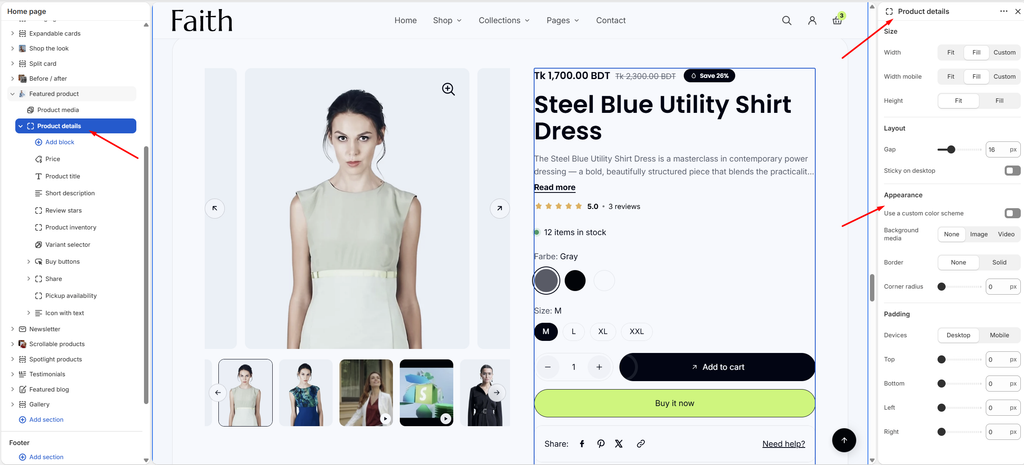
Settings
| Settings | Description |
|---|---|
| Width | Set the column width on desktop: Fit, Fill or Custom. |
| Custom Width | Appears when Width is Custom. Set the width as a percentage (5–100%). |
| Width Mobile | Set the column width on mobile: Fit, Fill or Custom. Custom shows its own Custom width slider. |
| Height | Fit the content, or Fill the height of the gallery beside it. |
| Gap | Adjust the space between the product blocks (0–60 px). |
| Sticky on Desktop | Keep the details in view while customers scroll past the gallery. |
| Use a Custom Color Scheme | Give the details column its own colors. |
| Color Scheme | Appears when Use a custom color scheme is on. Select the column’s color scheme. |
| Background Media | Add a background behind the details: None, Image or Video. Image and Video each show a picker. |
| Border | Add a border around the column: None or Solid. |
| Border Thickness | Appears when Border is Solid. Adjust the border thickness (0–10 px). |
| Border Opacity | Appears when Border is Solid. Adjust how visible the border is (0–100%). |
| Corner Radius | Customize the rounded corners of the column (0–100 px). |
| Padding | Choose Desktop or Mobile under Devices, then adjust the Top, Bottom, Left and Right spacing inside the column. |
Price Block
Overview
The Price block shows the product’s price, with the compare-at price crossed out when it’s on sale, and a badge such as Save 26%. It can also show the tax note and Shop Pay installments.
How to use
- Expand Featured product → Product details and select Price.
- Turn the badges, tax note and installments on or off.
- Set the Font size for desktop and mobile.
- Click Save.
Settings
| Settings | Description |
|---|---|
| Show Badges | Show sale, pre-order and sold out badges next to the price. They’re styled in Theme settings → Product badges. |
| Show Tax Note | Show a note such as Tax included under the price. |
| Show Shop Pay Installments | Show the Shop Pay installments message, when it’s available for your store. |
| Font Size | Set the price size on desktop (14–40 px). |
| Font Size on Mobile | Set the price size on mobile (14–40 px). |
| Padding | Choose Desktop or Mobile under Devices, then adjust the Top and Bottom spacing for that device. |
Product Title Block
Overview
The Product title block shows the product’s name. You control its text style and alignment.
How to use
- Expand Featured product → Product details and select Product title.
- Choose the Title typography, or Custom to set it yourself.
- Set the Alignment.
- Click Save.
Settings
| Settings | Description |
|---|---|
| Title Typography | Choose a text style from your theme’s typography: Default, Paragraph, Subheading, Heading 1–6, or Custom. |
| Font Size / Font Size on Mobile | Appear when Title typography is Custom. Set the title size on desktop and mobile (10–80 px). |
| Font Weight | Appears when Title typography is Custom. Choose Light, Regular, Medium, Semibold or Bold. |
| Line Height | Appears when Title typography is Custom. Adjust the space between lines (80–200%). |
| Letter Spacing | Appears when Title typography is Custom. Adjust the space between letters (-5% to 10%). |
| Alignment | Align the title Left, Center or Right. |
| Padding | Choose Desktop or Mobile under Devices, then adjust the Top and Bottom spacing for that device. |
Short Description Block
Overview
The Short description block shows a short summary of the product. Longer text is cut to a few lines with a Read more link. By default it uses the product description, or you can connect a metafield.
How to use
- Expand Featured product → Product details and select Short description.
- Leave Text empty to use the product description, or connect a metafield.
- Choose the Style, Size and Collapsed height.
- Click Save.
Settings
| Settings | Description |
|---|---|
| Text | Connect a metafield or write the text. Left empty, the product description is used. |
| Style | Choose Body or Subheading text style. |
| Size | Choose Small, Medium or Large text. |
| Collapsed Height (Lines) | Cut longer text to this many lines, with a Read more link (0–12). Set it to 0 to show all the text. |
| Width | Fit the text, or Fill the column. |
| Alignment | Align the text Left, Center or Right. |
| Padding | Choose Desktop or Mobile under Devices, then adjust the Top, Bottom, Left and Right spacing for that device. |
Review Stars Block
Overview
The Review stars block shows the product’s star rating and review count, for example ★★★★★ 5.0 • 3 reviews. It reads the rating that your reviews app saves to the product. Clicking the stars scrolls to the reviews section on the page.
How to use
- Install a reviews app that writes product ratings, such as Judge.me or Shopify Product Reviews.
- Expand Featured product → Product details and select Review stars.
- Enter your reviews app’s Reviews section ID.
- Click Save.
Settings
| Settings | Description |
|---|---|
| Reviews Section ID | Enter the ID of your reviews app’s widget, with or without #, for example judgeme_product_reviews, shopify-product-reviews or looxReviews. Clicking the stars scrolls to it. |
| Show Stars When There Are No Reviews | Show empty stars on products that don’t have any reviews yet. |
| Padding | Choose Desktop or Mobile under Devices, then adjust the Top and Bottom spacing for that device. |
Product Inventory Block
Overview
The Product inventory block shows the stock level of the selected variant, for example 12 items in stock, with a colored status dot and an optional stock bar. Low stock messages create urgency and help customers decide.
How to use
- Make sure Track quantity is on for the product in Products → Inventory.
- Expand Featured product → Product details and select Product inventory.
- Set the Low stock threshold, and choose what to show.
- Click Save.
Settings
| Settings | Description |
|---|---|
| Low Stock Threshold | Show the low stock message when the quantity is at or below this number (1–100). |
| Show Low Stock Quantity | Show the number left when stock is low, for example Only 3 left. |
| Show Quantity When in Stock | Show the number in stock even when stock isn’t low, for example 12 items in stock. |
| Show Status Dot | Show a colored dot: green when in stock, orange when low, red when sold out. |
| Show Stock Bar | Show a bar that fills according to the stock level. |
| Full Bar Quantity | Appears when the stock bar is on. Set the stock level that fills the bar (5–200). |
| Status Typography | Choose a text style for the stock message, or Custom to set the font size, weight, line height and letter spacing yourself. |
| Padding | Choose Desktop or Mobile under Devices, then adjust the Top and Bottom spacing for that device. |
Variant Selector Block
Overview
The Variant selector block lets customers choose the product’s options, such as color and size. Colors can show as swatches or variant images, and other options as buttons or dropdowns. Color and size options are recognized by the option names set in Theme settings → Swatches.
How to use
- Expand Featured product → Product details and select Variant selector.
- Choose how Size options, Other options and color Swatches are shown.
- Set the Alignment, and turn Show selected value on or off.
- Click Save.
Settings
| Settings | Description |
|---|---|
| Size Options | Show size options as Dropdowns or Buttons. |
| Other Options | Show all other options as Dropdowns or Buttons. |
| Swatches Type | Show color options as a Swatch (color circle), Variant image, Buttons or Dropdowns. |
| Alignment | Align the options Left, Center or Right. |
| Show Selected Value | Show the chosen value next to the option name, for example Size: M. |
| Option Label Typography | Choose a text style for the option names, or Custom to set the font size, weight, line height and letter spacing yourself. |
| Padding | Choose Desktop or Mobile under Devices, then adjust the Top and Bottom spacing for that device. |
Buy Buttons Block
Overview
The Buy buttons block shows the quantity selector, the Add to cart button and the Buy it now (dynamic checkout) button. For gift cards it can show a recipient form, and for sold out variants an availability request form.
How to use
- Expand Featured product → Product details and select Buy buttons.
- Turn the gift card recipient form and the availability request form on or off.
- Click Save.
Settings
| Settings | Description |
|---|---|
| Show Gift Card Recipient Form | On gift card products, let the buyer send the card to someone else by email. |
| Show Availability Request Form | On sold out variants, show an Ask about availability button. Requests reach you by email through the contact form. Customers aren’t notified automatically, so reply to them yourself or use a back-in-stock app. |
| Padding | Choose Desktop or Mobile under Devices, then adjust the Top and Bottom spacing for that device. |
Share Block
Overview
The Share block shows social share icons and a copy link button, so customers can share the product. It can also show a Need help? link to your contact page.
How to use
- Expand Featured product → Product details and select Share.
- Edit the Text, and turn the copy link button and card style on or off.
- Add a Help link to your contact page.
- Click Save.
Settings
| Settings | Description |
|---|---|
| Text | Set the label shown before the icons, for example Share:. |
| Show Copy Link Button | Show a button that copies the product link. |
| Card Style | Show the share bar inside a bordered card. |
| Help Link Text | Set the help link text, for example Need help?. |
| Help Link | Choose the page the help link opens, usually your contact page. The link is hidden until one is set. |
| Padding | Choose Desktop or Mobile under Devices, then adjust the Top and Bottom spacing for that device. |
Tip: The social networks are chosen in Theme settings → Social media. Text or Button blocks added inside Share sit on the right.
Pickup Availability Block
Overview
The Pickup availability block tells customers whether the selected variant can be picked up in store, for example Pickup available at Shop location. Usually ready in 24 hours. It connects to your pickup locations automatically, and shows only when the variant can be picked up.
How to use
- Turn on local pickup in Settings → Shipping and delivery → Local pickup.
- Expand Featured product → Product details and select Pickup availability.
- Turn Card style on or off.
- Click Save.
Settings
| Settings | Description |
|---|---|
| Card Style | Show the pickup message inside a bordered card. |
| Padding | Choose Desktop or Mobile under Devices, then adjust the Top and Bottom spacing for that device. |
Icon with Text Block
Overview
The Icon with text block holds a row of Icon box blocks, for example Shipping information and Payment information, to reassure customers before they buy.
How to use
- Expand Featured product → Product details and select Icon with text.
- Click Add block → Icon box for each item.
- Set the columns and gaps.
- Click Save.
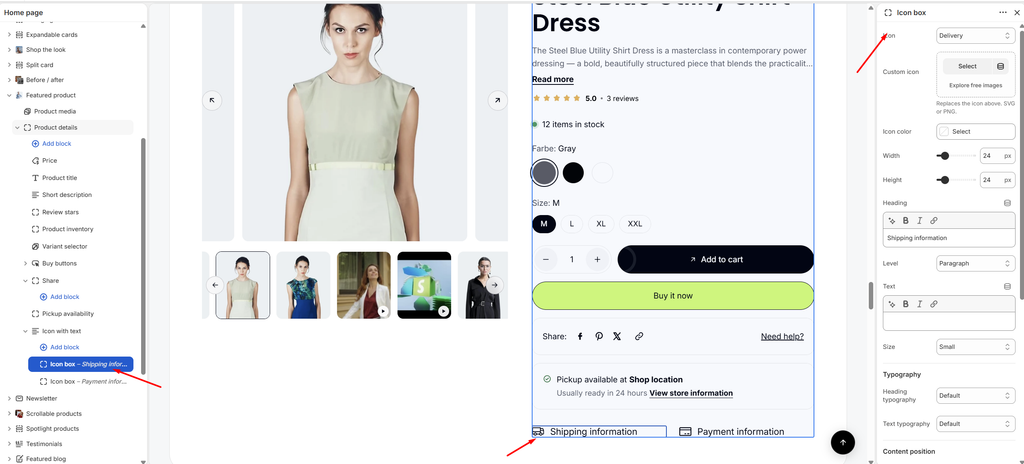
Settings
| Settings | Description |
|---|---|
| Columns on Desktop | Set how many icon boxes show across on desktop (1–4). |
| Columns on Mobile | Show 1 or 2 icon boxes across on mobile. |
| Horizontal Gap | Adjust the space between icon boxes side by side (0–80 px). |
| Vertical Gap | Adjust the space between rows of icon boxes (0–80 px). |
| Padding | Choose Desktop or Mobile under Devices, then adjust the Top and Bottom spacing for that device. |
Icon Box Block
Overview
The Icon box block is one item in Icon with text: an icon with a heading and optional text.
How to use
- Expand Featured product → Product details → Icon with text.
- Click Add block → Icon box, or select an existing one.
- Choose an Icon or upload a Custom icon, and set its color and size.
- Enter the Heading and, optionally, the Text.
- Adjust the typography, layout direction and animation.
- Click Save.
Settings
| Settings | Description |
|---|---|
| Icon | Choose the icon: None, Delivery, Truck, Globe, Return, Credit card, Money, Shield, Lock, Gift, Heart, Tag, Percent, Leaf, Box, Chat, Phone, Calendar, Location, Star, T-shirt, Washing or Ironing. |
| Custom Icon | Upload your own icon (SVG or PNG). It replaces the icon selected above. |
| Icon Color | Choose the icon color. |
| Width / Height | Set the icon size (12–96 px). |
| Heading | Add the heading, for example Shipping information. |
| Level | Choose the HTML heading level for search engines: H2–H6 or Paragraph. |
| Text | Add a short line under the heading. |
| Size | Choose the overall text size: Small, Medium or Large. |
| Heading Typography / Text Typography | Choose a text style for the heading and text, or Custom to set the font size, weight, line height and letter spacing yourself. |
| Layout Direction | Place the icon above the text (Vertical) or beside it (Horizontal). |
| Alignment | Align the content Left, Center or Right. |
| Position | Line up the icon and text at the Top, Center or Bottom. |
| Gap | Adjust the space between the icon and the text (0–40 px). |
| Scroll Animation | Choose how the icon box appears: None, Fade in or Rise up. |
| Animation Delay | Appears when an animation is chosen. Wait before the animation starts (0–800 ms). |
| Padding | Choose Desktop or Mobile under Devices, then adjust the Top and Bottom spacing for that device. |