Split Card: Editorial Section
Overview
Split card: Editorial is a ready-made version of the Split card section, with the Layout set to Cards beside an image. It shows a large image on one side and a grid of feature cards on the other, for example Free Shipping, Secure Payments, 24 Hour Support and Free Return. It suits About and brand pages, where a lifestyle image adds warmth to your store’s promises. The cards work exactly like in Split card: icons, large numbers, highlight colors and hover effects.
How to use
- Go to Online Store → Themes → Customize.
- Click Add section → Split card: Editorial, or select an existing one.
- Select the Image block and upload a picture.
- Optionally, edit the Section heading to add a title above the cards.
- Click Add block → Card for each card. In each Card, choose an Icon and edit the Heading and Text. Four cards make a neat 2 × 2 grid.
- Choose the Image position (Left or Right).
- Choose the Color scheme, Card color scheme and Highlight color scheme.
- Turn Highlight on hover and Show card numbers on or off, and adjust the card radius, gap and icon sizes.
- Set the Section width and Padding.
- Click Save.
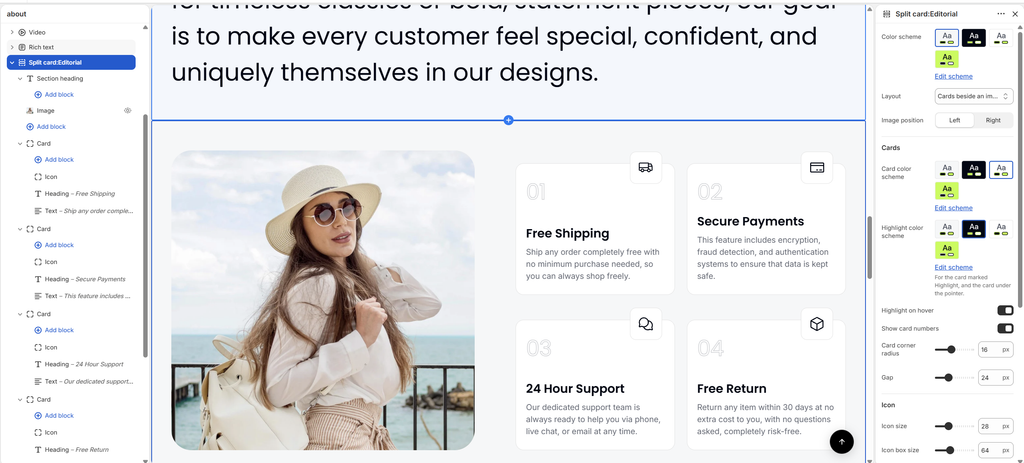
Settings
| Settings | Description |
|---|---|
| Color Scheme | Select a predefined color scheme for the section background and text. |
| Layout | Set to Cards beside an image for this layout. Switch to Cards in a row to remove the image and show the cards side by side (see the Split Card article). |
| Image Position | Place the image on the Left or Right of the cards. |
| Card Color Scheme | Select a color scheme for the cards. |
| Highlight Color Scheme | Select a color scheme for the card marked Highlight, and for the card under the customer’s pointer. |
| Highlight on Hover | Switch a card to the highlight colors while the customer hovers over it. |
| Show Card Numbers | Show a large number, for example 01, 02, 03, on each card. |
| Card Corner Radius | Customize the rounded corners of the cards (0–40 px). |
| Gap | Adjust the space between the cards (8–60 px). |
| Icon Size | Set the size of the icon inside its box (12–64 px). |
| Icon Box Size | Set the size of the box around the icon (32–120 px). |
| Icon Box Corner Radius | Round the corners of the icon box (0–60 px). Half the box size makes a circle. |
| Section Width | Set how wide the section is. Options include Same as theme, Full width, Wide, Standard, Narrow and Custom. |
| Custom Section Width | Appears when Section Width is set to Custom. Set an exact width (600–2000 px). |
| Padding | Choose Desktop or Mobile under Devices, then adjust the Top and Bottom spacing of the section for that device. |
Image Block
Overview
The Image block is the large picture shown beside the cards. It is part of the section and cannot be removed. It only shows when the Layout is Cards beside an image.
How to use
- Go to Online Store → Themes → Customize.
- Expand Split card: Editorial and select the Image block.
- Click Select to choose an Image.
- Adjust the Image corner radius.
- Click Save.
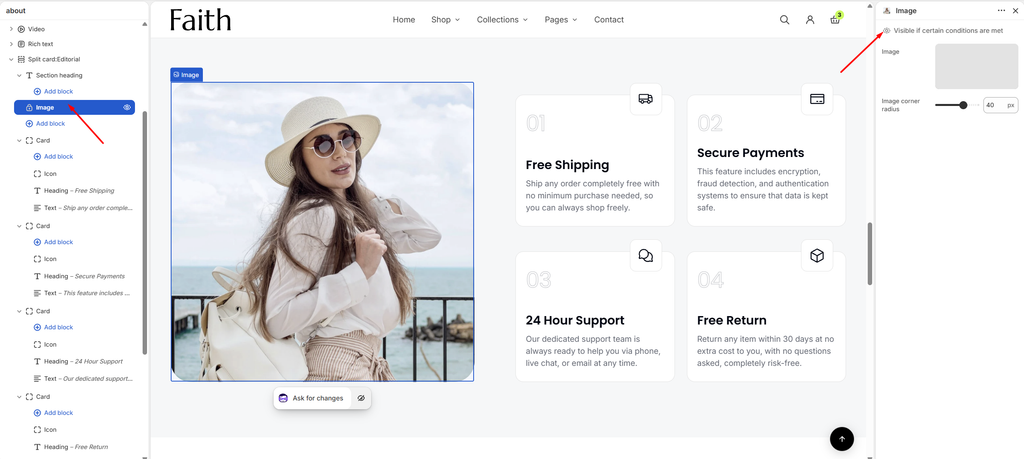
Settings
| Settings | Description |
|---|---|
| Image | Upload or select the image shown beside the cards. A portrait or square image works best next to a 2 × 2 card grid. |
| Image Corner Radius | Customize the rounded corners of the image (0–60 px). |
Card and Icon blocks: These work the same as in the Split card section. See the Split Card article. Heading, Text and Button are the common blocks, and the Section heading settings are covered in the Section Heading article.