Overview
The Expandable cards section shows a row of tall image cards next to an Intro panel, for example How to Wear It. One card is open at a time: wide, showing its heading, text and button. The other cards stay narrow, showing only their number and a scrolling strip of text. When a customer hovers, taps or tabs to a card, it opens smoothly and the others narrow. Use it for style guides, lookbooks or featured categories.
How to use
- Go to Online Store → Themes → Customize.
- Click Add section → Expandable cards, or select an existing one.
- Select the Intro block and edit its Heading, Text and Button.
- Click Add block → Card for each card. In each Card, choose an Image, add a Strip text, and add a Heading, Text and Button.
- Choose a Color scheme, and set which card is open when the page loads (Card open at rest).
- Adjust the card Height, Card width, Open card width and Intro width.
- Set the Gap, Corner radius and Overlay opacity, and turn card numbers and arrows on or off.
- Set the Section width and Padding.
- Click Save.
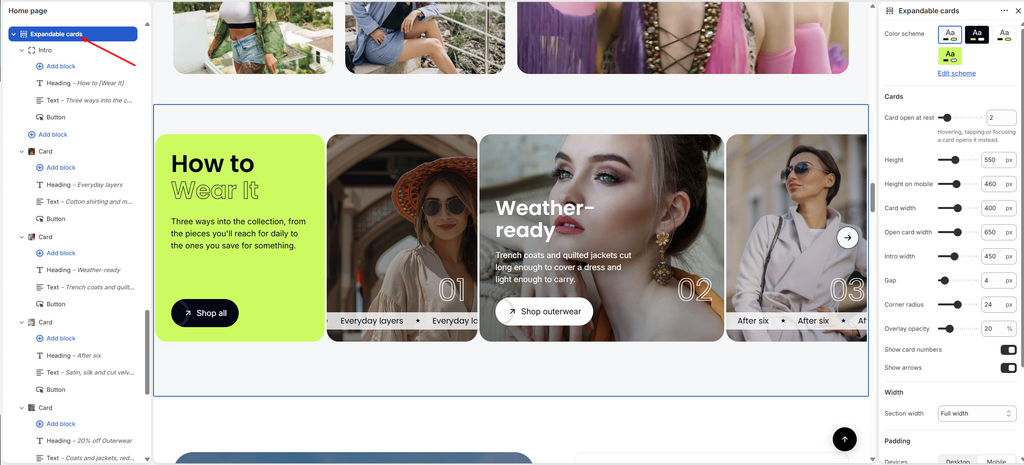
Settings
| Settings | Description |
|---|---|
| Color Scheme | Select a predefined color scheme for the section background and text. |
| Card Open at Rest | Choose which card is open when the page loads, by its position (1–8). Hovering, tapping or focusing another card opens that card instead. |
| Height | Set the height of the cards on desktop (360–800 px). |
| Height on Mobile | Set the height of the cards on mobile (300–640 px). |
| Card Width | Set the width of a closed (narrow) card (200–600 px). |
| Open Card Width | Set the width of the open card (300–1000 px). |
| Intro Width | Set the width of the Intro panel (280–700 px). |
| Gap | Adjust the space between the cards (0–40 px). |
| Corner Radius | Customize the rounded corners of the cards and the Intro panel (0–48 px). |
| Overlay Opacity | Darken the card images so the white text stays readable (0–80%). |
| Show Card Numbers | Show a large number, for example 01, 02, 03, on each card. |
| Show Arrows | Show an arrow button to move to the next card. |
| Section Width | Set how wide the section is. Options include Same as theme, Full width, Wide, Standard, Narrow and Custom. |
| Custom Section Width | Appears when Section Width is set to Custom. Set an exact width (600–2000 px). |
| Padding | Choose Desktop or Mobile under Devices, then adjust the Top and Bottom spacing of the section for that device. |
Tip: When the cards don’t all fit on screen, customers can drag or swipe the row, or use the arrow, to see more.
Intro Block
Overview
The Intro block is the colored panel at the start of the row. It introduces the cards with a Heading, Text and Button, for example How to [Wear It] with a Shop all button. It has its own color scheme and an optional faint pattern. This block is part of the section and cannot be removed.
How to use
- Go to Online Store → Themes → Customize.
- Expand Expandable cards and select Intro.
- Edit the Heading, Text and Button inside it, or click Add block to add more.
- Choose a Color scheme and adjust the Vertical gap.
- Optionally, upload a Pattern image, then set its Size and Opacity.
- Click Save.
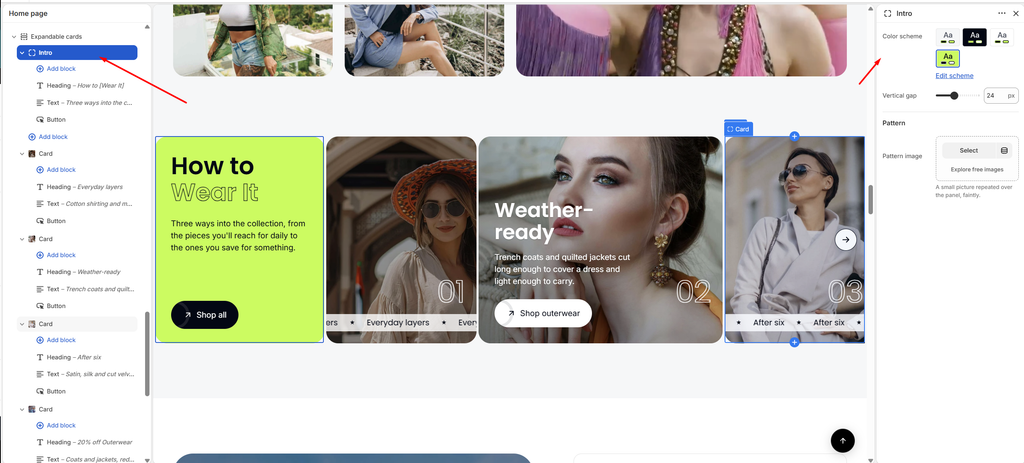
Settings
| Settings | Description |
|---|---|
| Color Scheme | Select a color scheme for the Intro panel’s background and text. |
| Vertical Gap | Adjust the space between the heading, text and button (0–60 px). |
| Pattern Image | Upload a small picture to repeat faintly over the panel, like a texture. |
| Size | Appears when a Pattern image is added. Set the size of each repeated tile (16–300 px). |
| Opacity | Appears when a Pattern image is added. Adjust how visible the pattern is (5–100%). |
Card Block
Overview
The Card block is one expandable card. While open, it shows its image with a Heading, Text and Button. While closed, it shows its number and a Strip text that scrolls across the bottom, for example Everyday layers ★ Everyday layers.
How to use
- Go to Online Store → Themes → Customize.
- Expand Expandable cards and click Add block → Card, or select an existing Card.
- Click Select to choose an Image. Portrait images work best.
- Enter a short Strip text, or leave it empty for none.
- Click Add block inside the Card to add a Heading, Text and Button.
- Optionally, add a Link to make the open card’s picture clickable.
- Click Save.
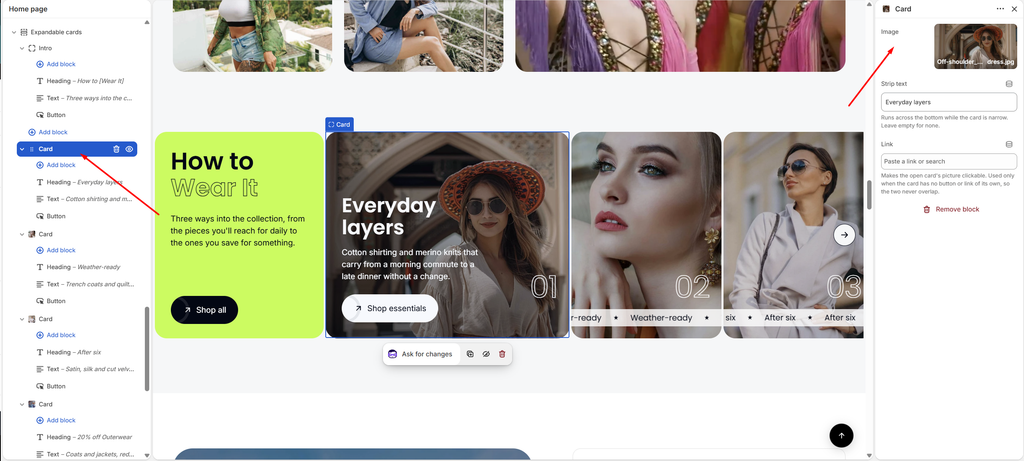
Settings
| Settings | Description |
|---|---|
| Image | Upload or select the card image. |
| Strip Text | Add a short line that scrolls across the bottom while the card is closed, for example Everyday layers. Leave it empty for none. |
| Link | Make the open card’s picture clickable. It’s only used when the card has no button or link of its own, so the two never overlap. |
Heading, Text and Button blocks: These are the common blocks. See their articles for settings.