



How to Access the Scrolling Products Section
- Go to Admin → Online Store → Themes
- Click Customize on your active theme
- Open the Home page template
- Search for and select the Scrolling products section
- Inside this section, you can customize:
- Background image
- Content area
- Collection list
- Product cards
- Scrolling product display
The Scrolling products section helps showcase selected collection products with an attractive moving product layout and promotional content area.
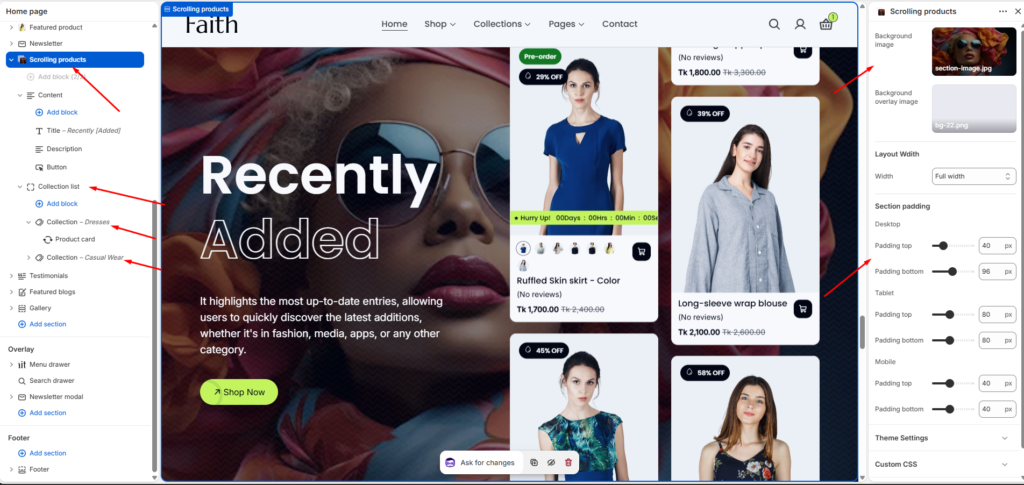
Scrolling Products Section Settings
| Settings | Description |
|---|---|
| Background Image | Upload a background image for the Scrolling products section. |
| Background Overlay Image | Add an overlay image or texture effect above the background image. |
| Width | Choose the section layout width. Available options include Page width and Full width. |
| Padding Top | Add top spacing separately for Desktop, Tablet, and Mobile devices. |
| Padding Bottom | Add bottom spacing separately for Desktop, Tablet, and Mobile devices. |
| Theme Settings | Configure additional theme-related styling options for this section. |
| Custom CSS | Add custom CSS styles to customize the appearance and layout. |
Content Block Settings
The content block controls the text area displayed beside the scrolling products.
| Settings | Description |
|---|---|
| Add Block | Add content blocks dynamically inside the content area. |
| Title Block | Add the main heading/title. Example: Recently Added. |
| Description Block | Add supporting text, promotional details, or custom descriptions. |
| Button Block | Add a call-to-action button with a custom link. Example: Shop Now. |
Collection List Settings
Add multiple collections to display products in the scrolling layout.
| Settings | Description |
|---|---|
| Collection List | Create a group of collections displayed inside the section. |
| Add Block | Add multiple collection blocks dynamically. |
| Select Collection | Choose which collection products will appear in the scrolling product area. |
| Moving Direction | Control the product scrolling animation direction. Example: Top to Bottom or other available directions. |
| Maximum Products To Show | Set the maximum number of products displayed from the selected collection. |
Product Card Settings
Products from the selected collection automatically appear as scrolling product cards.
| Settings | Description |
|---|---|
| Product Card | Displays products from the selected collection automatically. |
| Product Image | Shows the product featured image. |
| Product Title | Displays the product name. |
| Product Price | Shows product pricing information. |
| Product Reviews | Display product review/rating information if available. |
| Product Badge | Shows labels such as discount, bestseller, or pre-order badges when enabled. |
| Add To Cart Button | Allows customers to quickly add products to their cart. |
| Responsive Layout | Product scrolling layout automatically adapts for desktop, tablet, and mobile devices. |
| Remove Block | Remove selected collection or content blocks from the section. |