



How to Customize FAQ Page Template
Go to Admin → Online Store → Themes
Click Customize on your active theme
At the top template selector:
- Click the current template dropdown
- Select Pages
- Choose your FAQ page template (Example: FAQ)
- Start customizing the FAQ page sections
FAQ Page Sections
From here, you can customize:
- Page banner
- Page title
- Breadcrumb
- FAQ questions
- Accordion content
- Images
- Text content
- Buttons
- Layout settings
- Colors and spacing
The FAQ page template allows you to create a helpful question and answer page for your customers. You can add expandable FAQ items, organize questions by categories, add images, and customize the design to match your store style.
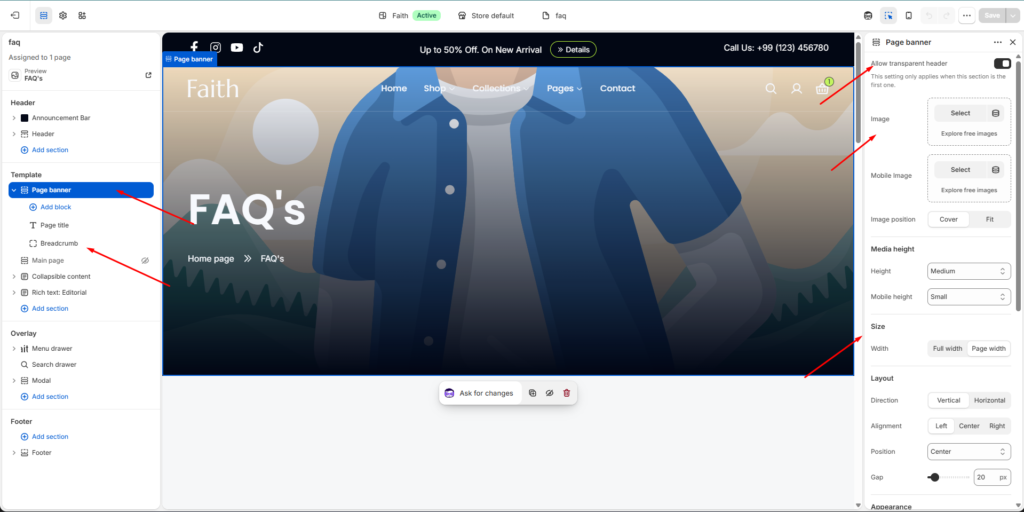
Page Banner Settings
| Settings | Description |
|---|---|
| Image | Upload or select the banner background image. |
| Mobile Image | Add a separate banner image optimized for mobile devices. |
| Image Position | Choose how the image displays. Available options include Cover and Fit. |
| Media Height | Adjust banner height for desktop devices. |
| Mobile Height | Adjust banner height for mobile devices. |
| Width | Choose Full width or Page width banner layout. |
| Direction | Select Vertical or Horizontal content layout. |
| Alignment | Align banner content Left, Center, or Right. |
| Position | Control where banner content appears. |
| Gap | Adjust spacing between banner elements. |
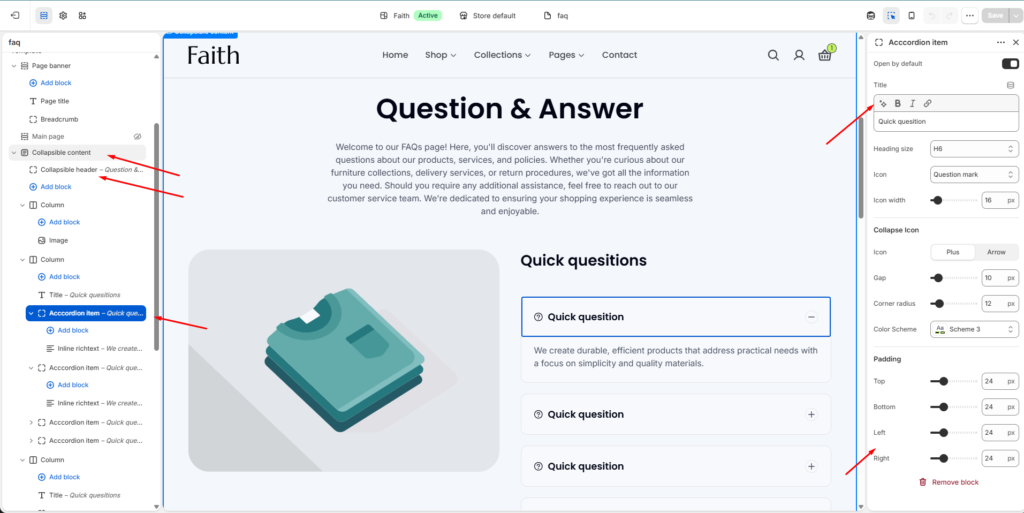
FAQ Accordion Settings
| Settings | Description |
|---|---|
| Add Block | Add multiple FAQ questions inside the section. |
| Accordion Item | Create expandable question and answer items. |
| Open by Default | Keep selected FAQ answers open when the page loads. |
| Title | Add your FAQ question title. |
| Heading Size | Adjust FAQ question heading size. |
| Icon | Choose an icon style for FAQ items. |
| Icon Width | Adjust the FAQ icon size. |
| Collapse Icon | Select accordion open/close icon style such as Plus or Arrow. |
| Gap | Control spacing between accordion items. |
| Corner Radius | Adjust rounded corners for FAQ boxes. |
| Color Scheme | Select the FAQ color style. |
| Padding | Adjust top, bottom, left, and right spacing. |
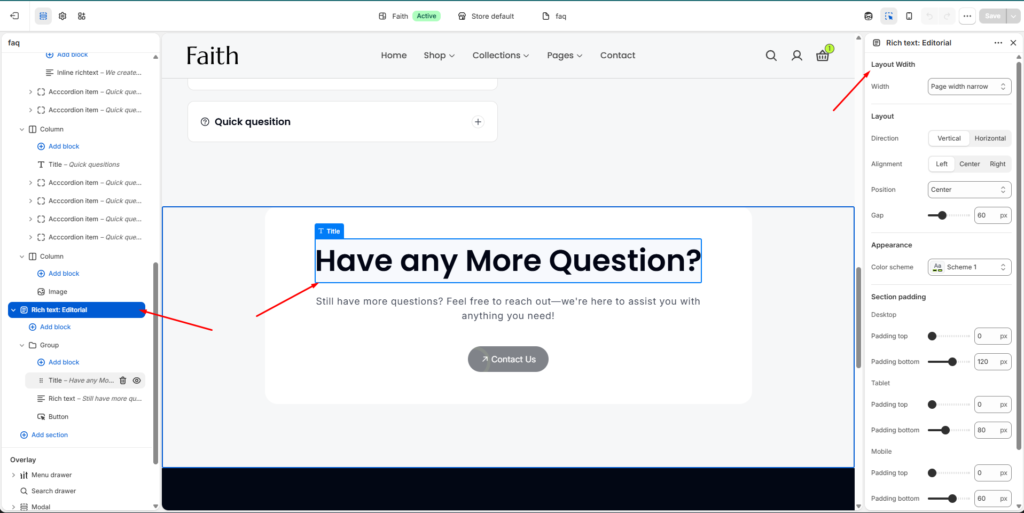
Rich Text Editorial Settings
| Settings | Description |
|---|---|
| Layout Width | Choose the content container width. |
| Direction | Select Vertical or Horizontal content arrangement. |
| Alignment | Align FAQ content Left, Center, or Right. |
| Position | Control content placement. |
| Gap | Adjust spacing between text elements. |
| Color Scheme | Change the section color style. |
| Section Padding | Customize spacing for Desktop, Tablet, and Mobile devices. |
FAQ Content Blocks
| Block | Description |
|---|---|
| Title Block | Add FAQ headings or section titles. |
| Rich Text Block | Add descriptions, answers, or information content. |
| Button Block | Add call-to-action buttons with links. |
| Image Block | Display images inside FAQ layouts. |
| Accordion Item | Add individual questions with expandable answers. |
The FAQ template helps customers quickly find answers about products, shipping, returns, policies, and other important store information.