



How to Add Custom Color Swatch
Go to Admin → Online Store → Themes
Click Customize on your active theme
Open Theme Settings
Select Product Cards
Find the Color Swatches settings
From here, you can customize:
- Variant color swatches
- Swatch display style
- Swatch shape
- Swatch size
- Custom HEX colors
- Product card swatch display
- Single variation display
The Custom Color Swatch feature allows you to display product variant colors visually using color circles, custom HEX codes, or image swatches. It helps customers preview available colors directly from product cards and product pages.
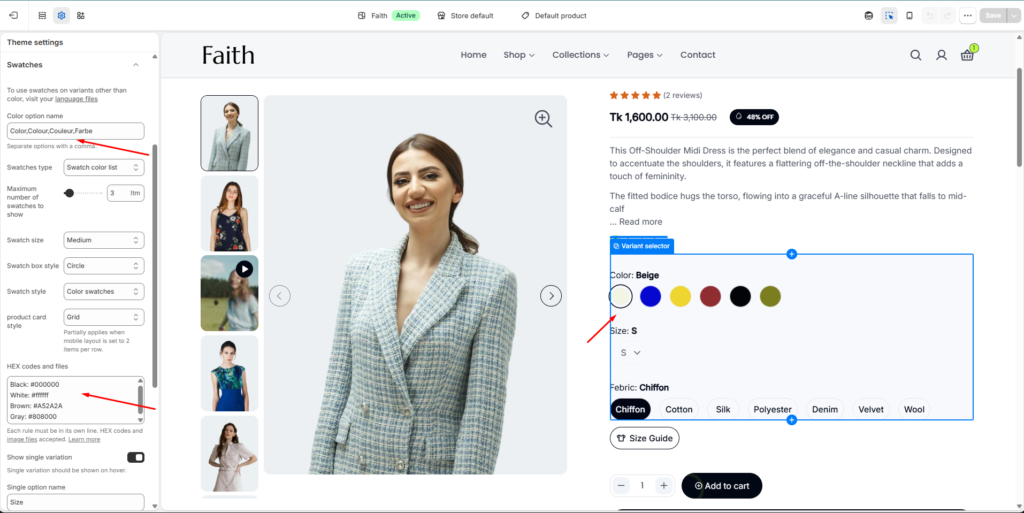
Color Swatch Settings
| Settings | Description |
|---|---|
| Color Option Name | Add the product option names that should display as color swatches. Separate multiple option names using commas. Example: Color, Colour, Couleur. |
| Swatches Type | Choose the swatch display method. Available options include color swatch list or other supported swatch types. |
| Maximum Number of Swatches Show | Set how many color options appear before limiting extra swatches. |
| Swatch Size | Adjust the size of color swatches. |
| Swatch Box Style | Select the swatch shape style such as Circle or other available layouts. |
| Swatch Style | Choose how swatches are generated. Example: Color swatches using HEX values. |
| Product Card Style | Select how color swatches display on product cards. |
| HEX Codes and Files | Add custom color values or image references for variant swatches. |
| Show Single Variation | Enable showing a single variant option on product hover. |
| Single Option Name | Define which single option should display individually. |
Add Custom HEX Color
Go to Theme Settings → Product Cards → Color Swatches
Find HEX Codes and Files
Add colors using this format:
Example:
Black: #000000
White: #ffffff
Brown: #A52A2A
Gray: #808080
Each color should be written on a new line.
The color name must match your product variant option name exactly. After saving, the theme will automatically show the custom color swatches on product cards and product pages.
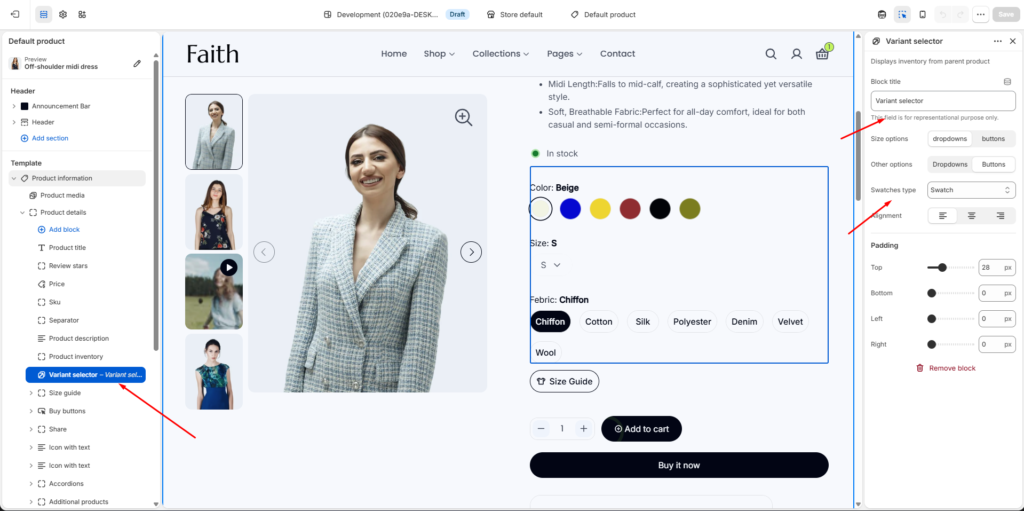
Product Variant Selector Swatch Settings
Go to Admin → Online Store → Themes
Click Customize
Open Default Product template
Select Product information → Variant Selector
Variant Selector Settings
| Settings | Description |
|---|---|
| Block Title | Add a title for the variant selector block. |
| Size Options | Choose how size variants display. Available options include Dropdowns or Buttons. |
| Other Options | Choose display style for other product options. |
| Swatches Type | Select how color variants appear. Example: Swatch. |
| Alignment | Adjust variant selector alignment. |
| Padding Top | Add spacing above variant options. |
| Padding Bottom | Add spacing below variant options. |
| Padding Left | Add left spacing. |
| Padding Right | Add right spacing. |
Custom swatches will now appear on:
- Product pages
- Variant selectors
- Collection product cards
- Featured product sections