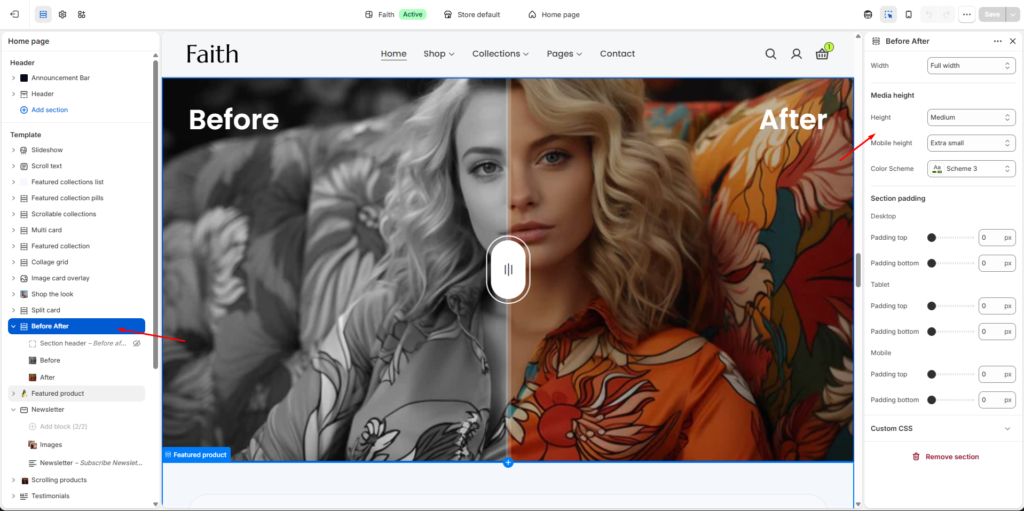
The Before After section allows you to display two images with an interactive comparison slider. It is useful for showing transformations, product results, edits, improvements, or visual comparisons.
Before After Section Settings
Settings
Description
Width
Choose the section container width. Available options include Page width and Full width.
Height
Control the media height for desktop devices. Available options depend on theme settings such as Small, Medium, or Large.
Mobile Height
Adjust the media height specifically for mobile devices.
Color Scheme
Select a predefined color scheme to match your store design.
Padding Top
Add top spacing separately for Desktop, Tablet, and Mobile devices.
Padding Bottom
Add bottom spacing separately for Desktop, Tablet, and Mobile devices.
Custom CSS
Add custom CSS styles to customize the Before After section appearance.
Section Header Settings
The Before After section includes a header block for adding title and description content.
Settings
Description
Heading
Add the main heading/title for the section. Example: Before After [Heading].
Heading Size
Select heading size such as H1, H2, or other available styles.
Text
Add supporting description text below the heading.
Body Style
Choose between Body or Subtitle text styles.
Caption Size
Adjust the text size using Small, Medium, or Large options.
Alignment
Control the header alignment using Left, Center, or Right.
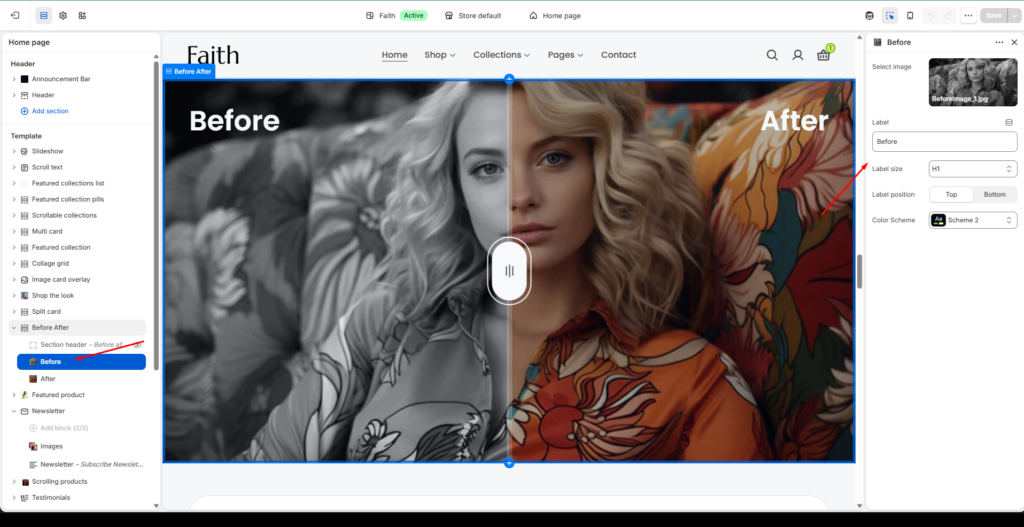
Before Image Settings
Configure the image displayed on the before side of the comparison.
Settings
Description
Select Image
Upload or select the image displayed before the transformation/change.
Label
Add custom label text for the before image. Example: Before.
Label Size
Select the label heading size such as H1, H2, or available styles.
Label Position
Set the label position. Available options include Top and Bottom.
Color Scheme
Choose the label/content color scheme.
After Image Settings
Configure the image displayed on the after side of the comparison.
Settings
Description
Select Image
Upload or select the image displayed after the transformation/change.
Label
Add custom label text for the after image. Example: After.
Label Size
Select the label heading size such as H1, H2, or available styles.
Label Position
Set the label position. Available options include Top and Bottom.
Color Scheme
Choose the label/content color scheme.
Comparison Slider
Settings
Description
Before & After Slider
Allows customers to drag the slider handle and compare both images interactively.
Slider Handle
Move left or right to reveal more of the Before or After image.
Image Overlay
Creates a smooth comparison effect between both images.
Responsive Layout
The Before After section automatically adjusts across desktop, tablet, and mobile devices.
Remove Block
Remove selected Before, After, or Header blocks from the section.