



Overview
The Countdown Timer block displays a real-time countdown for promotions, sales campaigns, product launches, or limited-time offers. It helps create urgency and encourages customers to take action before the offer expires.
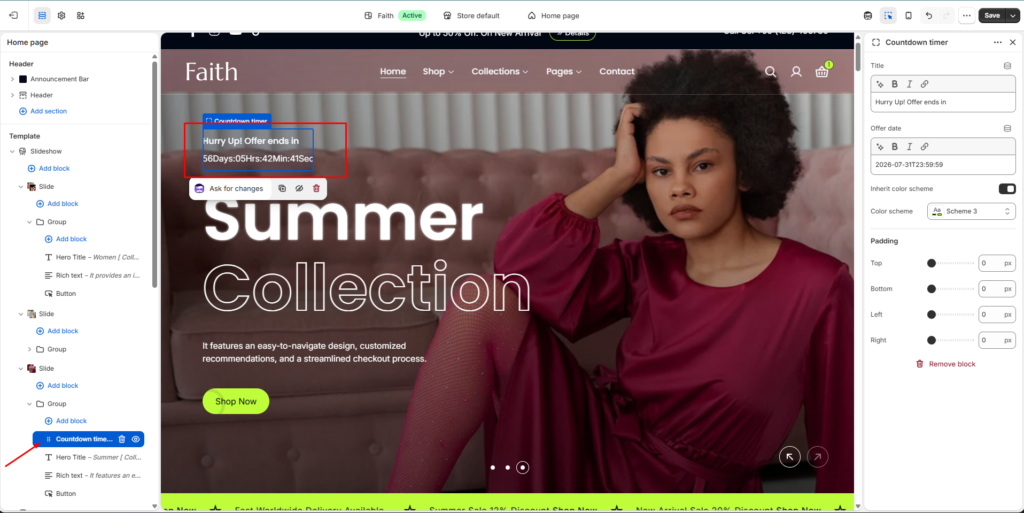
How to use
- Go to Customize Theme.
- Open the section where the countdown timer is added.
- Select the Countdown Timer block.
- Enter your countdown message in the Title field.
- Set your campaign ending date and time in Offer Date.
- Customize colors and spacing if needed.
- Click Save.
Countdown Timer Block Documentation
| Settings | Description |
|---|---|
| Title | Add the countdown timer heading or message displayed above the timer. Example: “Hurry Up! Offer ends in”. |
| Offer Date | Set the target end date and time for the countdown timer. The timer will automatically calculate the remaining days, hours, minutes, and seconds. |
| Inherit Color Scheme | Enable this option to use the parent section color scheme automatically. |
| Color Scheme | Select a custom color scheme for the countdown timer block when inherit color scheme is disabled. |
| Padding Top | Adjust the spacing above the countdown timer block. |
| Padding Bottom | Adjust the spacing below the countdown timer block. |
| Padding Left | Control the left side spacing of the countdown timer block. |
| Padding Right | Control the right side spacing of the countdown timer block. |