



Go to Admin → Online Store → Themes
Click Customize on your active theme
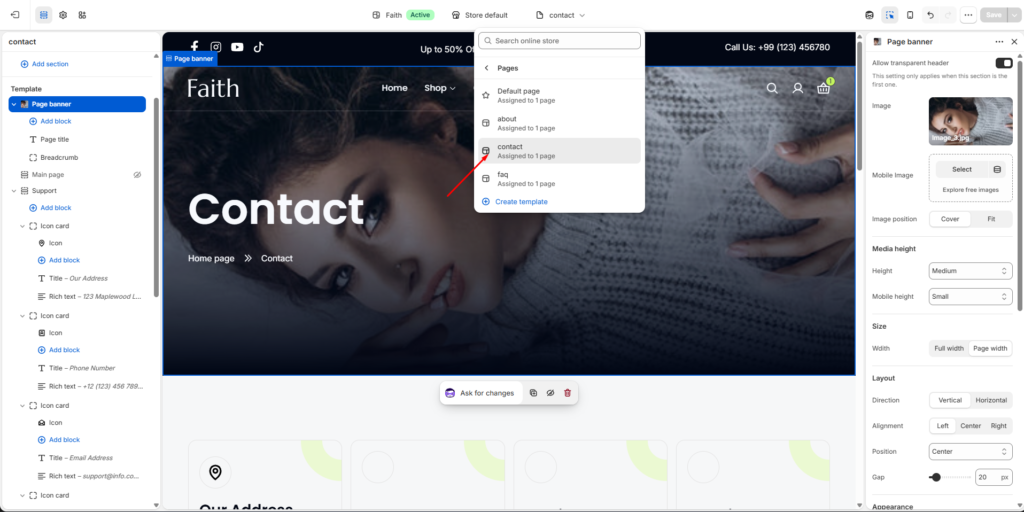
Open Contact Page Template
- Click the template selector at the top
- Select Pages
- Choose your Contact page template
Now you can customize your contact page sections and blocks.
Contact Page Sections
You can customize:
- Page banner
- Contact information cards
- Contact form
- Images
- Text content
- Icons
- Layout
- Colors
- Spacing
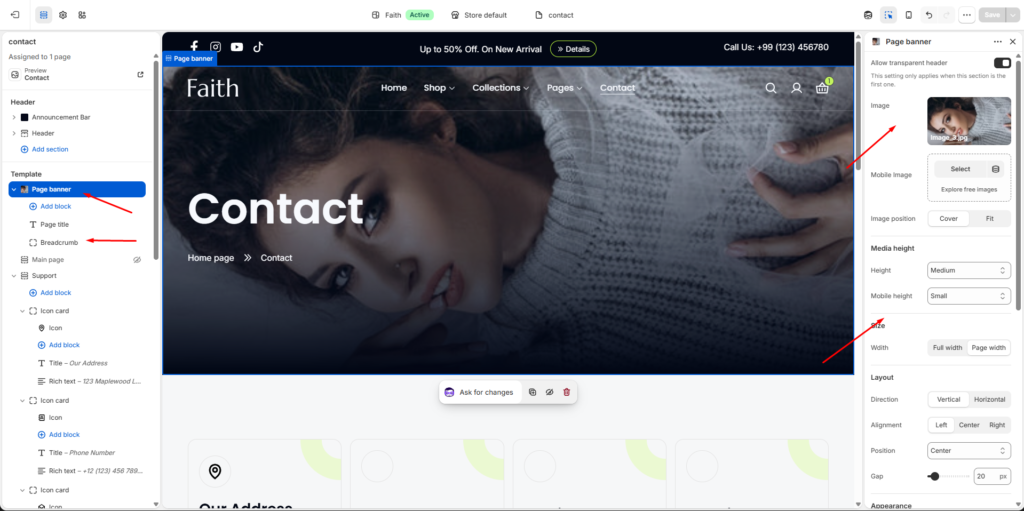
Page Banner Settings
Select the Page banner section.
Available settings:
| Settings | Description |
|---|---|
| Image | Upload a banner image for the contact page. |
| Mobile Image | Add a separate image for mobile devices. |
| Image Position | Choose how the image displays. Options include Cover and Fit. |
| Media Height | Adjust banner height for desktop. |
| Mobile Height | Adjust banner height on mobile devices. |
| Width | Select Full width or Page width layout. |
| Direction | Choose Vertical or Horizontal content layout. |
| Alignment | Align content Left, Center, or Right. |
| Position | Control banner content placement. |
| Gap | Adjust spacing between banner elements. |
Contact Information Section
Select the Support section.
Settings include:
| Settings | Description |
|---|---|
| Width | Choose contact card container width. |
| Gap | Adjust spacing between cards. |
| Color Scheme | Select the section color style. |
| Desktop Item Show | Control how many cards display per row on desktop. |
| Tablet Item Show | Control tablet layout columns. |
| Mobile Item Show | Control mobile layout columns. |
| Padding Top | Add top spacing. |
| Padding Bottom | Add bottom spacing. |
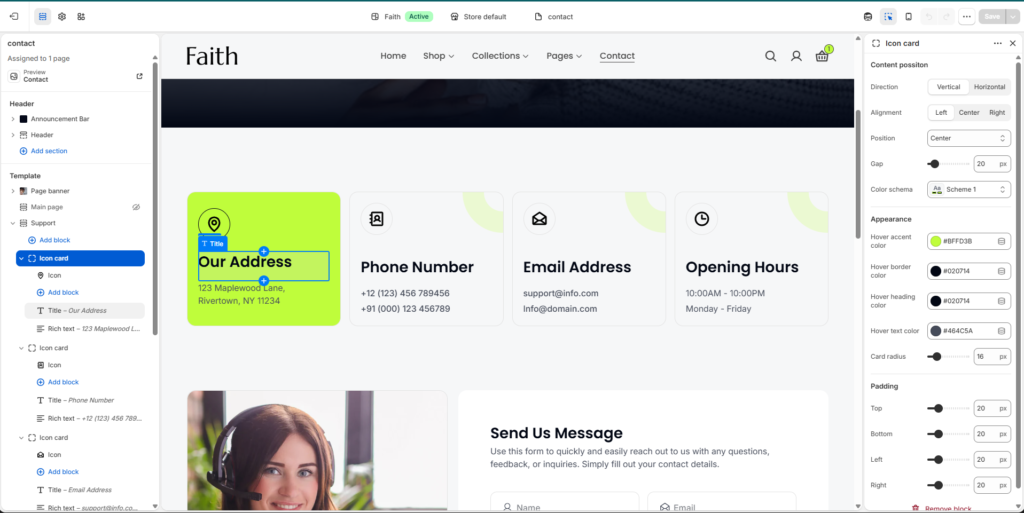
Contact Icon Card Settings
Click any Icon Card block.
You can customize:
| Settings | Description |
|---|---|
| Icon | Select the contact information icon. |
| Title | Add card heading like Address, Phone Number, Email. |
| Rich Text | Add contact details or descriptions. |
| Direction | Choose Vertical or Horizontal layout. |
| Alignment | Align card content. |
| Position | Set content position. |
| Gap | Adjust spacing between elements. |
| Color Scheme | Change card colors. |
| Hover Accent Color | Set hover background color. |
| Hover Border Color | Customize hover border. |
| Hover Heading Color | Change heading hover color. |
| Hover Text Color | Change text hover color. |
| Card Radius | Adjust rounded corners. |
| Padding | Control inside card spacing. |
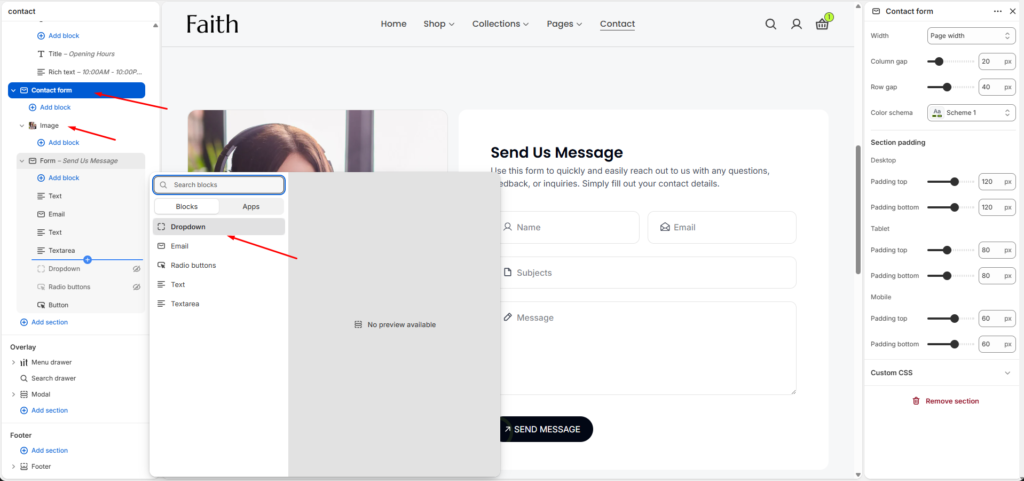
Contact Form Section
Select the Contact form section.
Settings available:
| Settings | Description |
|---|---|
| Width | Choose form width. |
| Column Gap | Adjust spacing between form fields. |
| Row Gap | Adjust vertical spacing. |
| Color Scheme | Select form color style. |
| Padding Top | Add section top spacing. |
| Padding Bottom | Add section bottom spacing. |
| Custom CSS | Add custom styling. |
Contact Form Blocks
Click Add block inside Contact Form.
Available blocks:
- Text field
- Email field
- Textarea field
- Dropdown field
- Radio buttons
- Button
You can add or remove fields based on your contact requirements.
Save Changes
After customizing your contact page:
- Review all sections
- Click Save
Your custom contact page template is now ready with banners, contact cards, and a custom contact form.