



How to Create and Assign a Custom Product Template
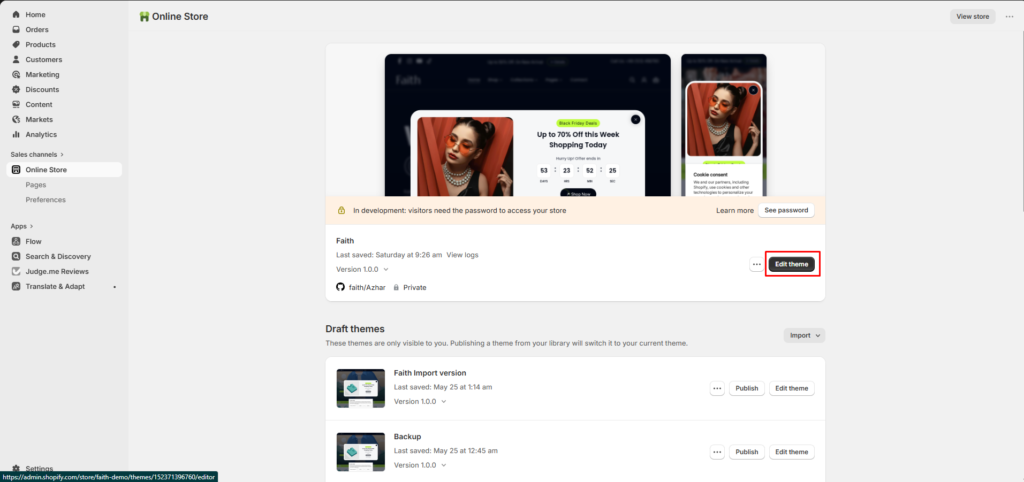
Go to Admin → Online Store → Themes
Click Customize on your active theme
Create a New Product Template
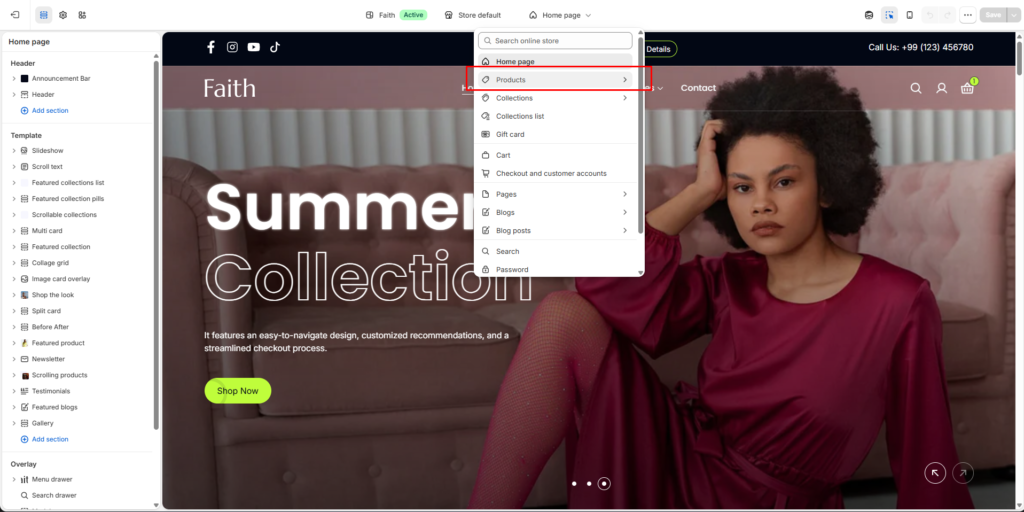
- Open the template selector at the top
- Select Products
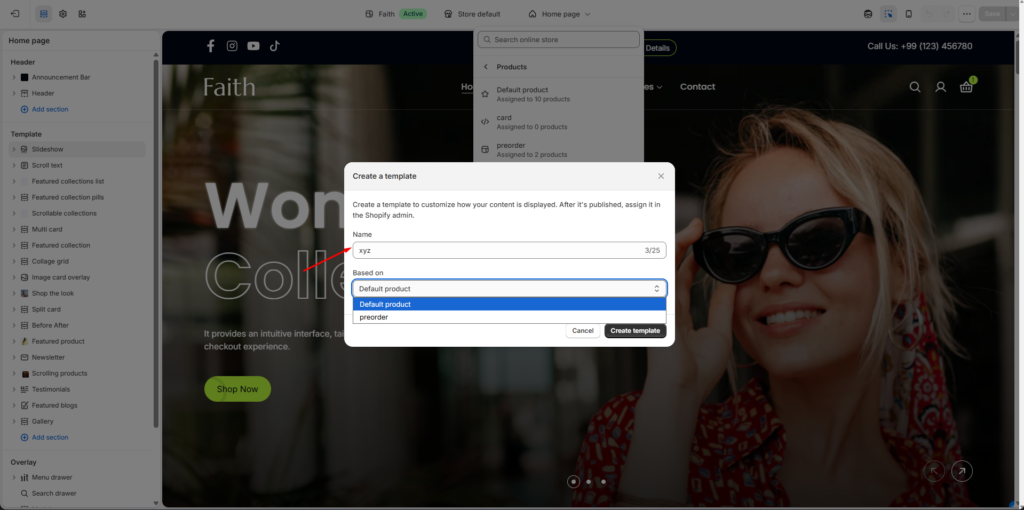
- Click Create template
- Enter your template name
Example:xyz - Choose a template from Based on
Example: Default product - Click Create template
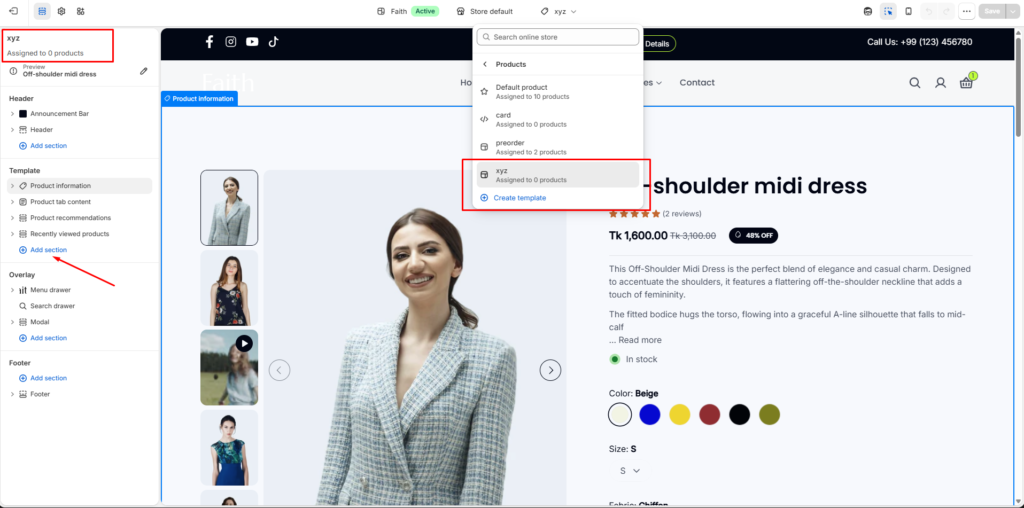
Your new product template will be created and ready for customization.
Customize Product Template
After creating the template, you can customize:
- Product information layout
- Product media
- Product title
- Price
- Variant picker
- Buy buttons
- Product description
- Size guide
- Reviews
- Custom sections
- Recommended products
Use Add section to add new sections and design a unique product page layout.
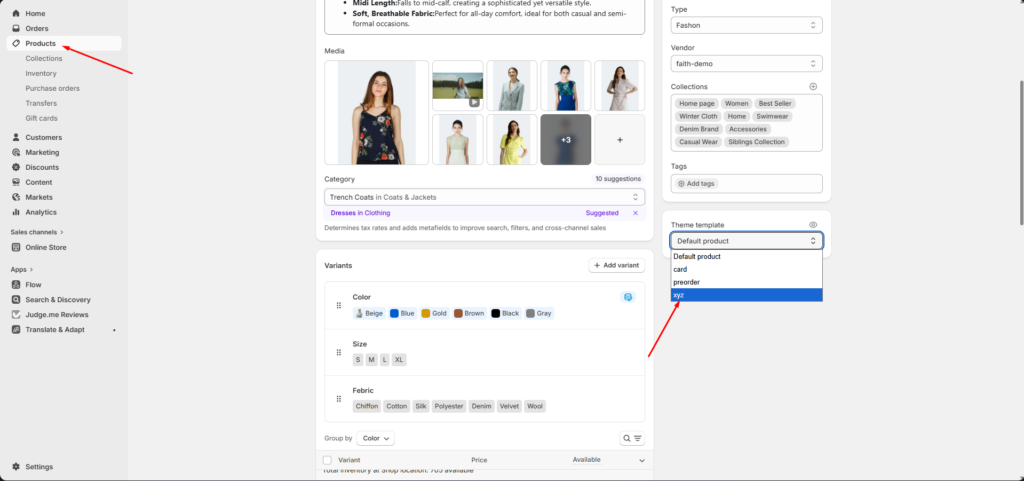
Assign Template to a Product
Go to Admin → Products
- Open your selected product
- Scroll down to Theme template
- Open the dropdown
- Select your custom template
Example:xyz - Click Save
The selected product will now use the custom product template.
Product Template Benefits
Custom product templates allow you to create different layouts for different products. You can design special pages for:
- Pre-order products
- Featured products
- Landing page products
- Collection-specific products
- Promotional products
Each template can have its own sections, blocks, and styling without affecting other product pages.