Overview
The Group block is a container that holds other blocks (Heading, Text, Subheading, Button, Image, Video, or another Group) and lays them out together. Use it to keep content together as one unit. For example, on a slide the Group holds the heading, text and button so they sit and move as one piece. Give a group its own width, background color, border and rounded corners to turn it into a card, or switch it to a horizontal layout to place items side by side. The same Group block is used across the whole theme, in Slideshow, Rich text and other sections.
How to use
- Go to Online Store → Themes → Customize.
- Open the page and expand the section where you want the group, for example Slideshow → Slide.
- Click Add block → Group, or select an existing Group block.
- Click Add block inside the Group to add a Heading, Subheading, Text, Button, Image, Video or another Group. Drag the blocks to reorder them.
- Under Layout, choose Vertical or Horizontal, and set the Alignment and gaps.
- Under Size, set the Width for desktop and mobile. On a slide, a Custom width (for example 46%) keeps the text to one side of the image.
- Under Appearance, turn off Inherit color scheme to give the group its own colors, and add a Border and Corner radius for a card look.
- Adjust the Mobile layout gaps and the Padding for Desktop and Mobile.
- Click Save.
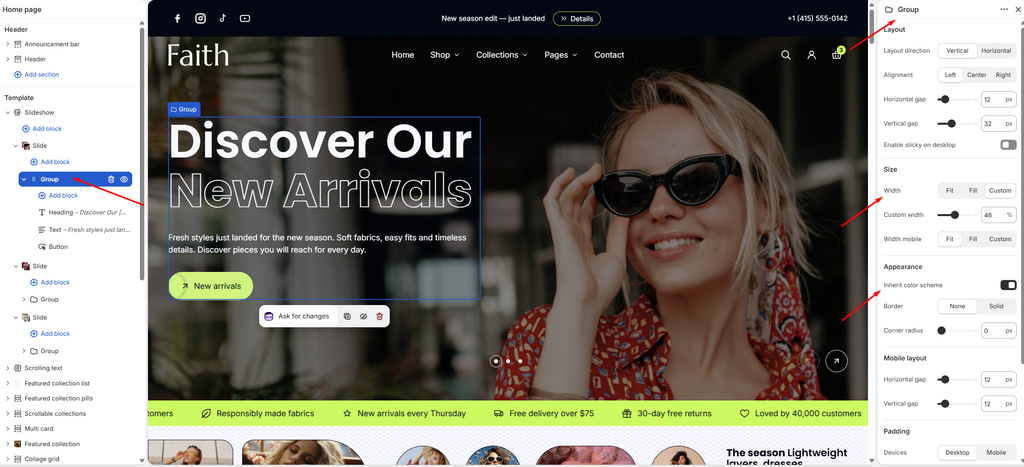
Settings
| Settings | Description |
|---|---|
| Layout Direction | Stack the blocks Vertical (one under another) or Horizontal (side by side). |
| Vertical on Mobile | Appears when Layout direction is Horizontal. Stacks the blocks vertically on mobile. |
| Alignment | Align the blocks inside the group: Left, Center or Right. A horizontal layout also offers Space between, which spreads the blocks across the full width. |
| Position | Appears when Layout direction is Horizontal. Align the blocks to the Top, Center or Bottom of the row. |
| Horizontal Gap | Adjust the space between blocks placed side by side (0–100 px). |
| Vertical Gap | Adjust the space between blocks stacked on top of each other (0–100 px). |
| Enable Sticky on Desktop | Keep the group fixed in view while the customer scrolls past the content beside it (desktop only). |
| Width | Set the group’s width on desktop: Fit (only as wide as its content), Fill (the full available width) or Custom. |
| Custom Width | Appears when Width is Custom. Set the width as a percentage of the available space (5–100%). |
| Width Mobile | Set the group’s width on mobile: Fit, Fill or Custom. Custom shows its own Custom width slider. |
| Inherit Color Scheme | Use the same colors as the section. Turn this off to choose a separate color scheme for the group. |
| Color Scheme | Appears when Inherit color scheme is off. Select a predefined color scheme for the group’s background and text. |
| Border | Add a border around the group: None or Solid. |
| Border Thickness | Appears when Border is Solid. Adjust the border thickness (0–10 px). |
| Border Opacity | Appears when Border is Solid. Adjust how visible the border is (0–100%). |
| Corner Radius | Customize the rounded corners of the group (0–100 px). |
| Horizontal Gap (Mobile layout) | Adjust the space between side-by-side blocks on mobile (0–100 px). |
| Vertical Gap (Mobile layout) | Adjust the space between stacked blocks on mobile (0–100 px). |
| Padding | Choose Desktop or Mobile under Devices, then adjust the Top, Bottom, Left and Right spacing inside the group for that device. |
Tip: A Group with Inherit color scheme off, a color scheme with a background, a Corner radius and some Padding works as a ready-made card, like the Talk About Your Store card in Rich text : Editorial.