How to Customize FAQ Page Template
Go to Admin → Online Store → Themes
Click Customize on your active theme
At the top template selector:
- Click the current template dropdown
- Select Pages
- Choose your FAQ page template (Example: FAQ)
- Start customizing the FAQ page sections
FAQ Page Sections
From here, you can customize:
- Page banner
- Page title
- Breadcrumb
- FAQ questions
- Accordion content
- Images
- Text content
- Buttons
- Layout settings
- Colors and spacing
The FAQ page template allows you to create a helpful question and answer page for your customers. You can add expandable FAQ items, organize questions by categories, add images, and customize the design to match your store style.
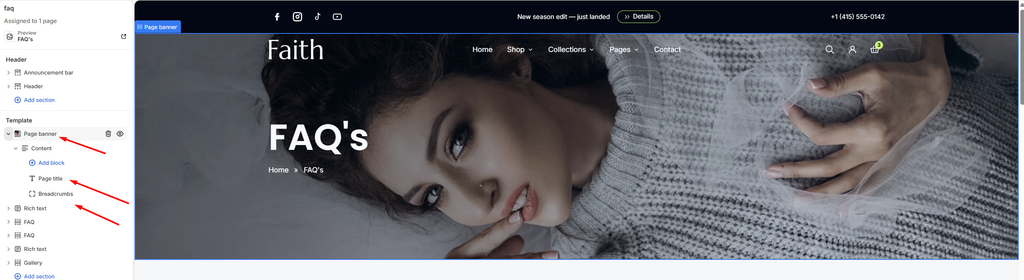
How to use
- Go to Online Store → Themes → Customize.
- Open the page where you want the banner, for example your FAQ page.
- In the left sidebar, click Add section and choose Page banner, or select an existing Page banner section.
- Under Media, turn on Show image and click Select to upload or choose a background image.
- Turn on Media overlay, then set the Overlay color, Overlay opacity and Overlay style.
- Choose the banner Height for desktop, and under Mobile settings choose the Height for mobile.
- Under Appearance, pick a Color scheme and the Section width.
- Adjust the Top and Bottom padding for Desktop and Mobile.
- Click Save.
Settings
| Settings | Description |
|---|---|
| Show Image | Turn the background image on or off. When it is off, the banner shows the color scheme’s background. |
| Image | Upload or select the background image for the banner. |
| Media Overlay | Add a color layer over the image so the title and breadcrumbs stay readable. |
| Overlay Color | Choose the color of the overlay. |
| Overlay Opacity | Adjust how strong the overlay is (0–100%). |
| Overlay Style | Choose how the overlay is applied: Gradient (fades across the image) or Solid (an even layer). |
| Height | Set the banner height on desktop. Options include Small, Medium, Large, Adapt to image and Custom. |
| Custom Height | Appears when Height is set to Custom. Set an exact desktop height (200–1000 px). |
| Height (Mobile settings) | Set the banner height on mobile. Options include Small, Medium, Large, Adapt to image and Custom. |
| Custom Height (Mobile settings) | Appears when the mobile Height is set to Custom. Set an exact mobile height (150–800 px). |
| Color Scheme | Select a predefined color scheme for the banner text and background. |
| Section Width | Set how wide the section is. Options include Same as theme, Full width, Wide, Standard, Narrow and Custom. This overrides the theme’s content width for this section only. |
| Custom Section Width | Appears when Section Width is set to Custom. Set an exact width for the section (600–2000 px). |
| Padding | Choose Desktop or Mobile under Devices, then adjust the Top and Bottom spacing of the section for that device. |
Content Block
Overview
The Content block holds everything shown on the banner: the Page title, Breadcrumbs, and any Heading, Text or Button you add. Its settings control where this content sits and how wide it can grow. This block is part of every Page banner and cannot be removed.
How to use
- Go to Online Store → Themes → Customize.
- Open the page that has the Page banner section.
- In the left sidebar, expand Page banner and select the Content block.
- Click Add block under Content to add a Page title, Breadcrumbs, Heading, Text or Button.
- Choose the Alignment for desktop and mobile, and the vertical Position.
- Adjust the Vertical gap and the Maximum width.
- Click Save.
Settings
| Settings | Description |
|---|---|
| Alignment | Align the banner content on desktop: Left, Center or Right. |
| Alignment Mobile | Align the banner content on mobile: Left, Center or Right. |
| Position | Place the content at the Top, Center or Bottom of the banner. |
| Vertical Gap | Adjust the spacing between the title, breadcrumbs and other content (0–60 px). |
| Maximum Width | Set how wide the content area can grow before the text wraps (300–1200 px). |
Page Title Block
Overview
The Page title block shows the name of the current page in large type. By default it uses the page’s own title, so one banner works across many pages without editing. You can replace it with a custom heading and control its size.
How to use
- Go to Online Store → Themes → Customize.
- Open the page that has the Page banner section.
- Expand Page banner → Content, then click Add block → Page title, or select the existing Page title block.
- Leave Custom heading blank to show the page’s own title, or type your own heading.
- Choose a Preset for the text size.
- If the preset is Custom, set the Font size for desktop and the Font size on mobile.
- Click Save.
Settings
| Settings | Description |
|---|---|
| Custom Heading | Enter your own heading text. Leave it blank to use the page title. |
| Preset | Choose the heading style. Options include Custom, Heading 1, Heading 2, Heading 3 and Heading 4. The Heading options use the sizes set in Theme settings → Typography. |
| Font Size | Appears when Preset is Custom. Set the title size on desktop (24–120 px). |
| Font Size on Mobile | Appears when Preset is Custom. Set the title size on mobile (20–80 px). |
Breadcrumbs Block
Overview
The Breadcrumbs block shows a navigation trail, for example Home » FAQ’s. It tells customers where they are and gives them a one-click way back to earlier pages. The trail is built automatically from the current page.
How to use
- Go to Online Store → Themes → Customize.
- Open the page that has the Page banner section.
- Expand Page banner → Content, then click Add block → Breadcrumbs, or select the existing Breadcrumbs block.
- On blog post templates, turn on Show article title to add the post name as the last step.
- Click Save.
Settings
| Settings | Description |
|---|---|
| Show Article Title | On a blog post, adds the post title as the last step of the trail. |
Settings
| Settings | Description |
|---|---|
| Color Scheme | Select a predefined color scheme for the section background and text. |
| Gap Between Image and Questions | Adjust the space between the image and the questions column (0–200 px). |
| Section Width | Set how wide the section is. Options include Same as theme, Full width, Wide, Standard, Narrow and Custom. This overrides the theme’s content width for this section only. |
| Custom Section Width | Appears when Section Width is set to Custom. Set an exact width for the section (600–2000 px). |
| Padding | Choose Desktop or Mobile under Devices, then adjust the Top and Bottom spacing of the section for that device. |
Image Block
Overview
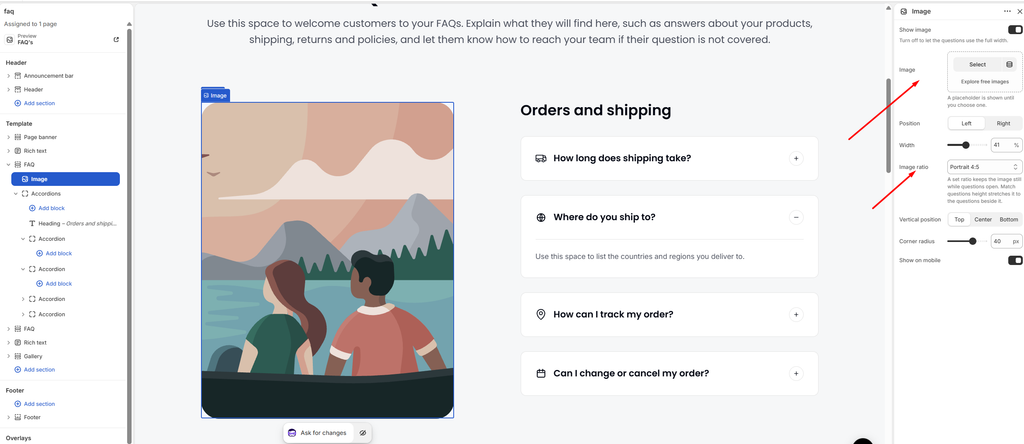
The Image block places a picture next to the questions. It can sit on the left or right, and you can hide it on mobile or turn it off completely. This block is part of every FAQ section and cannot be removed. To hide it, turn off Show image.
How to use
- Go to Online Store → Themes → Customize.
- Open the page that has the FAQ section.
- In the left sidebar, expand the FAQ section and select the Image block.
- Make sure Show image is turned on, then click Select to upload or choose an image.
- Choose the Position (Left or Right) and adjust the Width.
- Pick an Image ratio and set the Vertical position.
- Adjust the Corner radius, and turn off Show on mobile if you want to hide the image on phones.
- Click Save.
Settings
| Settings | Description |
|---|---|
| Show Image | Turn the image on or off. When it is off, the questions use the full width of the section. |
| Image | Upload or select the image to display. A placeholder is shown until you choose one. |
| Position | Choose which side of the questions the image appears on: Left or Right. |
| Width | Adjust how much of the section width the image takes (25–60%). |
| Image Ratio | Choose the image shape. Options include Match questions height, Original, Square, Portrait 4:5, Portrait 3:4, Landscape 4:3, Landscape 3:2 and Wide 16:9. A set ratio keeps the image still while questions open. Match questions height stretches the image to the height of the questions beside it. |
| Vertical Position | Align the image to the Top, Center or Bottom of the questions column. Not shown when Image Ratio is set to Match questions height. |
| Corner Radius | Customize the rounded corners of the image (0–60 px). |
| Show on Mobile | Turn this off to hide the image on mobile, so phones show only the questions. |
Accordions Block
Overview
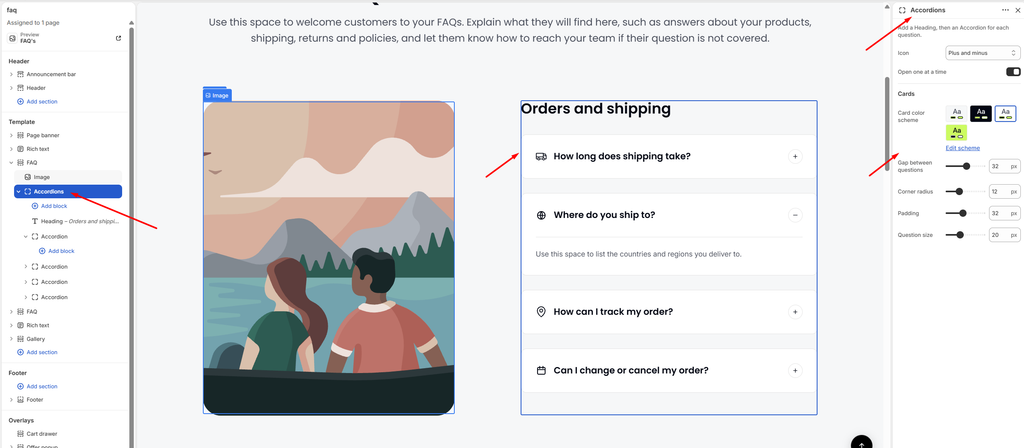
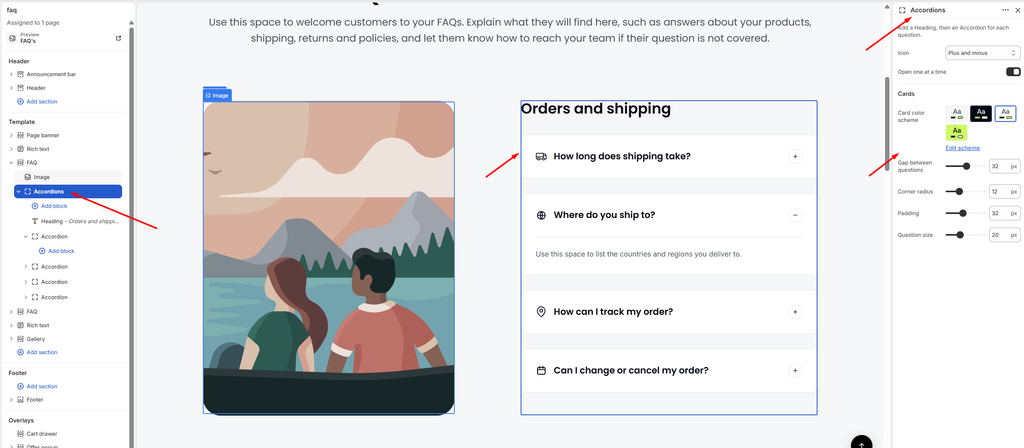
The Accordions block holds the group’s heading and all of its questions. Add a Heading first, then one Accordion block for each question. The settings here control how every question card in the group looks and behaves. This block is part of every FAQ section and cannot be removed.
How to use
- Go to Online Store → Themes → Customize.
- Open the page that has the FAQ section.
- In the left sidebar, expand the FAQ section and select the Accordions block.
- Click Add block under Accordions and add a Heading for the group (for example, Orders and shipping).
- Click Add block again and add an Accordion for each question.
- Choose the open and close Icon (Plus and minus, or Chevron), and turn Open one at a time on or off.
- Customize the Card color scheme, Gap between questions, Corner radius, Padding and Question size.
- Click Save.
Settings
| Settings | Description |
|---|---|
| Icon | Choose the open and close icon shown on each question. Options include Plus and minus and Chevron. |
| Open One at a Time | When this is on, opening a question closes the one that was open, so only one answer shows at a time. |
| Card Color Scheme | Select a predefined color scheme for the question cards. |
| Gap Between Questions | Adjust the spacing between the question cards (0–60 px). |
| Corner Radius | Customize the rounded corners of the question cards (0–40 px). |
| Padding | Adjust the spacing inside each question card (12–60 px). |
| Question Size | Set the font size of the question text (14–32 px). |
Accordion Block
Overview
The Accordion block is a single question with its answer. Customers click the question to expand or collapse the answer, which keeps long FAQ pages clean and easy to scan. Add one Accordion block for each question inside the Accordions block.
How to use
- Go to Online Store → Themes → Customize.
- Open the page that has the FAQ section.
- Expand the FAQ section, then expand the Accordions block.
- Click Add block → Accordion, or select an existing Accordion block.
- Type your question in the Question field.
- Add the answer in the Answer field. You can use bold, italic, links and lists.
- Choose an Icon, or upload your own SVG or PNG under Custom icon.
- Turn on Open by default if this question should be expanded when the page loads.
- Click Save.
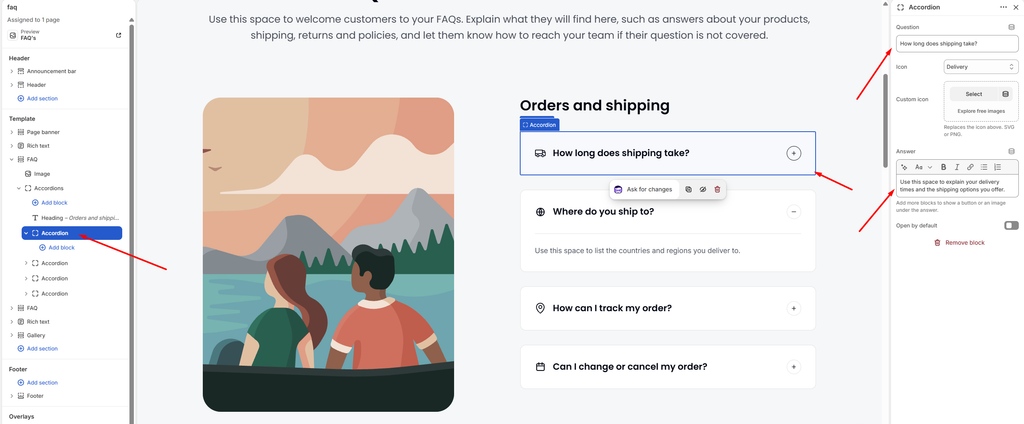
Settings
| Settings | Description |
|---|---|
| Question | Add the question text shown on the card. |
| Icon | Select an icon to display before the question. Options include None, Location, Address book, Phone, Open envelope, Email, Clock, Calendar, Chat, Question, Delivery, Truck, Globe, Return, Credit card, Money, Shield, Lock, Gift, Heart, Tag, Percent, Leaf, Box and Star. |
| Custom Icon | Upload your own icon (SVG or PNG). It replaces the icon selected above. |
| Answer | Add the answer text shown when the question is opened. You can use bold, italic, links and lists. |
| Open by Default | Show this question already expanded when the page loads. |
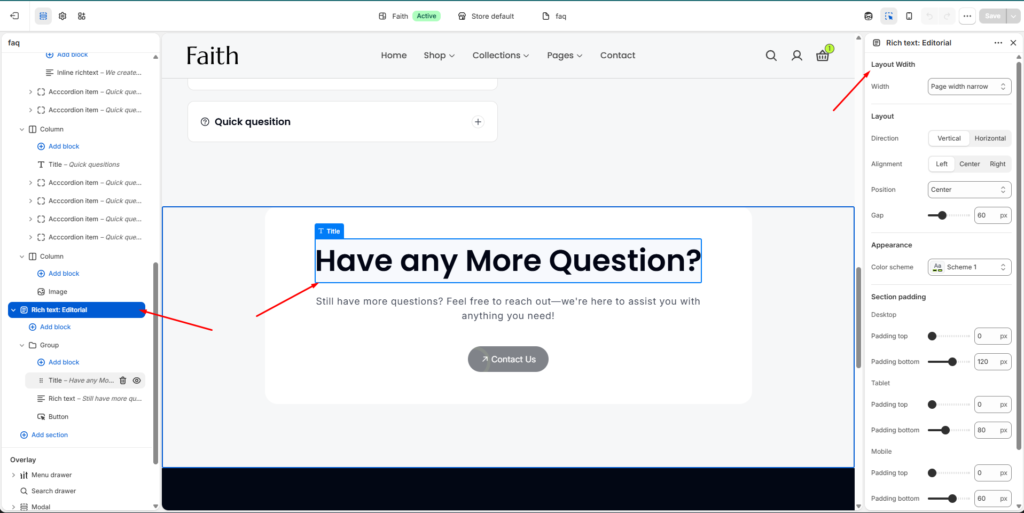
Rich Text Section
Overview
The Rich text section is a flexible content area for headings, paragraphs, buttons, images and groups. Use it to introduce a page, tell your brand story, or add a call to action between other sections. The Rich text : Editorial preset is the same section with the content placed inside a card (a Group block), ready to edit.
How to use
- Go to Online Store → Themes → Customize.
- Open the page where you want the content.
- In the left sidebar, click Add section and choose Rich text or Rich text : Editorial, or select an existing one.
- Click Add block to add a Heading, Text, Button, Image, Group, Custom Liquid or an app block.
- Choose a Color scheme and the Alignment of the content.
- Adjust the Maximum width and the Vertical gap.
- Set the Section width and the Top and Bottom padding for Desktop and Mobile.
- Click Save.
Settings
| Settings | Description |
|---|---|
| Color Scheme | Select a predefined color scheme for the section background and text. |
| Alignment | Align the content to the Left, Center or Right. |
| Maximum Width | Set how wide the content area can grow before the text wraps (400–1400 px). |
| Vertical Gap | Adjust the spacing between the blocks inside the section (0–60 px). |
| Section Width | Set how wide the section is. Options include Same as theme, Full width, Wide, Standard, Narrow and Custom. This overrides the theme’s content width for this section only. |
| Custom Section Width | Appears when Section Width is set to Custom. Set an exact width for the section (600–2000 px). |
| Padding | Choose Desktop or Mobile under Devices, then adjust the Top and Bottom spacing of the section for that device. |
| Custom CSS | Shopify’s built-in field for adding your own CSS to this section only. |
Group Block
Overview
The Group block is a container that holds other blocks (Heading, Text, Button, Image, Video, or another Group) and lays them out together. Use it to build a card with its own background, border and rounded corners, or to place items side by side. In the Rich text : Editorial preset, the white card that holds the heading, text and button is a Group block.
How to use
- Go to Online Store → Themes → Customize.
- Open the page that has the section, for example Rich text : Editorial.
- Expand the section, then click Add block → Group, or select an existing Group block.
- Click Add block inside the Group to add a Heading, Text, Button, Image, Video or another Group.
- Under Layout, choose Vertical or Horizontal, and set the Alignment and gaps.
- Under Size, set the Width for desktop and mobile.
- Under Appearance, turn off Inherit color scheme to give the group its own colors, then add a Border and Corner radius if you want a card look.
- Adjust the Padding for Desktop and Mobile.
- Click Save.
Settings
| Settings | Description |
|---|---|
| Layout Direction | Stack the blocks Vertical (one under another) or Horizontal (side by side). |
| Vertical on Mobile | Appears when Layout direction is Horizontal. Stacks the blocks vertically on mobile. |
| Alignment | Align the blocks inside the group: Left, Center or Right. A horizontal layout also offers Space between, which spreads the blocks across the full width. |
| Position | Appears when Layout direction is Horizontal. Align the blocks to the Top, Center or Bottom of the row. |
| Horizontal Gap | Adjust the space between blocks placed side by side (0–100 px). |
| Vertical Gap | Adjust the space between blocks stacked on top of each other (0–100 px). |
| Enable Sticky on Desktop | Keep the group fixed in view while the customer scrolls past the content beside it (desktop only). |
| Width | Set the group’s width on desktop: Fit (only as wide as its content), Fill (the full available width) or Custom. |
| Custom Width | Appears when Width is set to Custom. Set the width as a percentage (5–100%). |
| Width Mobile | Set the group’s width on mobile: Fit, Fill or Custom. A Custom option shows its own Custom width slider. |
| Inherit Color Scheme | Use the same colors as the section. Turn this off to choose a separate color scheme for the group. |
| Color Scheme | Appears when Inherit color scheme is off. Select a predefined color scheme for the group. |
| Border | Add a border around the group: None or Solid. |
| Border Thickness | Appears when Border is Solid. Adjust the border thickness (0–10 px). |
| Border Opacity | Appears when Border is Solid. Adjust how visible the border is (0–100%). |
| Corner Radius | Customize the rounded corners of the group (0–100 px). |
| Horizontal Gap (Mobile layout) | Adjust the space between side-by-side blocks on mobile (0–100 px). |
| Vertical Gap (Mobile layout) | Adjust the space between stacked blocks on mobile (0–100 px). |
| Padding | Choose Desktop or Mobile under Devices, then adjust the Top, Bottom, Left and Right spacing inside the group for that device. |
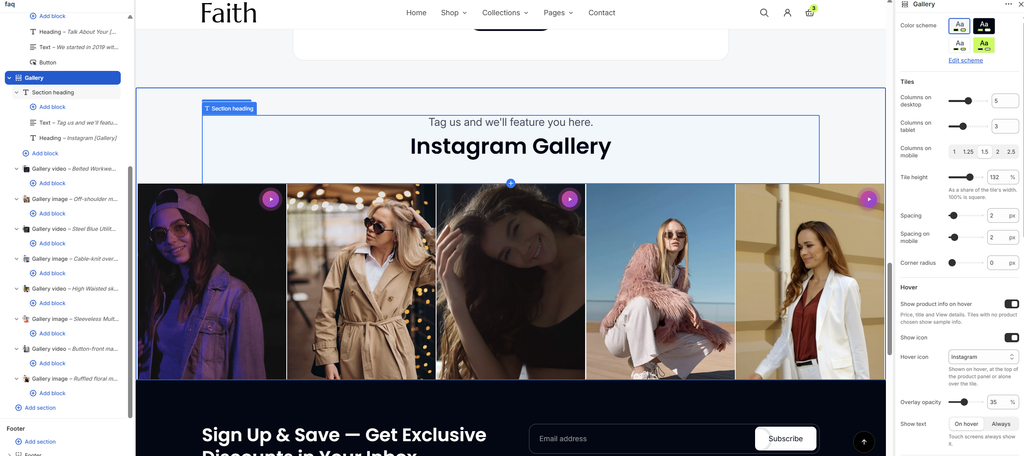
Gallery Section
Overview
The Gallery section shows a scrolling row of image and video tiles, ideal for an Instagram-style feed or customer photos. Each tile can be linked to a product, so shoppers see the price and title on hover and can click through to buy. The section works as a carousel, with optional dots, slide counter, progress bar and auto-rotation.
How to use
- Go to Online Store → Themes → Customize.
- Open the page where you want the gallery, for example your FAQ page.
- In the left sidebar, click Add section and choose Gallery, or select an existing Gallery section.
- Edit the Section heading block to change the title and the subtitle above the tiles.
- Click Add block and choose Gallery image or Gallery video for each tile.
- Under Tiles, set the number of columns for desktop, tablet and mobile, and adjust the Tile height, Spacing and Corner radius.
- Under Hover, choose what shows when a customer hovers over a tile.
- Under Carousel, turn on dots, counter, progress bar, looping or auto-rotation as needed.
- Set the Section width and the Top and Bottom padding for Desktop and Mobile.
- Click Save.
Settings
| Settings | Description |
|---|---|
| Color Scheme | Select a predefined color scheme for the section background and text. |
| Columns on Desktop | Set how many tiles show across on desktop (2–8). |
| Columns on Tablet | Set how many tiles show across on tablet (2–5). |
| Columns on Mobile | Set how many tiles show across on mobile. Options include 1, 1.25, 1.5, 2 and 2.5. A value like 1.5 shows part of the next tile, so customers know they can swipe. |
| Tile Height | Set the tile height as a share of its width (50–180%). 100% is square; higher values make taller tiles. |
| Spacing | Adjust the space between tiles on desktop (0–40 px). |
| Spacing on Mobile | Adjust the space between tiles on mobile (0–24 px). |
| Corner Radius | Customize the rounded corners of the tiles (0–40 px). |
| Show Product Info on Hover | Show the price, title and a View details link over the tile on hover. Tiles with no product chosen show sample info. |
| Show Icon | Show an icon over the tile on hover. |
| Hover Icon | Appears when Show icon is on. Choose the icon: Instagram, TikTok, Pinterest, Plus, Arrow or Eye. It appears at the top of the product panel, or alone over the tile. |
| Overlay Opacity | Adjust how dark the tile becomes on hover (0–80%). |
| Show Text | Choose when the hover content appears: On hover or Always. Touch screens always show it. |
| Gradient Start / Gradient End | Choose the two colors of the gradient on the video play button. |
| Show Dots | Show navigation dots under the carousel. |
| Show Slide Counter | Show the current slide number, for example 2 / 8. |
| Show Progress Bar | Show a bar that fills as the customer moves through the slides. |
| Loop Slides | Return to the first tile after the last one. |
| Auto-rotate Slides | Move to the next tile automatically. |
| Change Slides Every | Appears when Auto-rotate slides is on. Set how long each slide stays before moving on (3–10 seconds). |
| Pause on Hover | Appears when Auto-rotate slides is on. Stop auto-rotation while the customer’s mouse is over the gallery. |
| Section Width | Set how wide the section is. Options include Same as theme, Full width, Wide, Standard, Narrow and Custom. Full width runs the tiles to the edges of the screen. |
| Custom Section Width | Appears when Section Width is set to Custom. Set an exact width for the section (600–2000 px). |
| Padding | Choose Desktop or Mobile under Devices, then adjust the Top and Bottom spacing of the section for that device. |
Tip: To show carousel arrows, select the Section heading block, set its Layout to Horizontal, and choose Carousel arrows under Show.
Section Heading Block
Overview
The Section heading block is the title area at the top of the section. It holds a Heading, a Text line, and optionally a Button. In a horizontal layout it can also show a View all button or carousel arrows on the right. This block is part of the section and cannot be removed. To hide it, remove the blocks inside it.
How to use
- Go to Online Store → Themes → Customize.
- Open the page that has the section, for example Gallery.
- Expand the section and select the Section heading block.
- Edit the Heading and Text blocks inside it, or click Add block to add a Button.
- Choose the Layout: Vertical (centered title) or Horizontal (title on the left, actions on the right).
- For a horizontal layout, choose what to Show on the right: nothing, a View all button, Carousel arrows, or both.
- Adjust the Text width, the spacing, and the Top and Bottom padding.
- Click Save.
Settings
| Settings | Description |
|---|---|
| Layout | Choose Vertical (heading stacked above the content) or Horizontal (heading on the left, button or arrows on the right). |
| Alignment | Appears in the Vertical layout. Align the heading Left, Center or Right. |
| Vertical Alignment | Appears in the Horizontal layout. Line up the heading and actions at the Top, Middle or Bottom. |
| Text Width | Set how wide the heading text can grow before it wraps (320–1400 px). |
| Space Between Text and Actions | Adjust the gap between the heading and the button or arrows (0–60 px). |
| Show | Appears in the Horizontal layout. Choose what shows on the right: Nothing, View all button, Carousel arrows, or Button and arrows. Carousel arrows control the section’s carousel and hide when the section shows a grid. |
| Button Label | Appears when a button is shown. Enter the button text. |
| Button Link | Appears when a button is shown. Choose where the button goes. Leave it empty to link to the section’s collection. |
| Button Style | Appears when a button is shown. Choose Primary or Secondary. |
| Arrow Style | Appears when arrows are shown. Choose Diagonal arrow or Left / right arrow. |
| Padding | Choose Desktop or Mobile under Devices, then adjust the Top and Bottom spacing of the heading for that device. |
Gallery Image Block
Overview
The Gallery image block is a single image tile. Link it to a product to show that product’s price and title on hover and send shoppers to the product page. You can also link the whole tile to any URL, such as an Instagram post.
How to use
- Go to Online Store → Themes → Customize.
- Open the page that has the Gallery section.
- Expand Gallery, then click Add block → Gallery image, or select an existing Gallery image block.
- Click Select under Image to upload or choose a picture.
- Choose a Product to show its details on hover, or add a Link to make the whole tile clickable.
- Turn on Open link in a new tab if the link goes to another website.
- Click Save.
Settings
| Settings | Description |
|---|---|
| Image | Upload or select the image for the tile. |
| Product | Choose a product to show its price and title over the tile on hover. The tile then links to that product. |
| Link | Make the whole tile clickable, for example to a social media post. |
| Open Link in a New Tab | Appears when a Link is added. Opens the link in a new browser tab. |
Gallery Video Block
Overview
The Gallery video block is a video tile that plays inside the gallery. Use an uploaded video or a YouTube or Vimeo link. Like image tiles, it can be linked to a product so shoppers can buy what they see.
How to use
- Go to Online Store → Themes → Customize.
- Open the page that has the Gallery section.
- Expand Gallery, then click Add block → Gallery video, or select an existing Gallery video block.
- Choose the Source: Uploaded to select a video from your Shopify files, or External URL to paste a YouTube or Vimeo link.
- Add a Cover image (optional) and Alt text that describes the video.
- Turn Video autoplay and Video looping on or off.
- Choose a Product to show its details on hover, or add a Link.
- Click Save.
Settings
| Settings | Description |
|---|---|
| Source | Choose where the video comes from: Uploaded (a video in your Shopify files) or External URL (YouTube or Vimeo). |
| Video | Appears when Source is Uploaded. Select the video file. |
| Video URL | Appears when Source is External URL. Paste a YouTube or Vimeo link. |
| Cover Image | Shown until the video plays. Uploaded videos use their own preview image when this is empty. |
| Alt Text | Describe the video for customers who use screen readers. |
| Video Autoplay | Play the video automatically. Videos are muted by default. |
| Video Looping | Restart the video when it ends. |
| Product | Choose a product to show its price and title over the tile on hover. The tile then links to that product. |
| Link | Make the whole tile clickable, for example to a social media post. |
| Open Link in a New Tab |