Overview
Faith’s color settings use schemes — reusable sets of colors for backgrounds, text, buttons and borders — that you build once here and then apply to individual sections throughout your store.
Color schemes are applied per-section, not globally. After editing a scheme here, you’ll still need to assign it to each section (in Customize) for it to take effect.
Before you start
- Schemes are reusable — the same scheme can be applied to multiple sections. Editing a scheme’s colors updates every section using it.
- If you’re editing your live theme, changes go out immediately. If you’re editing a draft theme, publish it first to see changes on your store.
- From your Shopify admin, go to Online Store > Themes.
- Next to the theme you want to edit, click Customize.
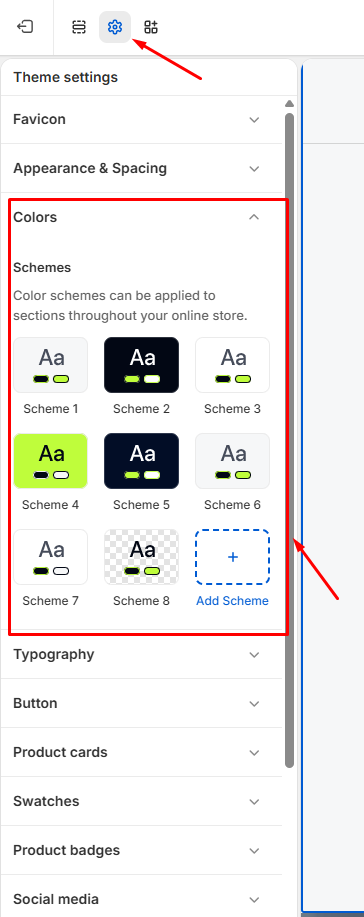
- In the left-hand panel, click Theme settings, then select Colors.
- Under Schemes, you’ll see a set of pre-built color schemes (Scheme 1–8). Each scheme controls a full set of colors — background, text, buttons and borders — used together wherever that scheme is applied.
- Click any scheme to edit its colors, or click Add Scheme to create a new one.
- Click a color swatch inside a scheme to open the color picker and choose a new color.
- Click Save in the top-right corner of the editor.
Editing a scheme here updates every section it’s applied to. Sections not using that scheme won’t change.
Troubleshooting:
Changes not showing on your store? Make sure you’re editing the theme currently published as your live theme, not a draft or duplicate.